> ## Documentation Index
> Fetch the complete documentation index at: https://fillout-005a867b-dependabot-npm-and-yarn-form-data-4-0-6.mintlify.site/llms.txt
> Use this file to discover all available pages before exploring further.
# Workspaces
> Organize your forms with workspaces. Store forms in different folders and manage access across user types.
## Create a workspace
On your **dashboard**, hover and click to add a new workspace.
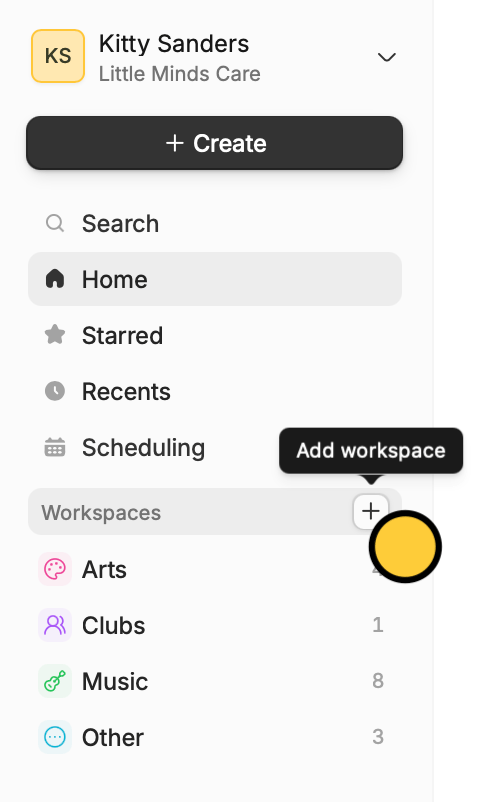 You’ll now be redirected to your new **workspace**, which can also be accessed on the left-hand panel.
## Add a form to a workspace
Click followed by `Move to`. Then, choose the workspace you’d like to add the form to.
You’ll now be redirected to your new **workspace**, which can also be accessed on the left-hand panel.
## Add a form to a workspace
Click followed by `Move to`. Then, choose the workspace you’d like to add the form to.
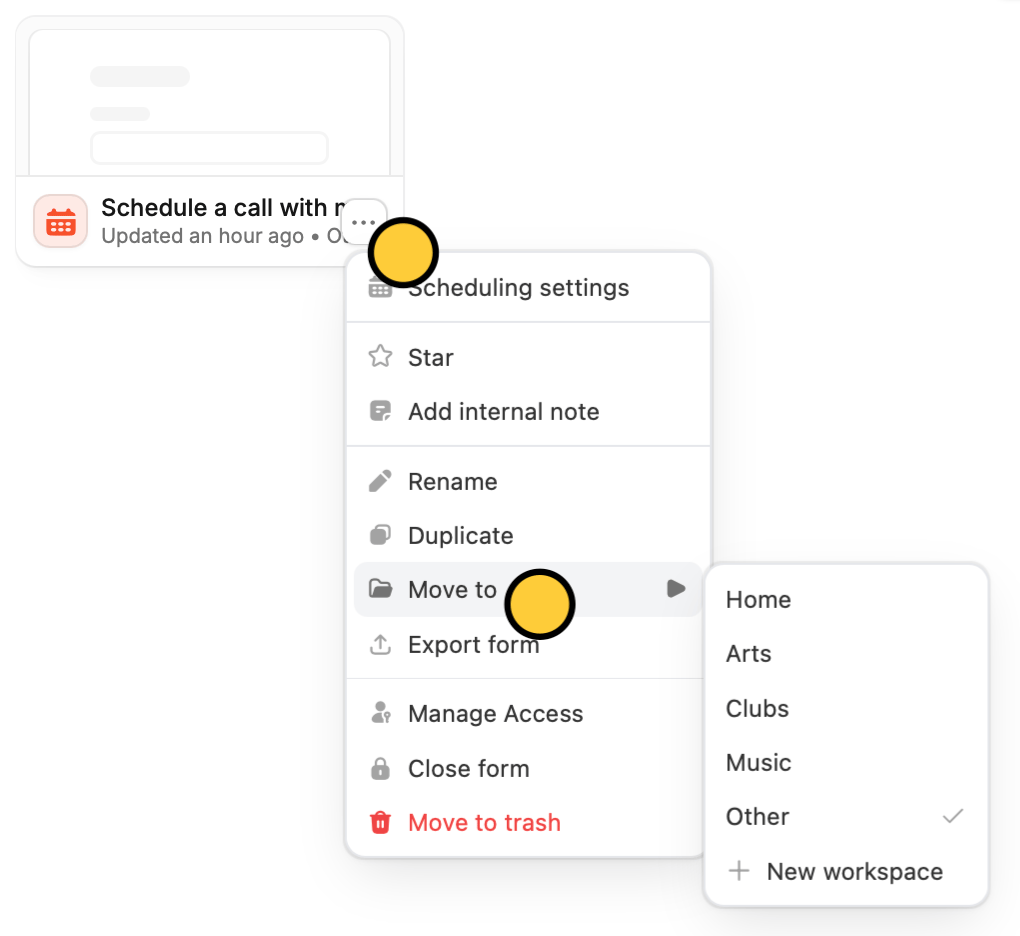 Alternatively, you can drag and drop a form to your preferred workspace.
## Related articles
View results, and edit forms with free seats.
Transfer between different accounts.
Create organizations for different companies with the same email.
Alternatively, you can drag and drop a form to your preferred workspace.
## Related articles
View results, and edit forms with free seats.
Transfer between different accounts.
Create organizations for different companies with the same email.