> ## Documentation Index
> Fetch the complete documentation index at: https://fillout-005a867b-dependabot-npm-and-yarn-form-data-4-0-6.mintlify.site/llms.txt
> Use this file to discover all available pages before exploring further.
# Select and filter Airtable linked records in a dropdown
> Let respondents select Airtable linked records from a Fillout form. Optionally filter records based on prior inputs.
## Video tutorial
In Fillout, you can even filter which records a respondent is choosing from. Here's how.
## Enable dropdown filtering
On the Airtable base you plan to write or update, click `+` followed by `Link to another record`.
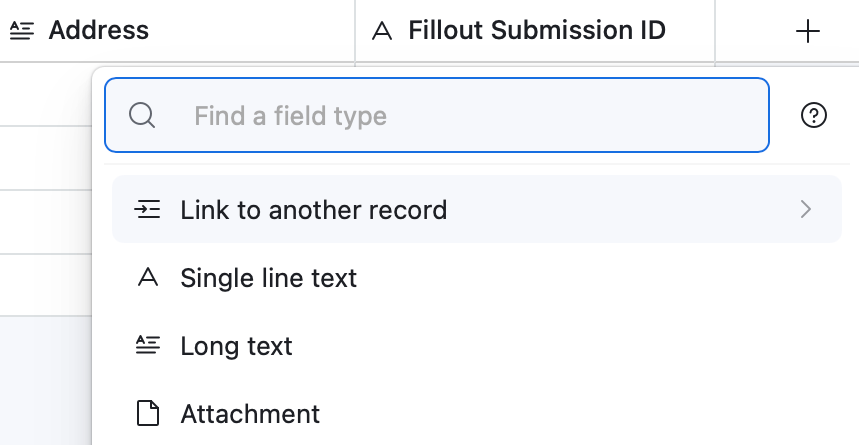 Click `Integrate` on the top menu followed by `Airtable`. Then, choose your **base** and **table**.
On the left-hand panel, drag and drop the linked record picker field onto your form. You'll immediately be able to pick from records in that associated table.
Click `Integrate` on the top menu followed by `Airtable`. Then, choose your **base** and **table**.
On the left-hand panel, drag and drop the linked record picker field onto your form. You'll immediately be able to pick from records in that associated table.
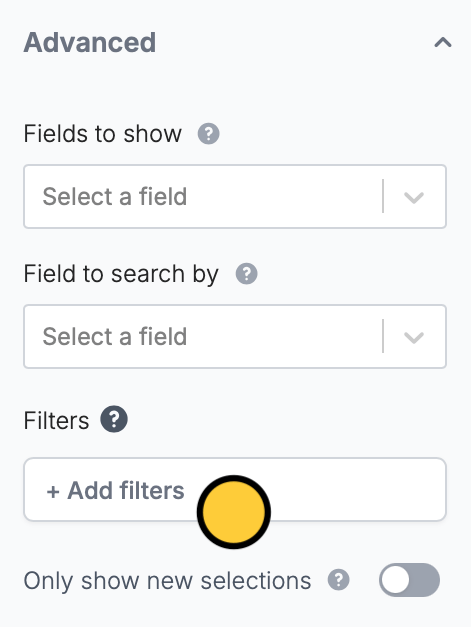
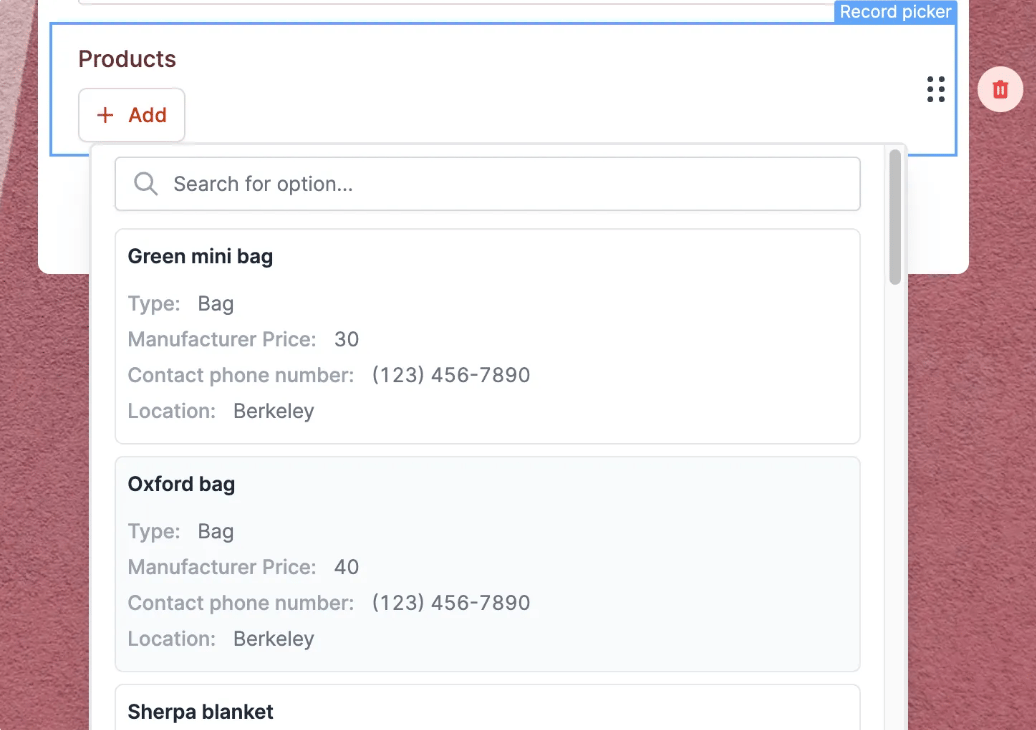 Click the field's to open the right-hand panel. Scroll down to **Advanced** to `+ Add filters`.
 `Publish` your form to make the changes reflect.
## Additional custom options
Now, you can customize this field with many options like:
* Allow respondents to create new entries in a new (customizable) form
* Allow selecting multiple linked records
* Select which fields to show (can show images!)
* Limit to a view
* Pick which field to search by
* Filter which records to show based on form inputs or dynamic data
* And many more!
## Related articles
Let respondents create records from your form.
Edit existing records and pre-fill fields.
Set pre-fills, reference fields, and more.
`Publish` your form to make the changes reflect.
## Additional custom options
Now, you can customize this field with many options like:
* Allow respondents to create new entries in a new (customizable) form
* Allow selecting multiple linked records
* Select which fields to show (can show images!)
* Limit to a view
* Pick which field to search by
* Filter which records to show based on form inputs or dynamic data
* And many more!
## Related articles
Let respondents create records from your form.
Edit existing records and pre-fill fields.
Set pre-fills, reference fields, and more.