> ## Documentation Index
> Fetch the complete documentation index at: https://fillout-005a867b-dependabot-npm-and-yarn-form-data-4-0-6.mintlify.site/llms.txt
> Use this file to discover all available pages before exploring further.
# Add placeholder text to form fields
> Add text to where your respondents type their answers or choose options.
## Overview
Placeholders are often used to show a sample answer or give instructions on how to respond. You can also use them to type your question directly into the field, making form shorter and neater.
## How to add placeholders to text fields
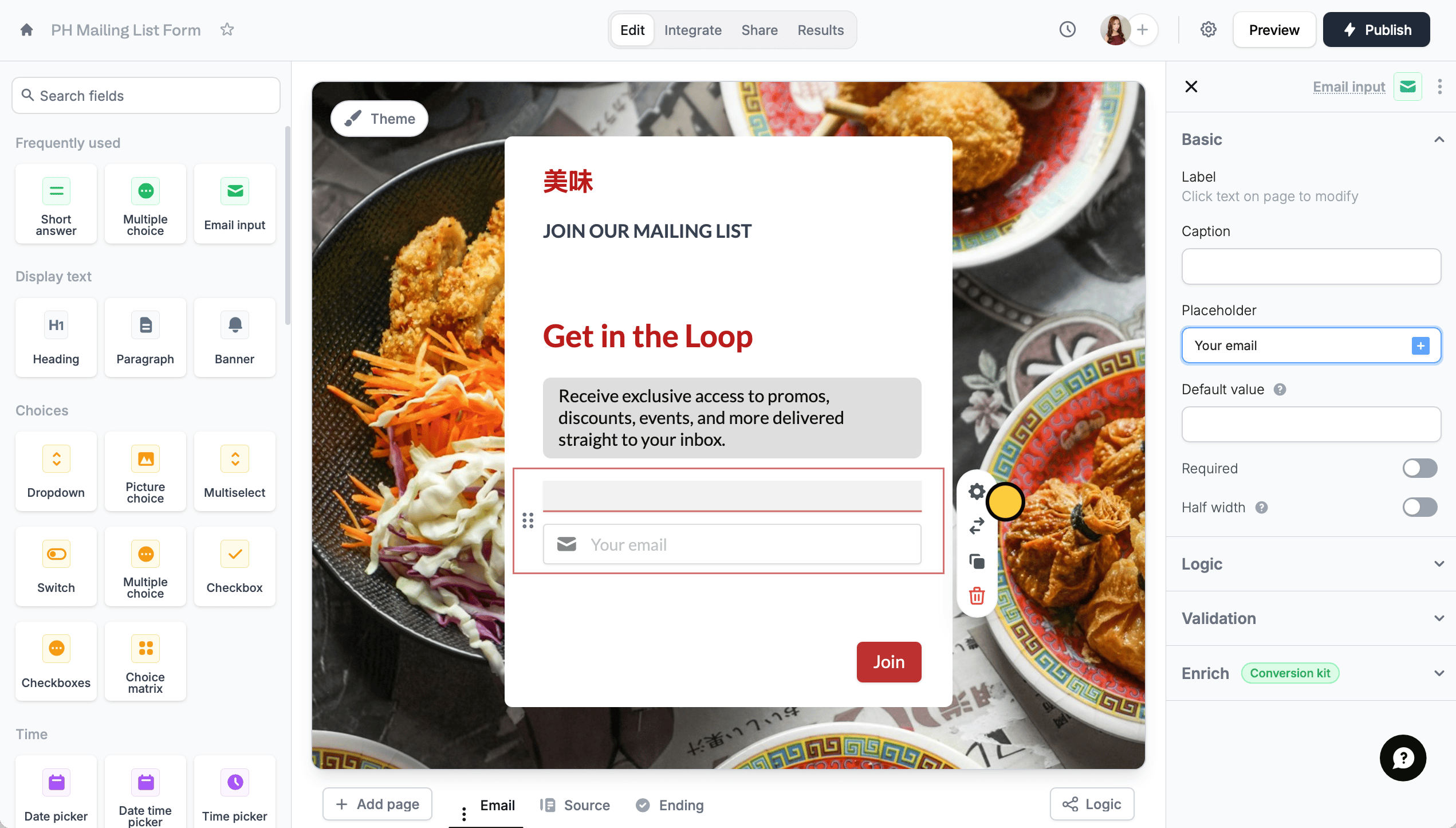
Click the text field followed by its to open the right-hand panel. Then, type your **Placeholder**.
 ## Add placeholders to choice fields
Similar to the step above, click the field followed by its to show the right-hand panel. Then, type your **Placeholder**.
## Add placeholders to choice fields
Similar to the step above, click the field followed by its to show the right-hand panel. Then, type your **Placeholder**.
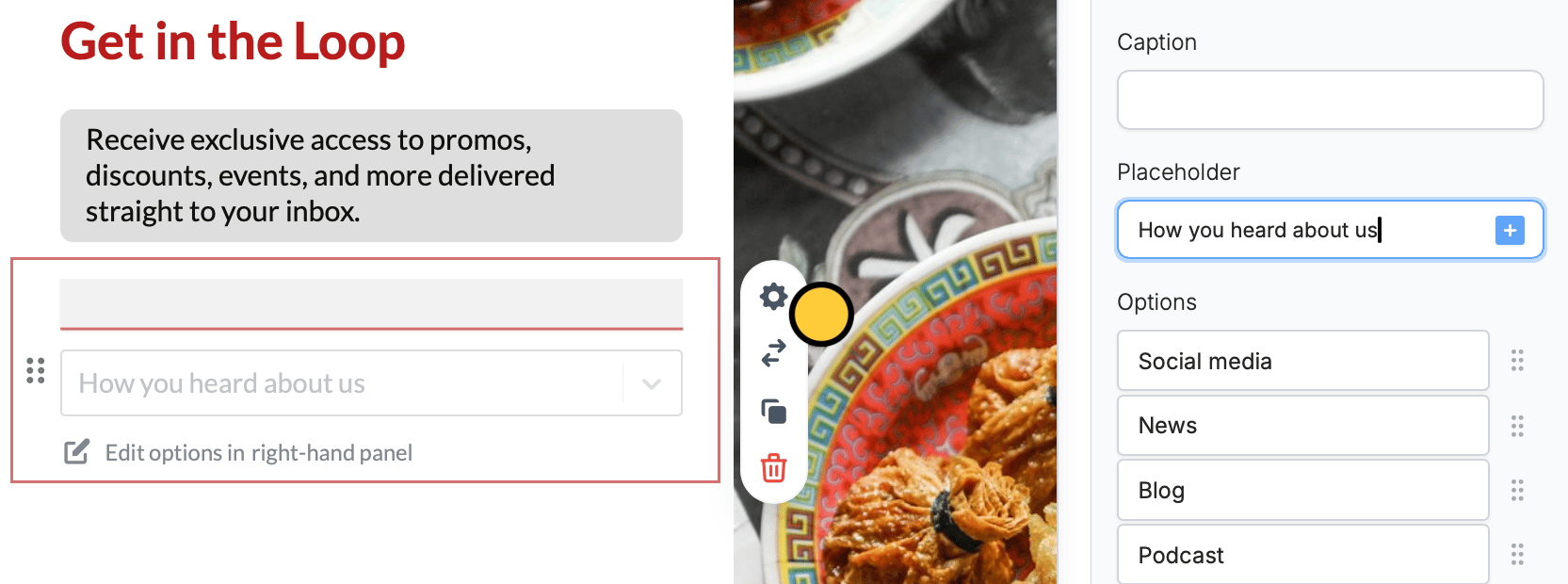 Placeholders disappear once a respondent starts typing in the field or selects an option. These aren't intended to [pre-fill an answer](/answer-piping) for respondents.
## Reference previous answers as placeholders
You can use a respondent’s previous answer to remind them or guide a question or field. This is especially useful in forms with multiple related questions, so respondents don’t have to scroll back.
Under **Placeholder**, click the or type **@** to reference a field with the previous answer.
Placeholders disappear once a respondent starts typing in the field or selects an option. These aren't intended to [pre-fill an answer](/answer-piping) for respondents.
## Reference previous answers as placeholders
You can use a respondent’s previous answer to remind them or guide a question or field. This is especially useful in forms with multiple related questions, so respondents don’t have to scroll back.
Under **Placeholder**, click the or type **@** to reference a field with the previous answer.
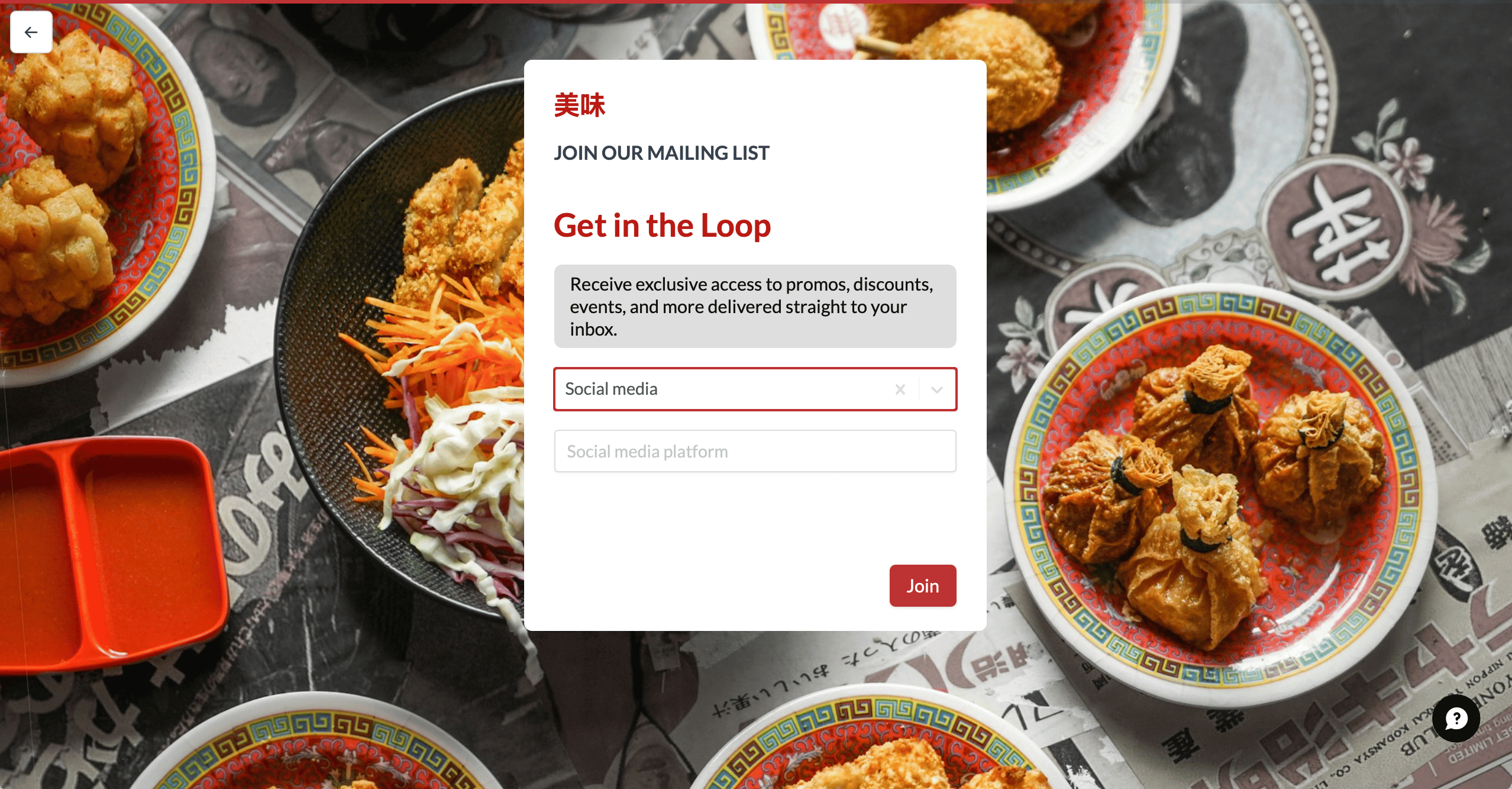
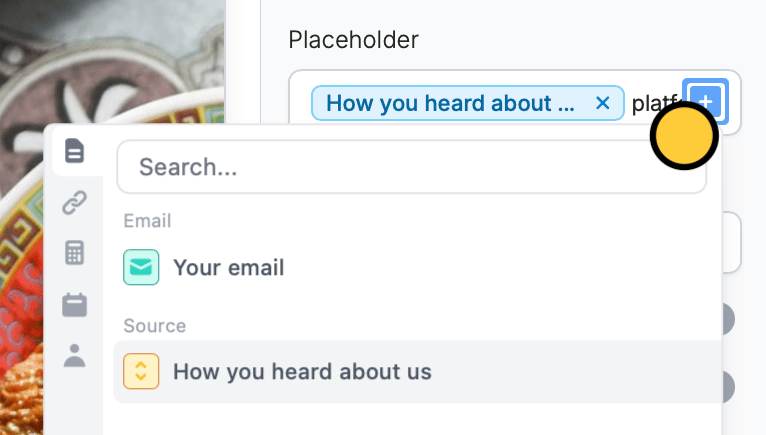 In our example, we first asked how they heard about us, and then added a follow-up field to ask which specific platform.
 ## Related articles
Insert previous answers into upcoming questions or fields.
Customize or change over 50 field types, add captions, and more.
## Related articles
Insert previous answers into upcoming questions or fields.
Customize or change over 50 field types, add captions, and more.