> ## Documentation Index
> Fetch the complete documentation index at: https://fillout-005a867b-dependabot-npm-and-yarn-form-data-4-0-6.mintlify.site/llms.txt
> Use this file to discover all available pages before exploring further.
# Update existing Notion pages with a form
> Make a form that edits existing pages from Notion, and pre-fills fields with data from the page.
## How it works
Open your [Notion-connected form](https://www.fillout.com/help/notion). Click `Integrate` on the top menu followed by `Notion`.
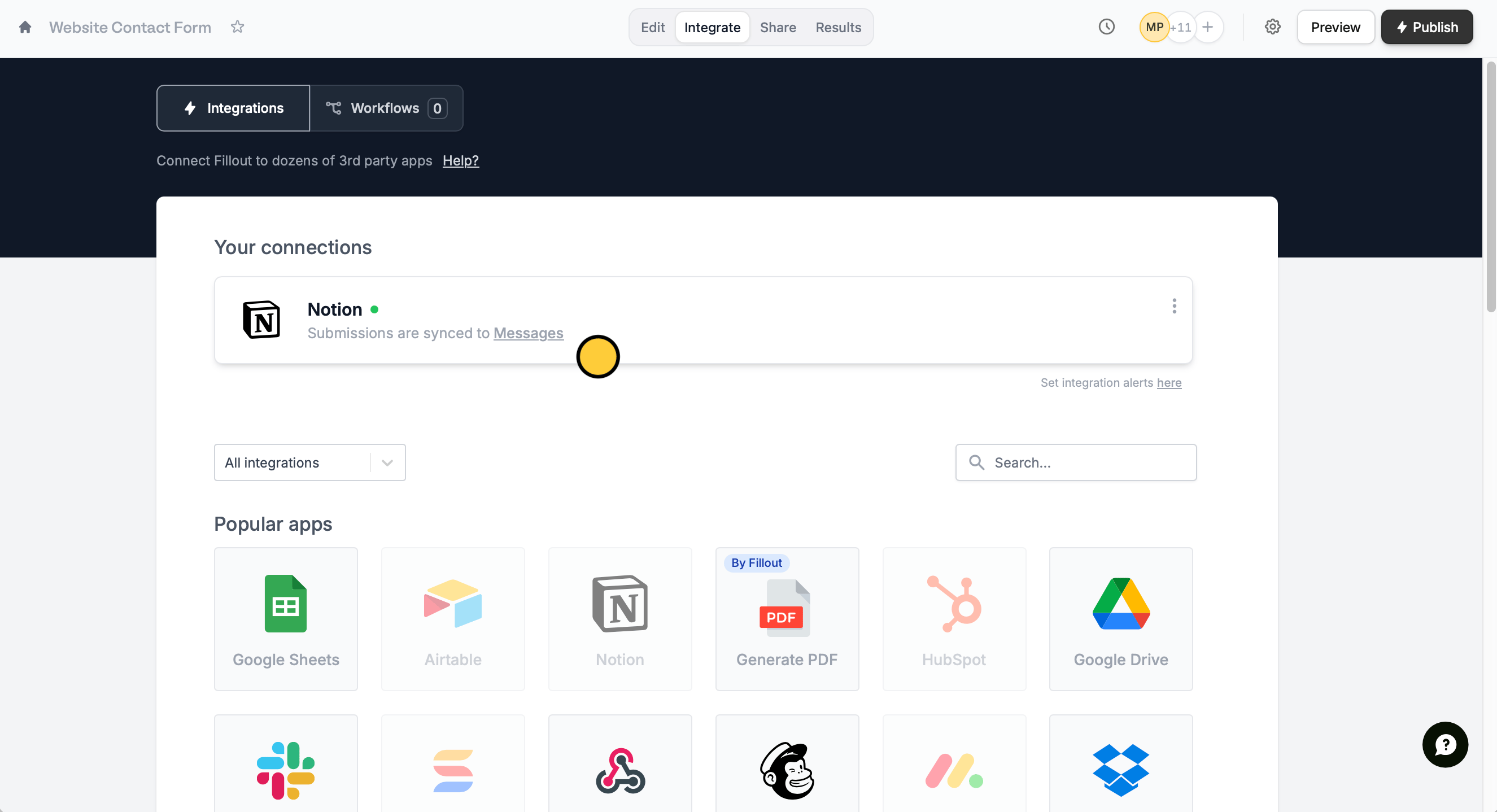 Then specify that you want to `Update page`.
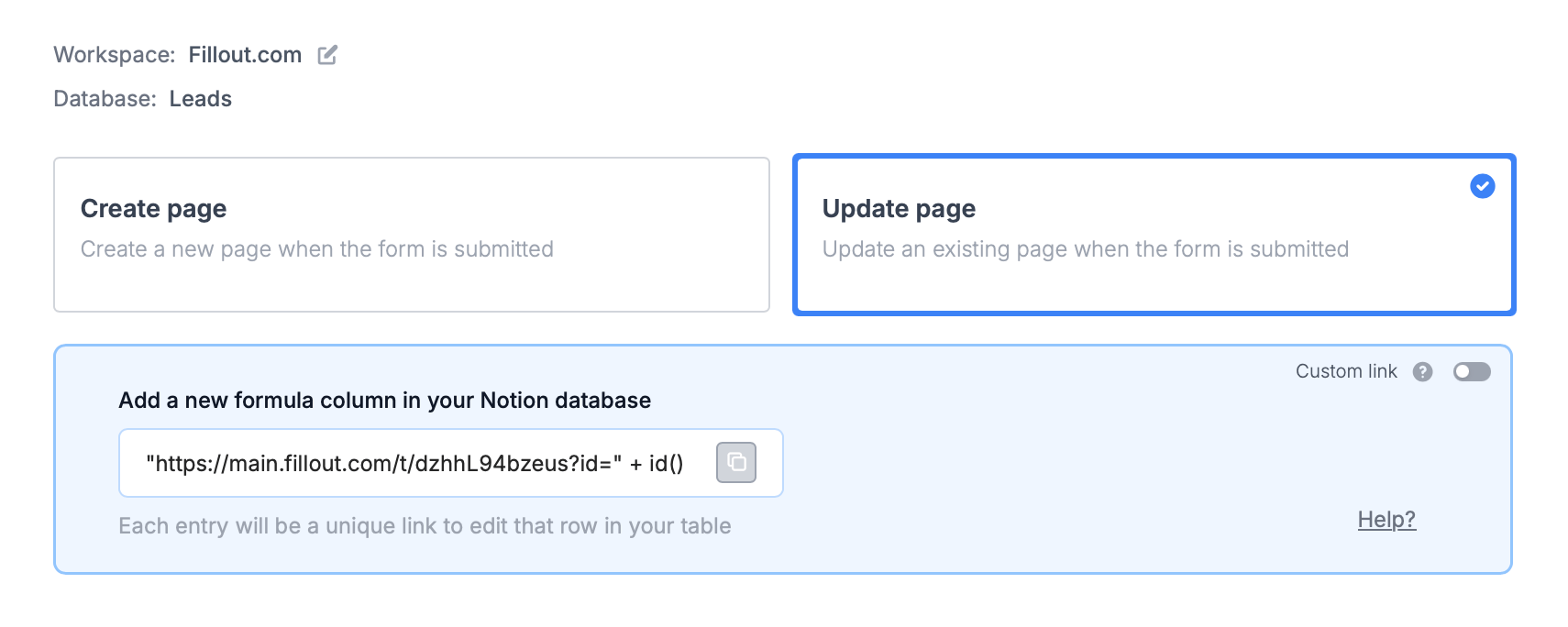 You'll now get a formula in Fillout that defines a **unique link** for every page in your table.
Create + a new `formula`property in Notion and paste the formula from Fillout.
You'll now get a formula in Fillout that defines a **unique link** for every page in your table.
Create + a new `formula`property in Notion and paste the formula from Fillout.
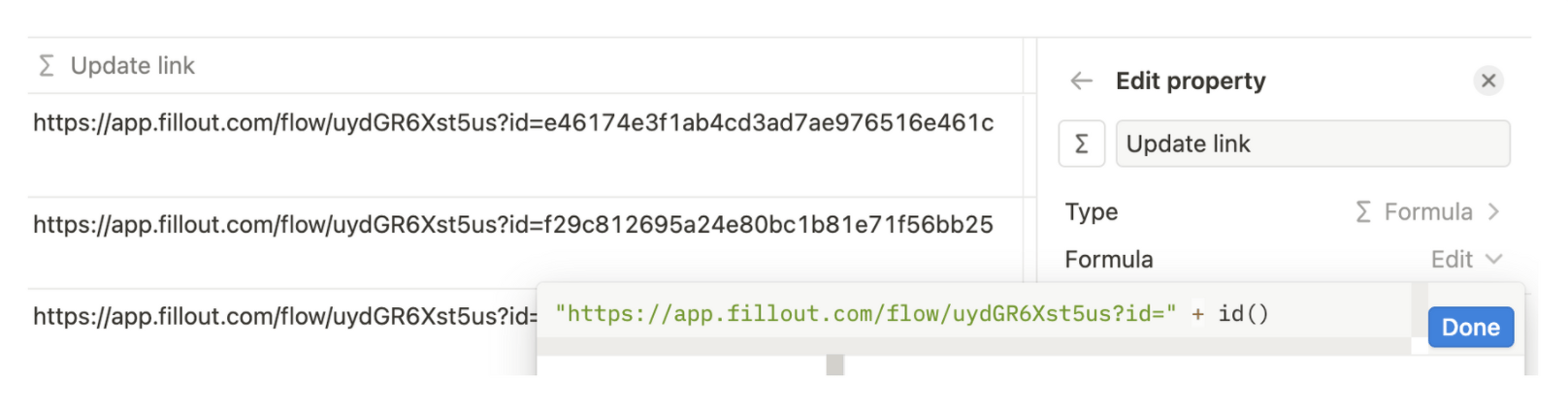 If you don’t provide an **id** in the unique URL, the form will create a new page instead.
That's it! Click `Update` on the upper right corner and `Publish` your form.
To update a Notion page, click `Preview` and select a **Record to update** or click one of the unique links from your Notion formula column.
If you don’t provide an **id** in the unique URL, the form will create a new page instead.
That's it! Click `Update` on the upper right corner and `Publish` your form.
To update a Notion page, click `Preview` and select a **Record to update** or click one of the unique links from your Notion formula column.
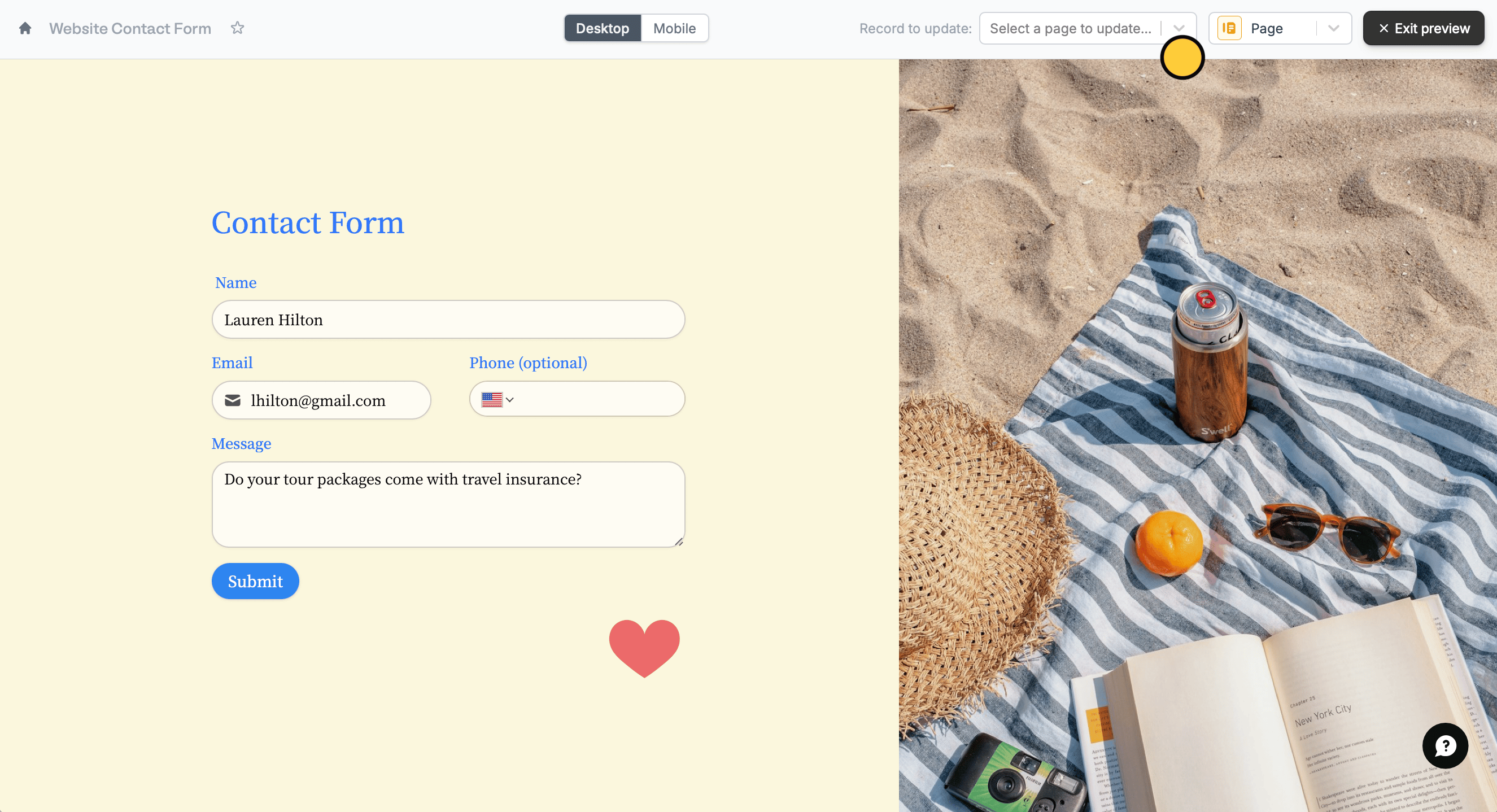 Your form will **automatically pre-fill** the data for the record it is updating.
In Notion, the formulas with the links to update the records are most easily clickable when using a Table view.
## Notion specific guides
Use a Fillout form to add styled content.
Include surveys, quizzes, and more.
Use a form to create or update Notion databases.
Your form will **automatically pre-fill** the data for the record it is updating.
In Notion, the formulas with the links to update the records are most easily clickable when using a Table view.
## Notion specific guides
Use a Fillout form to add styled content.
Include surveys, quizzes, and more.
Use a form to create or update Notion databases.