> ## Documentation Index
> Fetch the complete documentation index at: https://fillout-005a867b-dependabot-npm-and-yarn-form-data-4-0-6.mintlify.site/llms.txt
> Use this file to discover all available pages before exploring further.
# Manage Integrations
> Update or remove integrations your organization is connected to.
## View and edit existing connections
From the dashboard, click your `Account name` followed by `Integrations` in the dropdown menu.
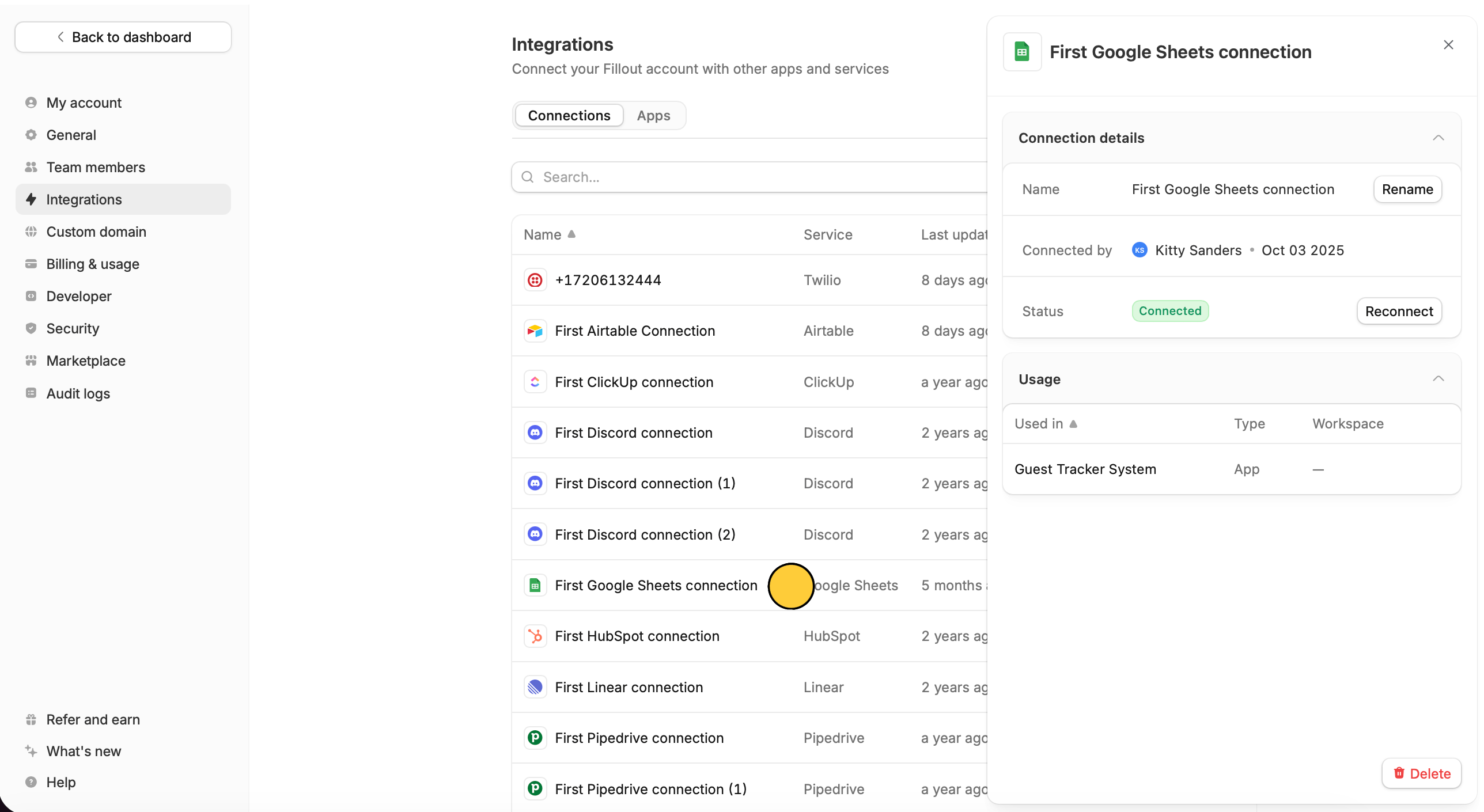
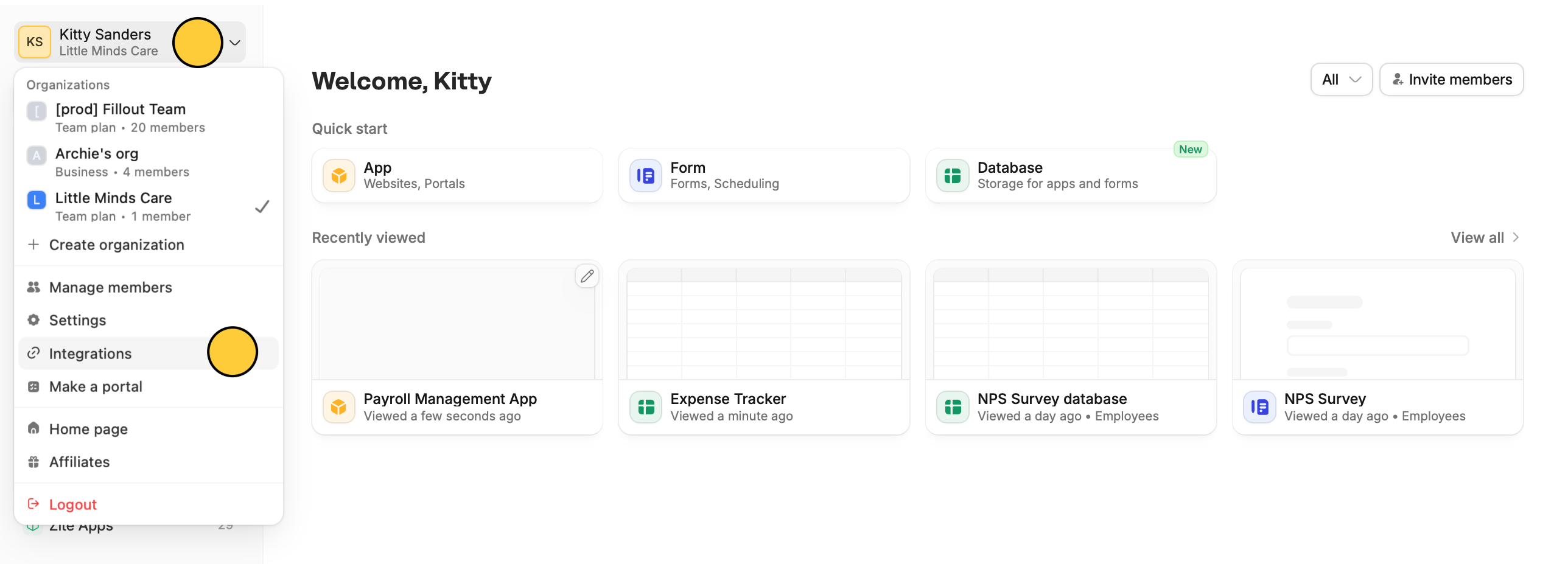 [Here](https://build.fillout.com/home/settings/integrations), you’ll see a full list of all apps and services connected to your forms, apps, and databases.
Click any **connection** to see its name, the user who connected it, its status, and which forms and/or apps it’s used in.
[Here](https://build.fillout.com/home/settings/integrations), you’ll see a full list of all apps and services connected to your forms, apps, and databases.
Click any **connection** to see its name, the user who connected it, its status, and which forms and/or apps it’s used in.
 If you have multiple connections for the same integration, it helps to `Rename` them so you can easily tell them apart.
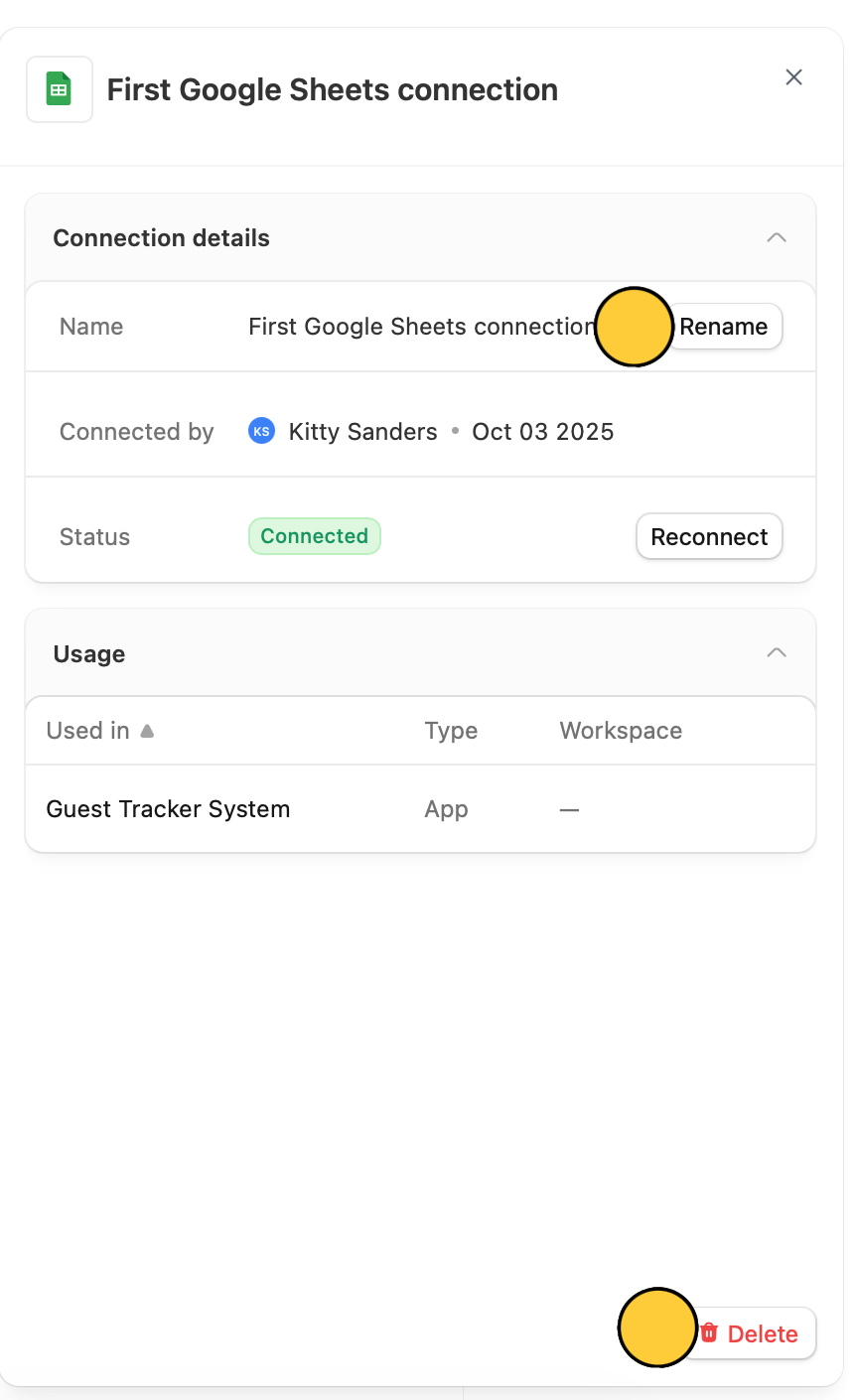 You can also `Reconnect` and `Delete` here.
Deleting a connection will stop responses from syncing with your integration.
## Limit workspace connections
You can restrict connections to certain workspaces only. This is helpful if you have clients, partners, or team members with [granular permissions](/granular-permissions) in a specific workspace.
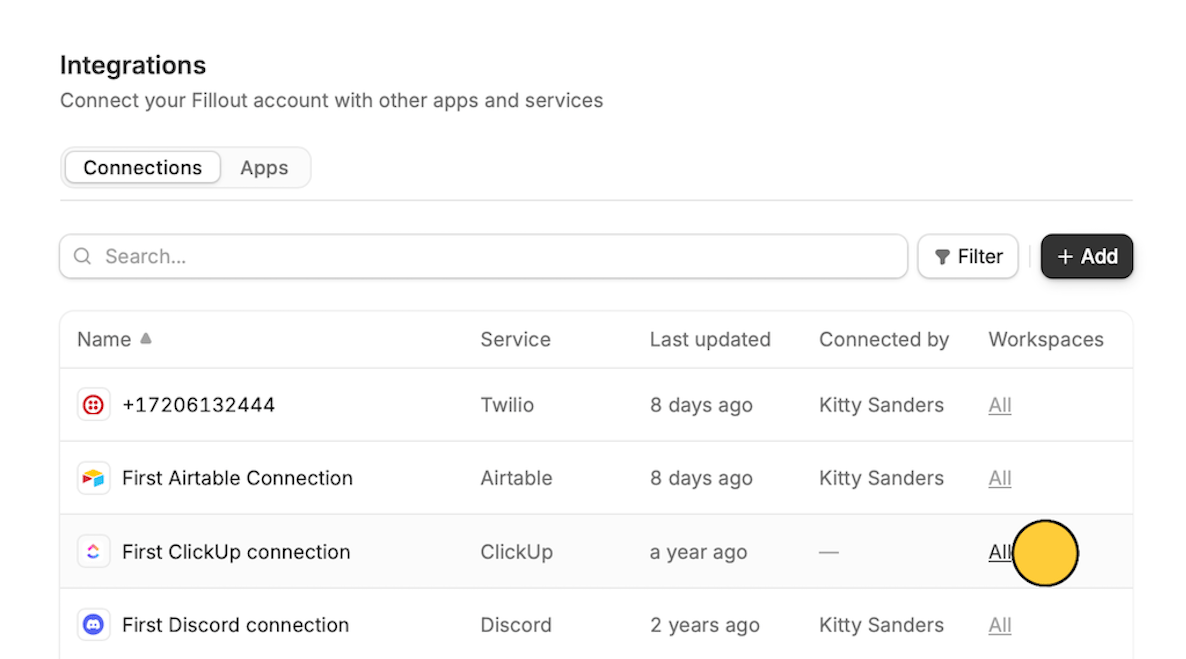
On your chosen connection's row, click `All`.
You can also `Reconnect` and `Delete` here.
Deleting a connection will stop responses from syncing with your integration.
## Limit workspace connections
You can restrict connections to certain workspaces only. This is helpful if you have clients, partners, or team members with [granular permissions](/granular-permissions) in a specific workspace.
On your chosen connection's row, click `All`.
 Zapier and Make integrations don’t support granular permissions. A workaround is to use the per-form [webhook integration](/webhook) to trigger external automations.
In the popup, click `Limited workspaces`, then select a **workspace** from the dropdown.
Zapier and Make integrations don’t support granular permissions. A workaround is to use the per-form [webhook integration](/webhook) to trigger external automations.
In the popup, click `Limited workspaces`, then select a **workspace** from the dropdown.
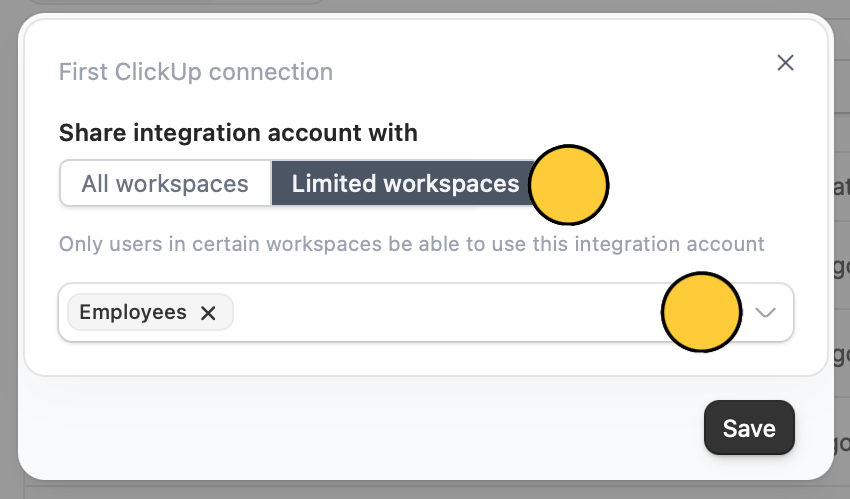 You can add more than one.
Click `Save`
## Disconnect 3rd party apps
From the dashboard, click your `Account name` followed by `Integrations` in the dropdown menu.
Only admins can connect 3rd party apps to Fillout. Once connected, make sure only authorized users who should have permission to add webhooks to **all forms across all workspaces** have access.
Go to `Apps`.
You can add more than one.
Click `Save`
## Disconnect 3rd party apps
From the dashboard, click your `Account name` followed by `Integrations` in the dropdown menu.
Only admins can connect 3rd party apps to Fillout. Once connected, make sure only authorized users who should have permission to add webhooks to **all forms across all workspaces** have access.
Go to `Apps`.
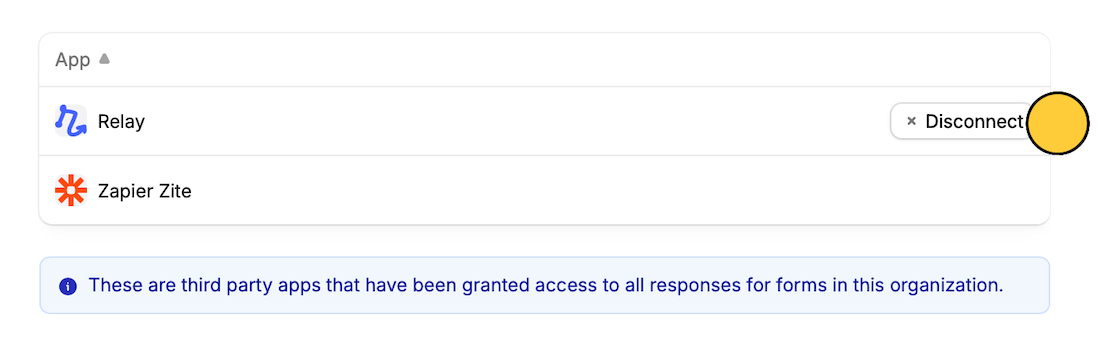
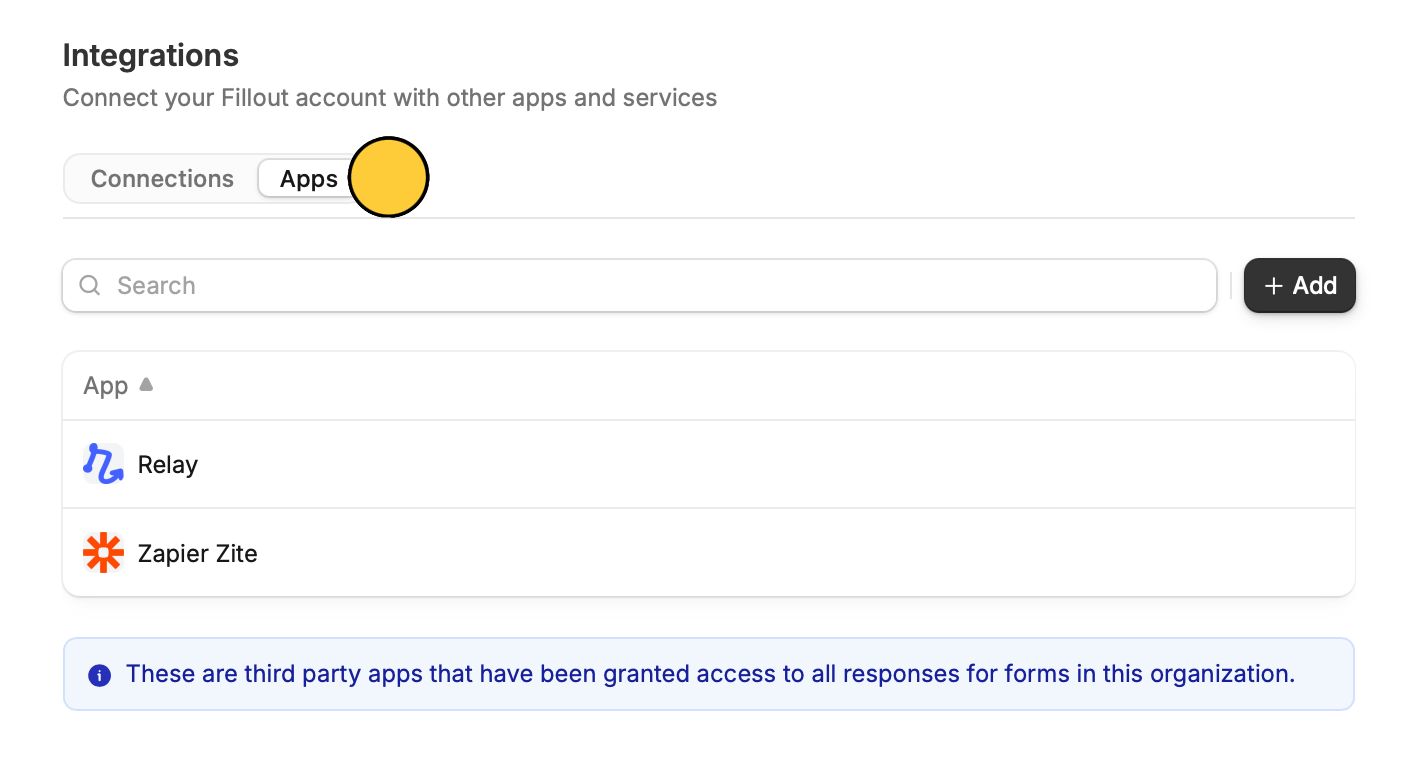 Hover over the app and click `Disconnect`.
 ## Related article
Set member access to view only, and manage existing permissions.
## Related article
Set member access to view only, and manage existing permissions.