> ## Documentation Index
> Fetch the complete documentation index at: https://fillout-005a867b-dependabot-npm-and-yarn-form-data-4-0-6.mintlify.site/llms.txt
> Use this file to discover all available pages before exploring further.
# Update linked records
> Let respondents choose records to update in Airtable, Notion, Smartsuite, and other databases.
## How to enable update mode
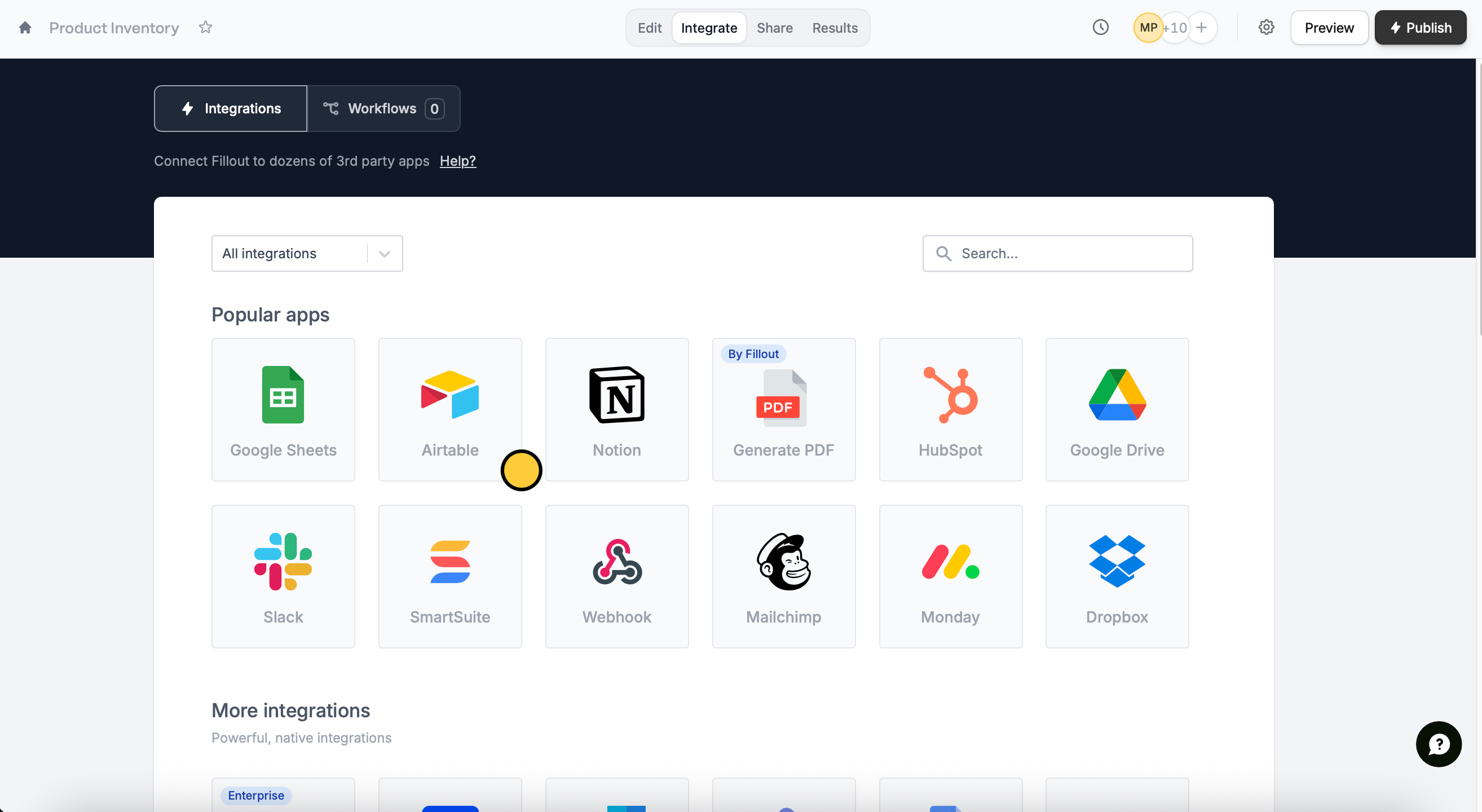
On your Fillout form, navigate to `Integrate` in the top menu to connect to your preferred database. In this example, we'll choose Airtable.
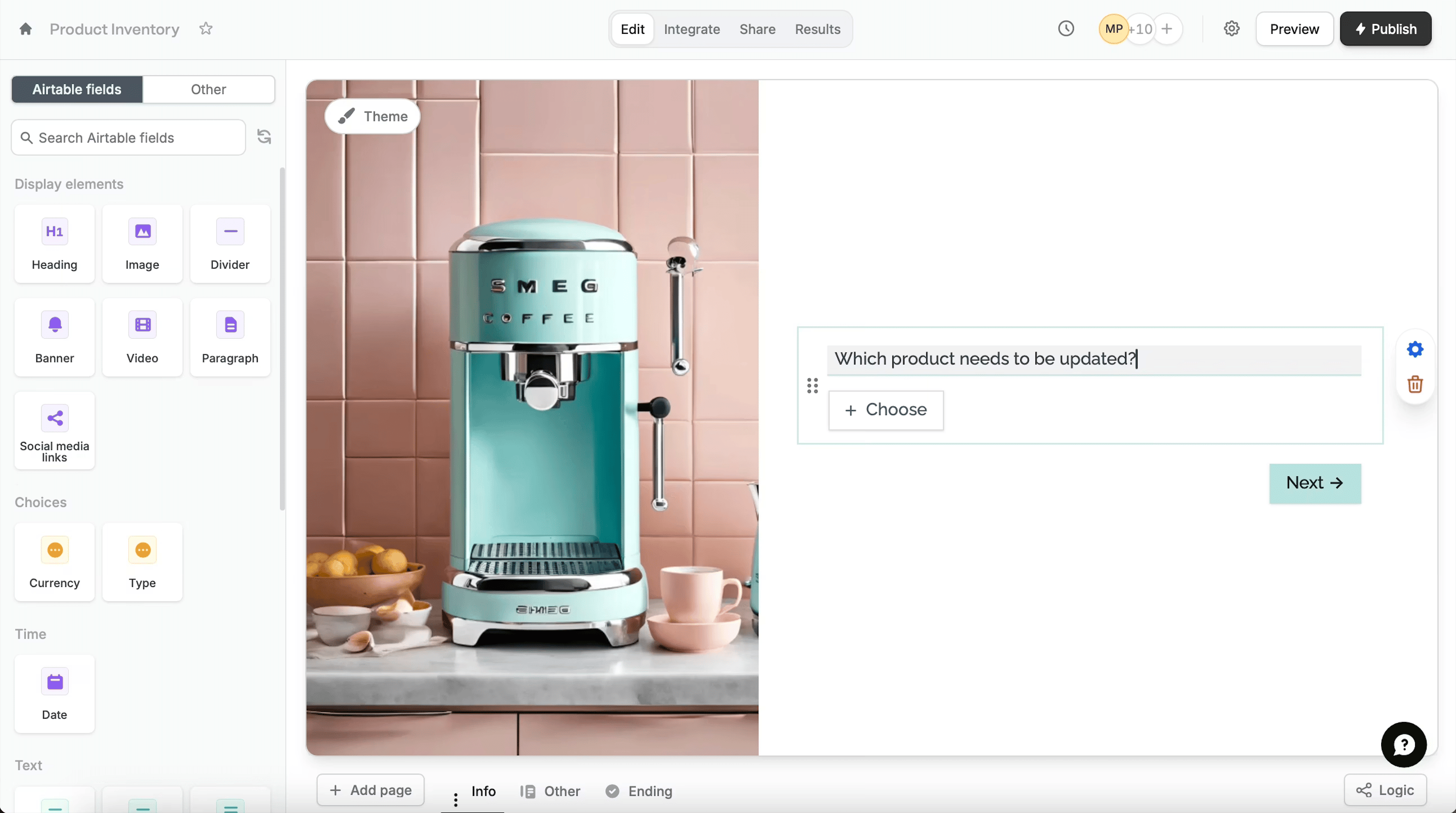
 Once connected, fields from your database will appear in the left-hand panel. Drag and drop the linked record field to your form.
 Click the field's to toggle the `Allow editing records` switch.
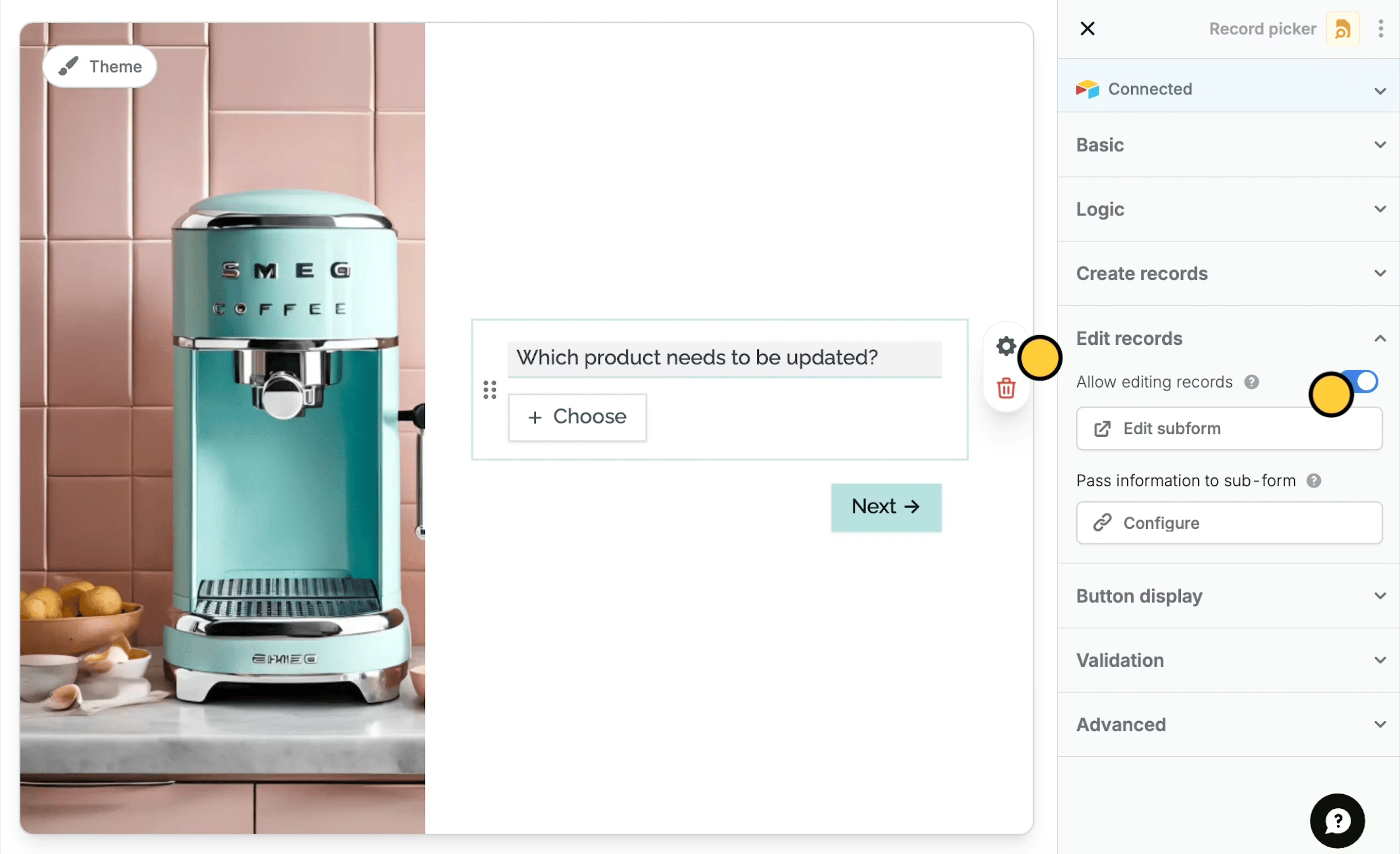 The default label button for linked record fields is "Add". To edit this, go to Button display in the right-hand panel.
To edit the form used for creating linked records, simply click `Edit subform`.
Click `Publish` in the upper right corner and share or embed your form.
The default label button for linked record fields is "Add". To edit this, go to Button display in the right-hand panel.
To edit the form used for creating linked records, simply click `Edit subform`.
Click `Publish` in the upper right corner and share or embed your form.
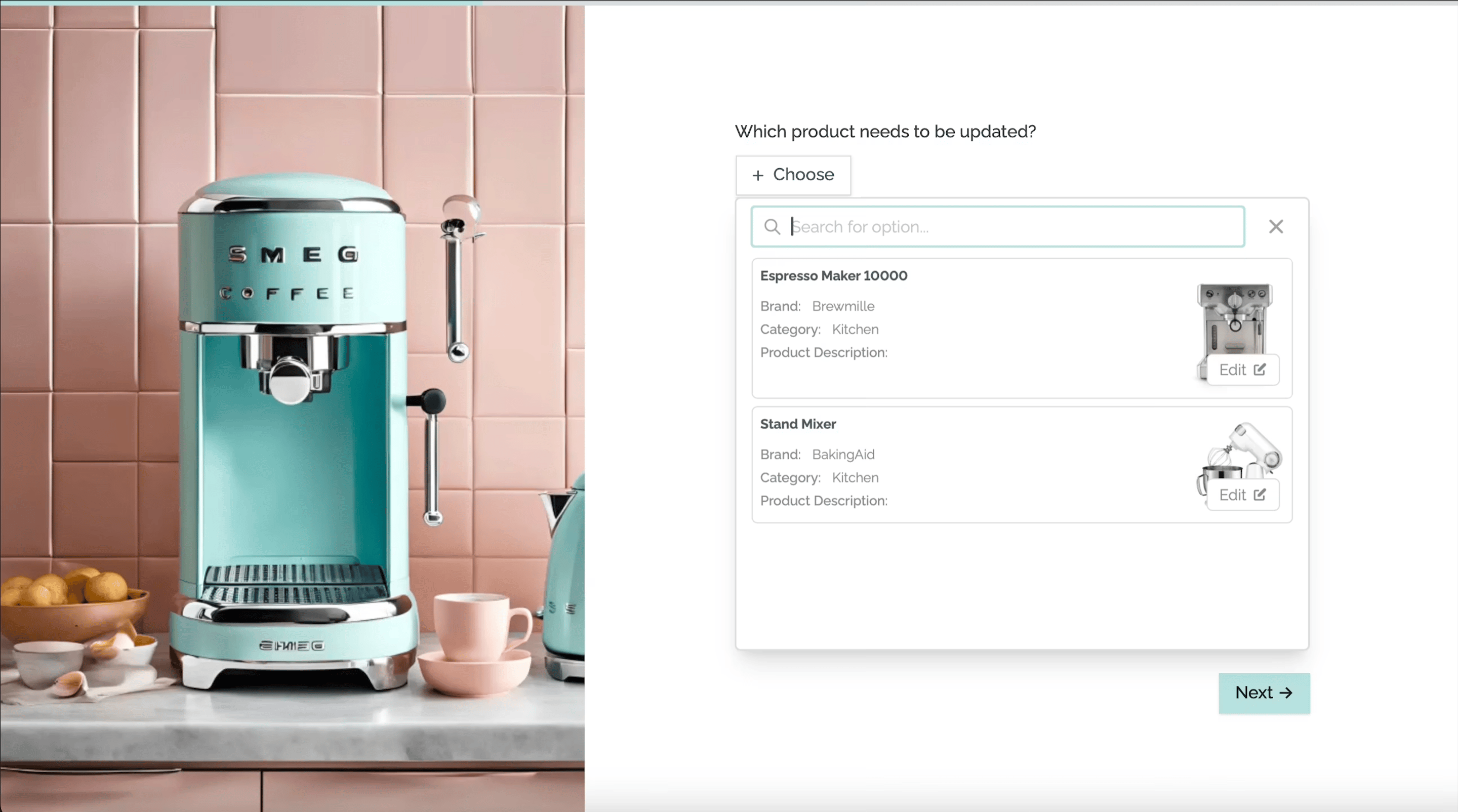 That's it! Now, respondents, can update linked records in your database quickly with your Fillout form.
## Relevant articles
Let respondents create from a record picker.
Set pre-fills, reference fields, and more.
That's it! Now, respondents, can update linked records in your database quickly with your Fillout form.
## Relevant articles
Let respondents create from a record picker.
Set pre-fills, reference fields, and more.