> ## Documentation Index
> Fetch the complete documentation index at: https://fillout-005a867b-dependabot-npm-and-yarn-form-data-4-0-6.mintlify.site/llms.txt
> Use this file to discover all available pages before exploring further.
# Import and export forms between accounts
> Import and export forms between different Fillout accounts. This is often useful if you're making a form on behalf of a client.
## How to import a form
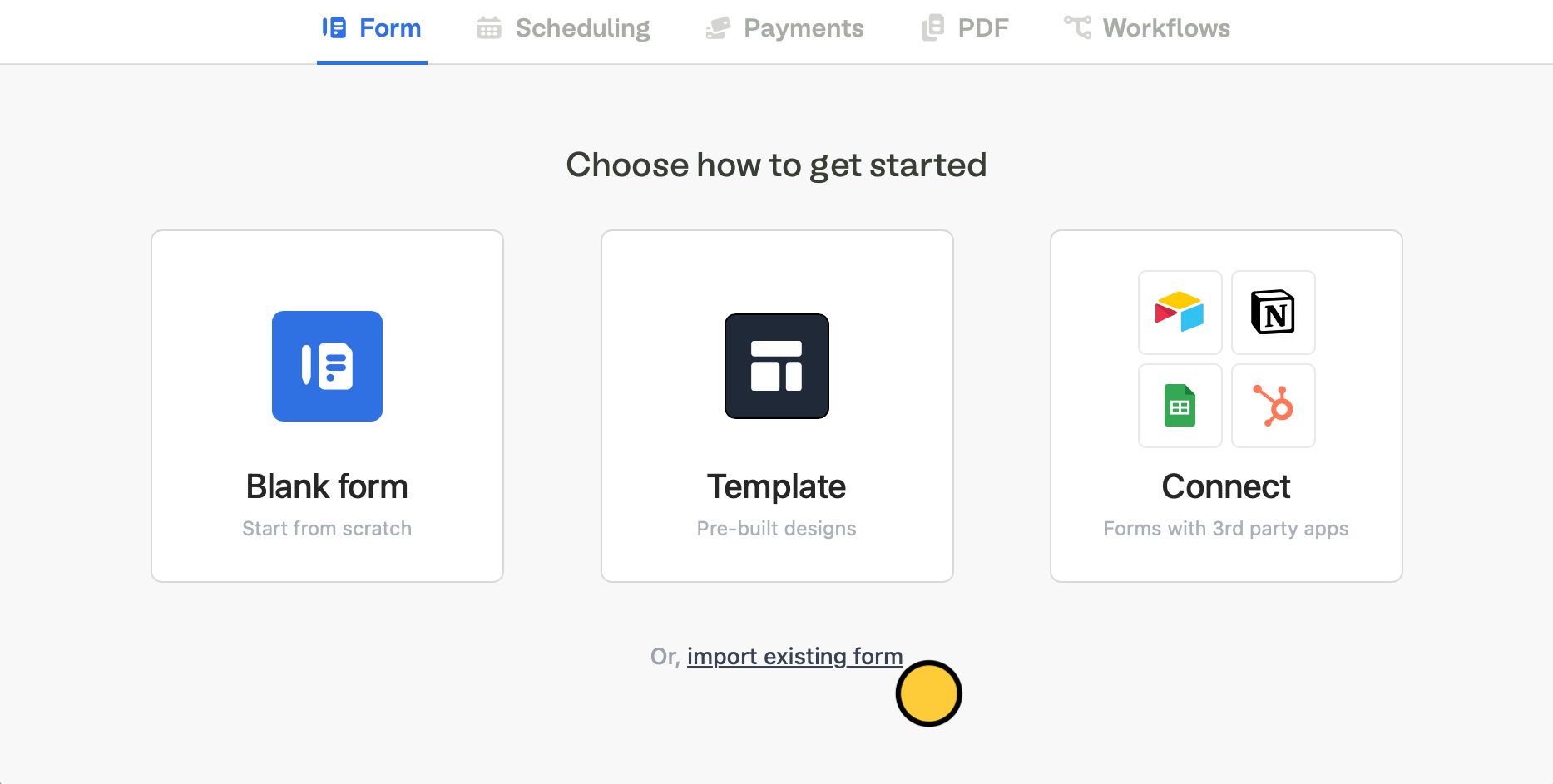
From the Fillout dashboard, `+ Create` a `Form`. Choose to `import existing form`.
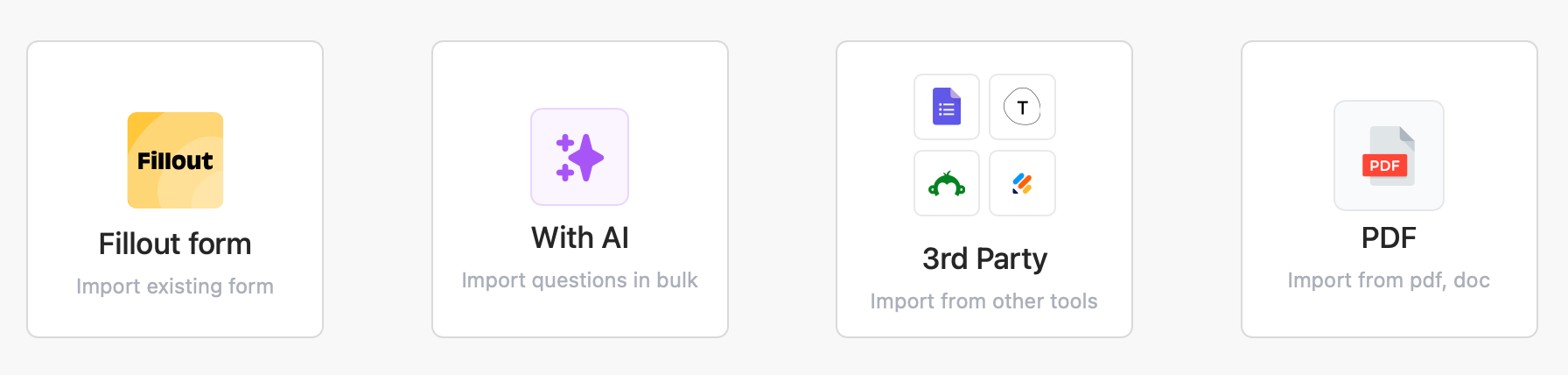
 Then, choose your preferred **import type**. You can import data from an existing Fillout form, Google Form, Typeform, PDF, Doc, or even use AI.
 Questions, labels, multiple-choice options, workflows and email notification settings including recipients will be imported. Other items, like backend settings and responses, aren’t included.
### Update connections (if necessary)
If you're importing a form that has a connection to Airtable, Notion or another integration, find them in the `Integrate` tab on top. For each integration, `+ Connect new account`.
You won't need to set up the field mappings again, just select a new connection.
Questions, labels, multiple-choice options, workflows and email notification settings including recipients will be imported. Other items, like backend settings and responses, aren’t included.
### Update connections (if necessary)
If you're importing a form that has a connection to Airtable, Notion or another integration, find them in the `Integrate` tab on top. For each integration, `+ Connect new account`.
You won't need to set up the field mappings again, just select a new connection.
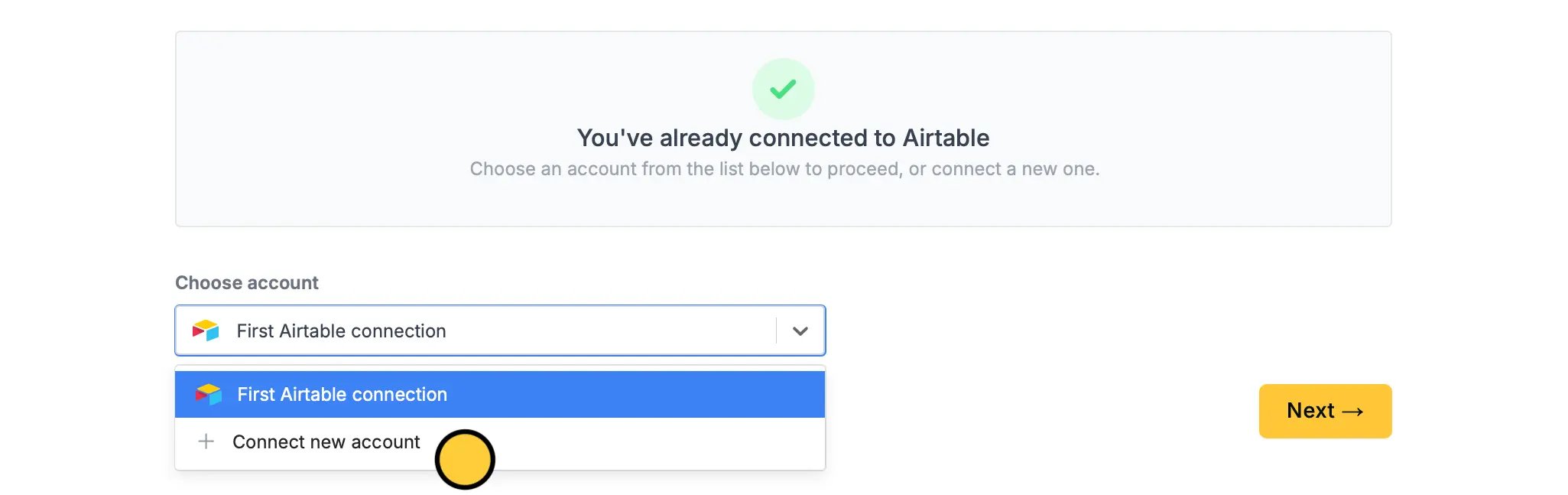 Then, select a **Base** and **Table**. [Refresh connection](https://www.fillout.com/help/additional-integration-mappings#updating-fields-and-options) if some fields are missing or if the table isn't showing up
## Export a form
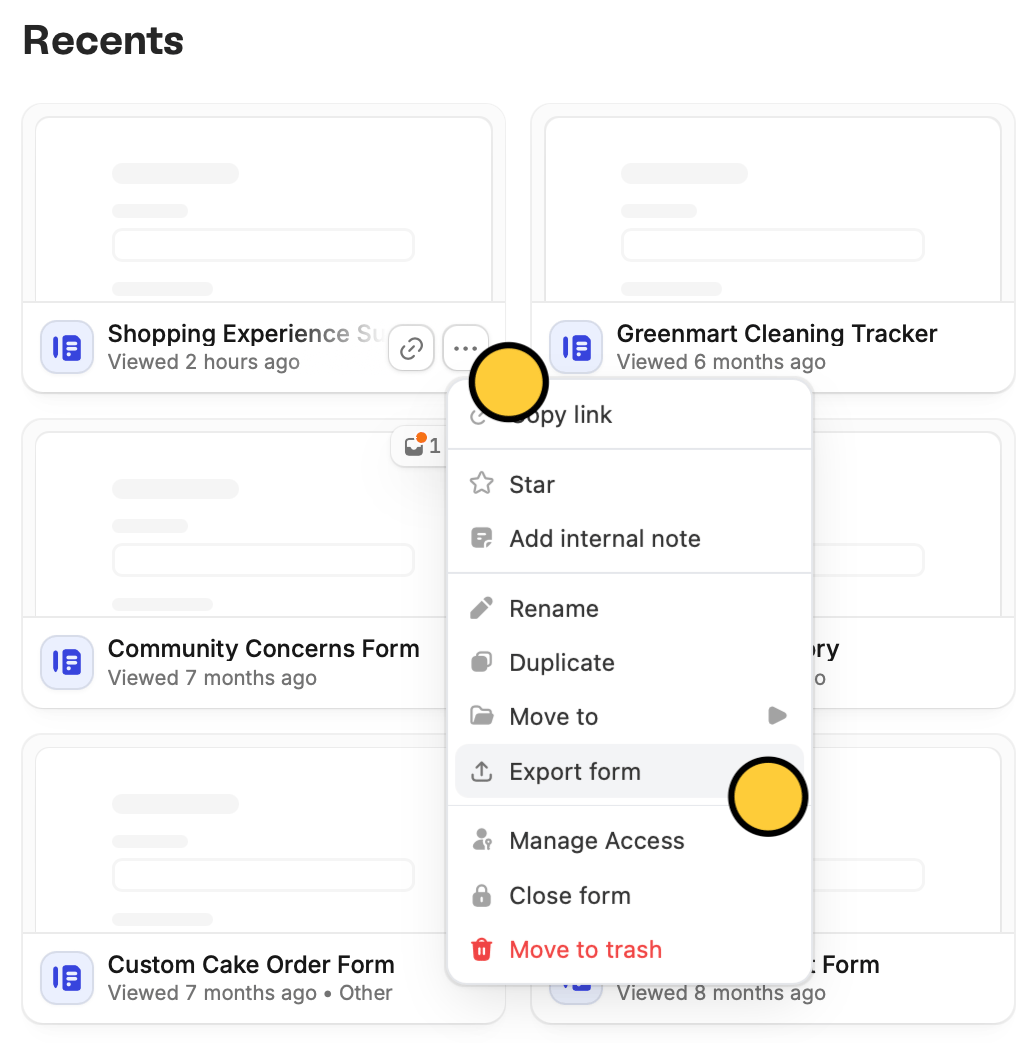
You can share your form as a template for your team or others to use. From the Fillout dashboard hover over the form to be exported and click followed by `Export form`.
Then, select a **Base** and **Table**. [Refresh connection](https://www.fillout.com/help/additional-integration-mappings#updating-fields-and-options) if some fields are missing or if the table isn't showing up
## Export a form
You can share your form as a template for your team or others to use. From the Fillout dashboard hover over the form to be exported and click followed by `Export form`.
 A copy will automatically be downloaded to your device.
Exporting forms does not include submissions and comments received.
## Move forms
To transfer forms to a different workspace, you can drag and drop them there.
A copy will automatically be downloaded to your device.
Exporting forms does not include submissions and comments received.
## Move forms
To transfer forms to a different workspace, you can drag and drop them there.