> ## Documentation Index
> Fetch the complete documentation index at: https://fillout-005a867b-dependabot-npm-and-yarn-form-data-4-0-6.mintlify.site/llms.txt
> Use this file to discover all available pages before exploring further.
# Sync form results to a database
> Store form responses in a Zite Database to add multiple tables, custom fields, views, and more.
## What is Zite Database?
[Zite Database](https://www.zite.com/database) is a no-code database that combines the flexibility of a database with the familiarity of a spreadsheet. It lets you store, organize, and manage data from your forms and other tools without writing code. By connecting Fillout to Zite Database, you can:
* Organize submissions across multiple tables
* Combine responses from multiple forms into one centralized database
* Create different views of your data without changing the original records
* Pre-fill forms with existing database records to save time and improve data accuracy
* Let respondents select from database records similar to a dynamic dropdown
* Automatically calculate totals, scores, and other values using database formulas
* Use your database as a lightweight CRM, project tracker, client portal, and more
#### What syncing supports
When your Fillout form is connected to a Zite Database, you can:
* Create new records from form submissions
* [Update existing records](https://www.fillout.com/help/guides/update-with-forms) with form data
* [Pre-fetch](https://www.fillout.com/help/guides/pre-fetch-data) existing data into forms
* [Use login forms](https://www.fillout.com/help/guides/use-login-forms) to sync data
## Link your form to a Zite database
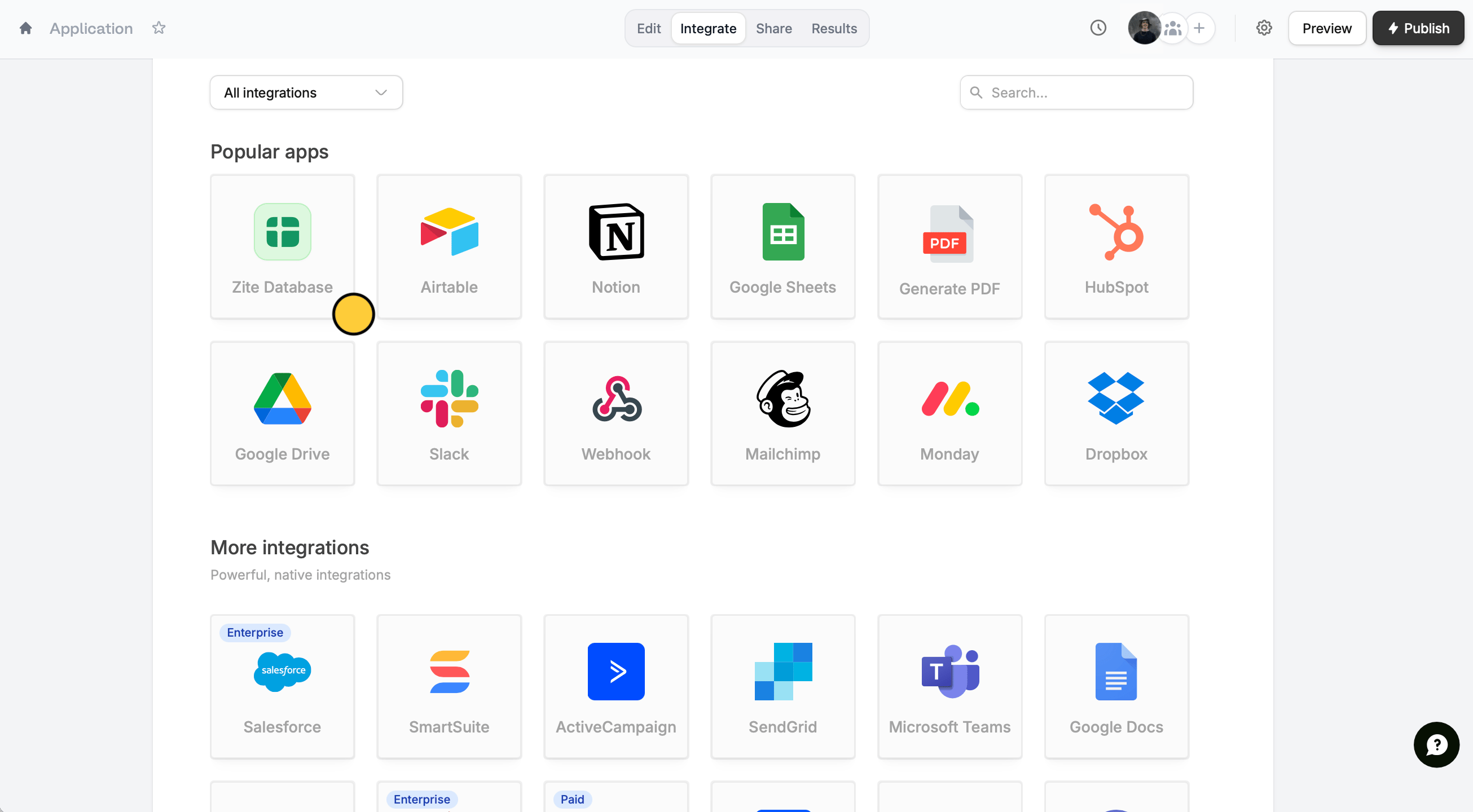
Open your form and click the `Integrate` tab at the top. Select `Zite Database` from the list of integrations.
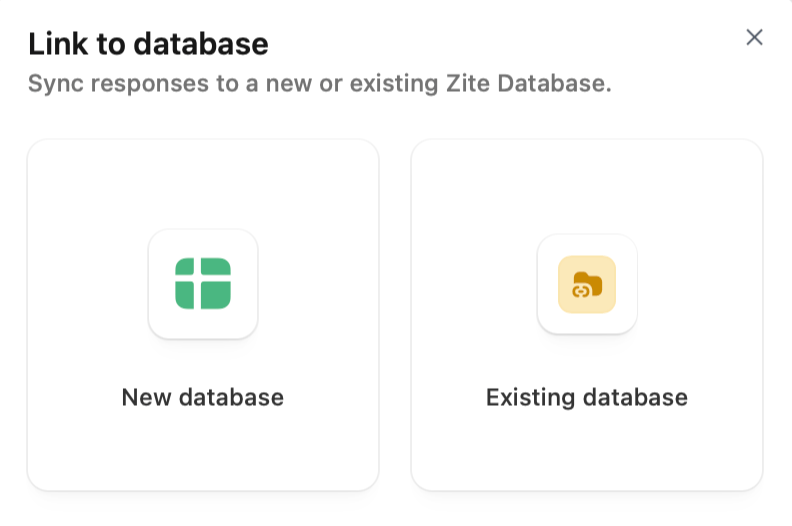
 Pick **New database** to create a fresh database for this form, or use an **Existing database**.
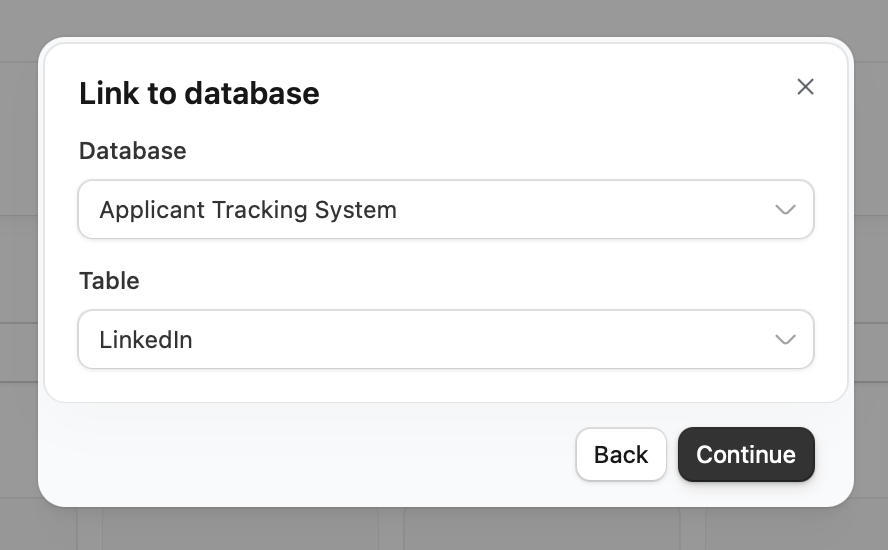
 If you choose an **existing database**, you'll have the option to select a **table** as well.
 Your form is now linked to a database! You can view responses in two places:
* **From your form**: Click the [Results](https://www.fillout.com/help/results) tab at the top where you can update or [edit responses](https://www.fillout.com/help/edit-submissions#edit-form-submissions).
* **From the database**: Navigate to your database and click the `Forms` tab to see all linked forms
Your form is now linked to a database! You can view responses in two places:
* **From your form**: Click the [Results](https://www.fillout.com/help/results) tab at the top where you can update or [edit responses](https://www.fillout.com/help/edit-submissions#edit-form-submissions).
* **From the database**: Navigate to your database and click the `Forms` tab to see all linked forms
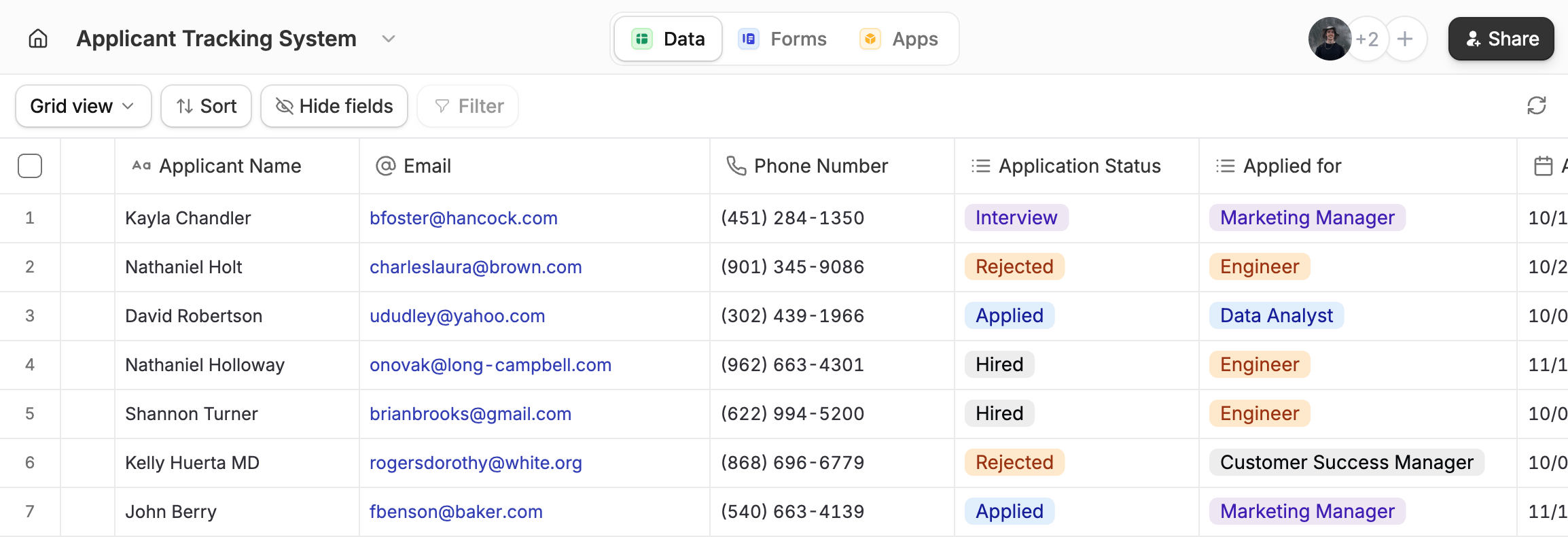 New responses will sync automatically to your database in real-time.
## Create a form with your database
If you already have an existing Zite database, you can convert it into a form in a few minutes.
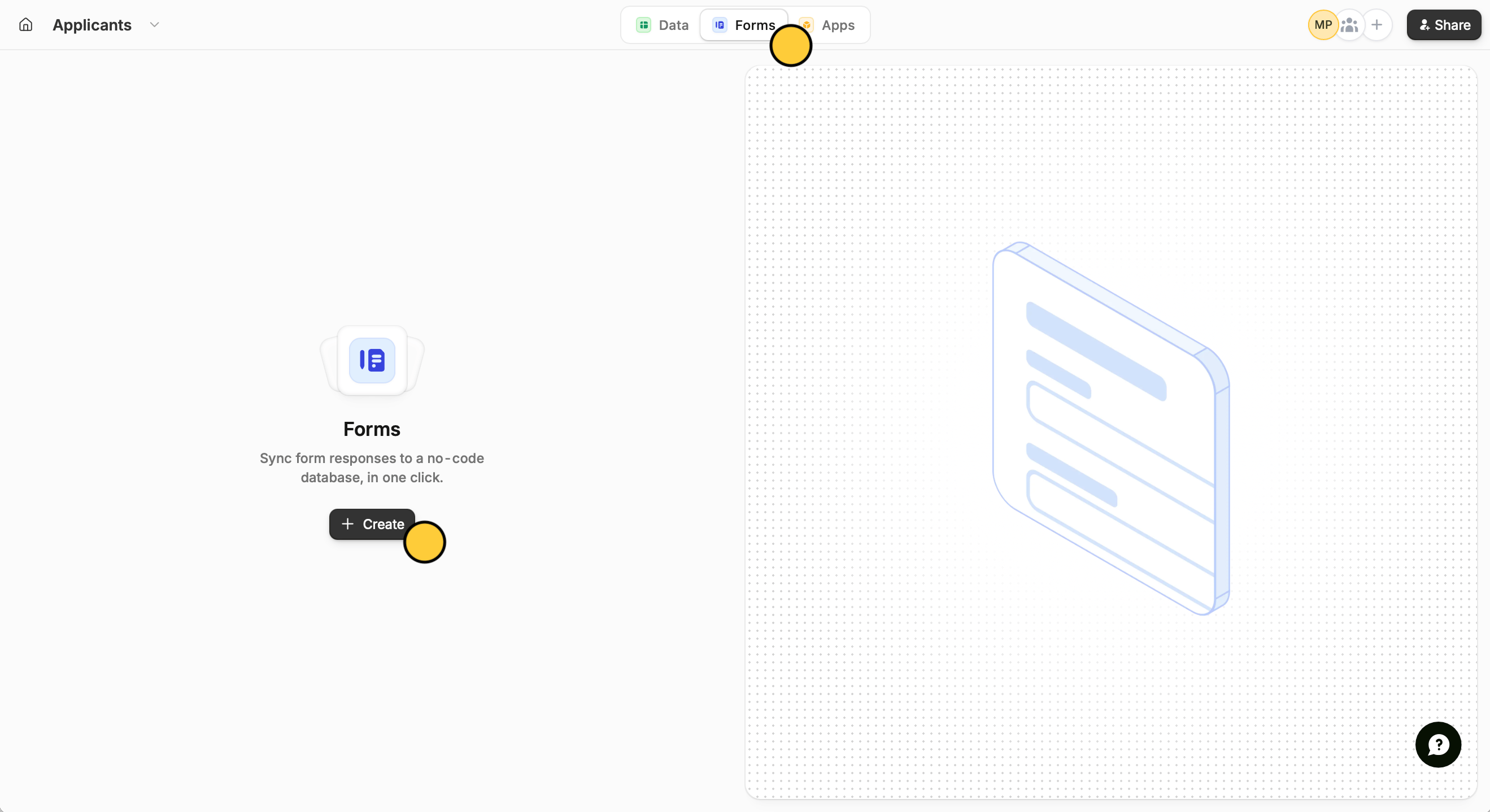
On the top of your database, click `Forms` followed by `+ Create`.
New responses will sync automatically to your database in real-time.
## Create a form with your database
If you already have an existing Zite database, you can convert it into a form in a few minutes.
On the top of your database, click `Forms` followed by `+ Create`.
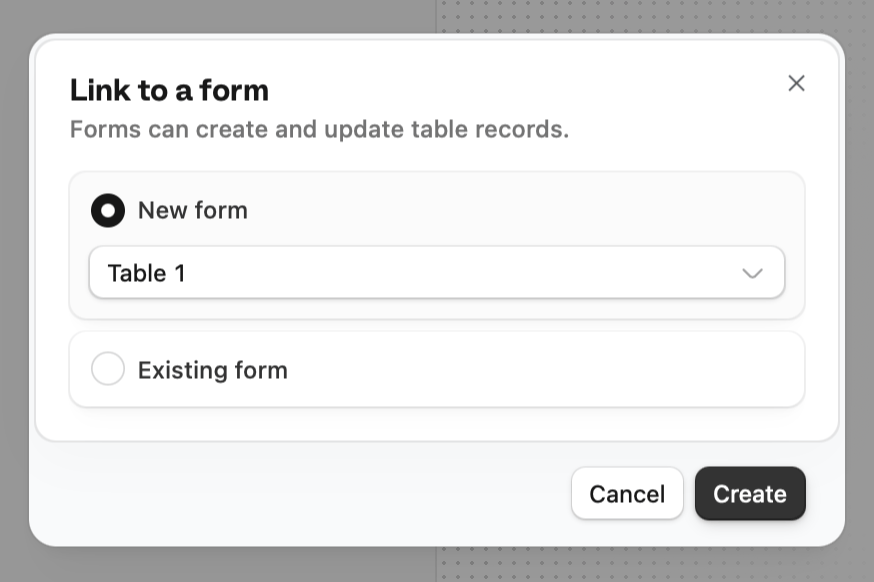
 Choose to `Create` a **new form**.
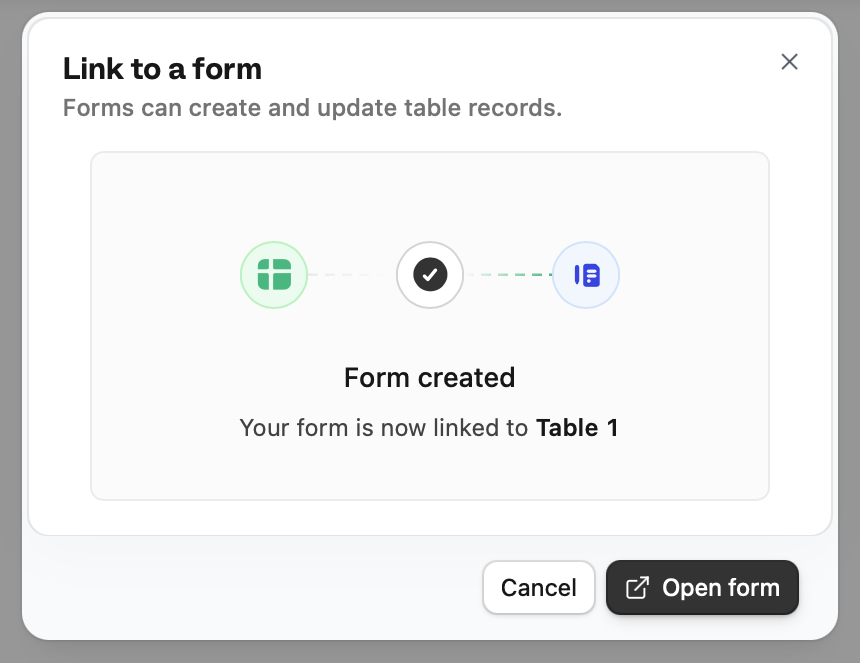
 `Open form`.
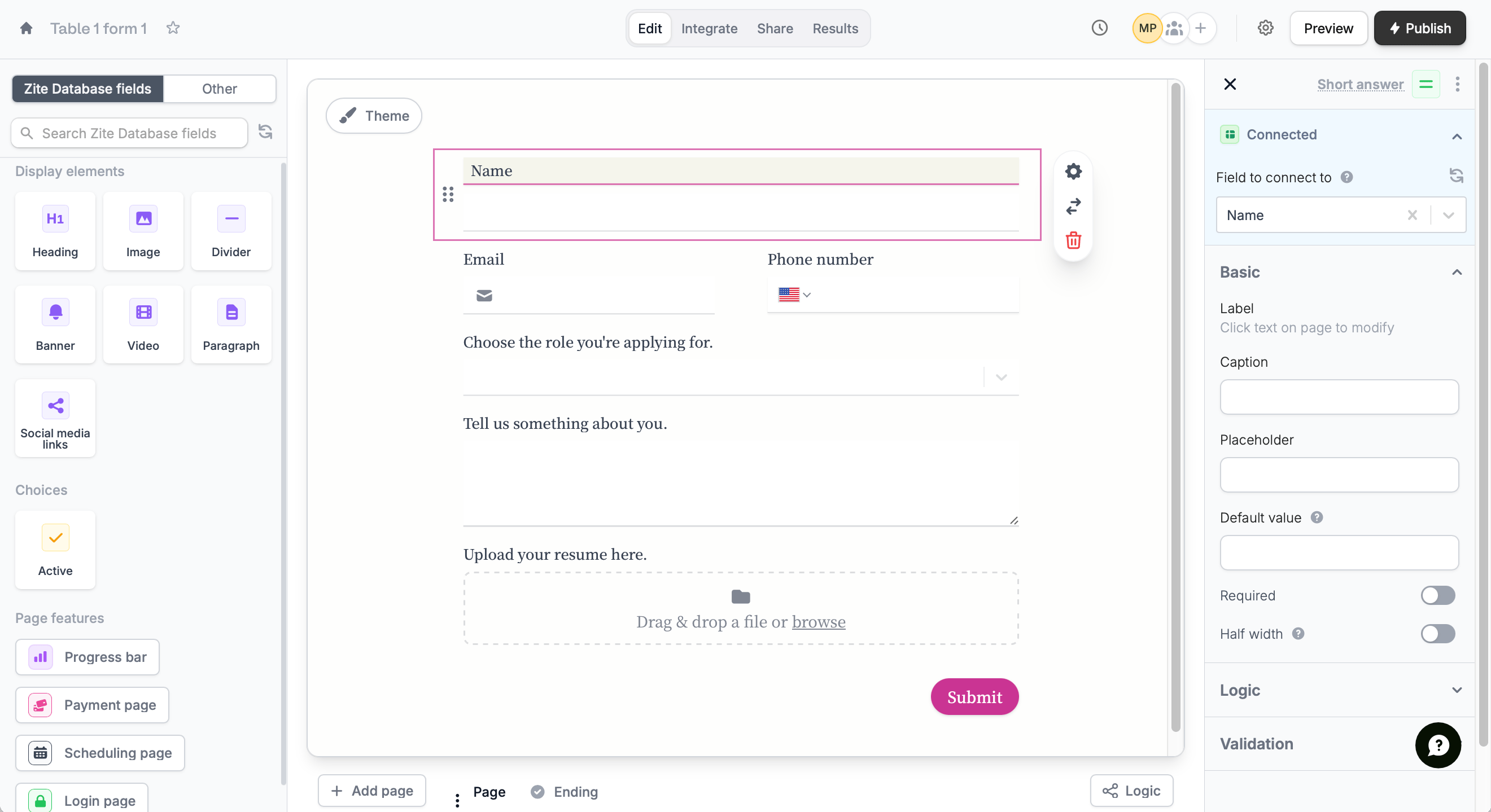
 Zite automatically builds the form for you, using your database column headers as the fields. Open [Theme](https://www.fillout.com/help/themes#customize-a-theme) to style your form.
 If you link to an **existing form**, it will redirect to the form's `Integrate` page where you can [connect to your Zite database](https://www.fillout.com/help/guides/sync-form-results#link-your-form-to-a-zite-database).
### Add new fields
From your form, click a [Fillout field](https://www.fillout.com/help/question-types), and enter a label for the column that will appear in your Zite database.
If you link to an **existing form**, it will redirect to the form's `Integrate` page where you can [connect to your Zite database](https://www.fillout.com/help/guides/sync-form-results#link-your-form-to-a-zite-database).
### Add new fields
From your form, click a [Fillout field](https://www.fillout.com/help/question-types), and enter a label for the column that will appear in your Zite database.
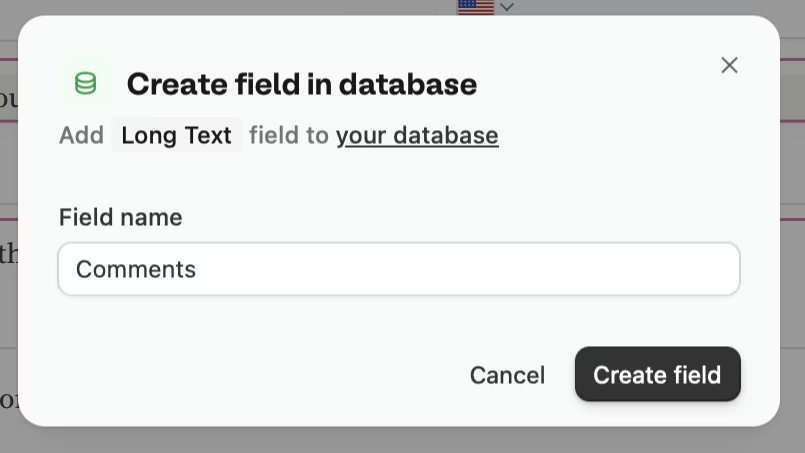 Alternatively, you can add a new column directly from your database.
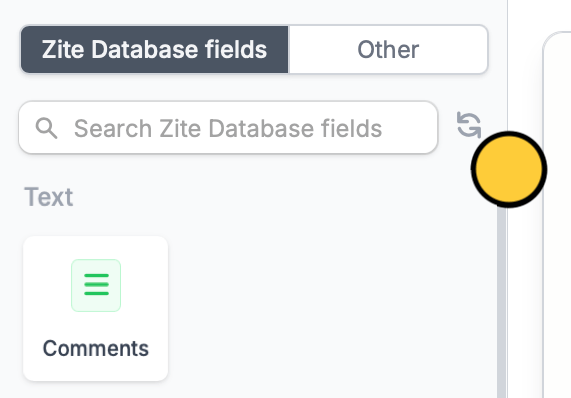
 Go back to your form and click . Then, drag the new field into your form.
 Visit the [Zite Database Help Center](https://www.zite.com/help/database/overview) to explore more guides and features.
### Attachment storage limits
Zite Database's storage limits may vary according to your plan. Total attachment storage refers to the cumulative amount across all databases within an organization.
| | **Free** | **Pro** | **Business** | **Team** | Enterprise |
| ------------------------ | ----------- | ----------- | ------------ | ----------- | ----------- |
| Max file size per upload | Up to 20 MB | Up to 20 MB | Up to 20 MB | Up to 20 MB | Up to 20 MB |
| Total attachment storage | 1 GB | 10 GB | 100 GB | 100 GB | 1 TB+ |
## What happens next
Once linked, every form submission creates a new record in your database. You can:
* View and edit responses directly in the database
* Add internal fields that aren't collected through your form
* Enrich database records with custom fields, internal notes, and statuses
* [Build apps](https://www.fillout.com/help/database/build-apps#create-an-app) on top of your form data
* Use the REST API to access your responses programmatically
Form responses sync instantly to your database. Any changes you make in the database won't affect the original form submission.
## Common use cases
By connecting Fillout with Zite Database, you can easily build workflows for things like:
* **CRM Systems:** Manage leads, contacts, and customer interactions in one place
* **Project Management:** Track tasks, progress, and deadlines across teams
* **Event Registration:** Collect, organize, and update attendee information in a database
* **Inventory Tracking:** Monitor stock levels, updates, and product movements in real time
* **Client Portals:** Let users view and update their own records securely through forms
* **Feedback Collection:** Centralize responses and analyze them using views and formulas
Visit the [Zite Database Help Center](https://www.zite.com/help/database/overview) to explore more guides and features.
### Attachment storage limits
Zite Database's storage limits may vary according to your plan. Total attachment storage refers to the cumulative amount across all databases within an organization.
| | **Free** | **Pro** | **Business** | **Team** | Enterprise |
| ------------------------ | ----------- | ----------- | ------------ | ----------- | ----------- |
| Max file size per upload | Up to 20 MB | Up to 20 MB | Up to 20 MB | Up to 20 MB | Up to 20 MB |
| Total attachment storage | 1 GB | 10 GB | 100 GB | 100 GB | 1 TB+ |
## What happens next
Once linked, every form submission creates a new record in your database. You can:
* View and edit responses directly in the database
* Add internal fields that aren't collected through your form
* Enrich database records with custom fields, internal notes, and statuses
* [Build apps](https://www.fillout.com/help/database/build-apps#create-an-app) on top of your form data
* Use the REST API to access your responses programmatically
Form responses sync instantly to your database. Any changes you make in the database won't affect the original form submission.
## Common use cases
By connecting Fillout with Zite Database, you can easily build workflows for things like:
* **CRM Systems:** Manage leads, contacts, and customer interactions in one place
* **Project Management:** Track tasks, progress, and deadlines across teams
* **Event Registration:** Collect, organize, and update attendee information in a database
* **Inventory Tracking:** Monitor stock levels, updates, and product movements in real time
* **Client Portals:** Let users view and update their own records securely through forms
* **Feedback Collection:** Centralize responses and analyze them using views and formulas