> ## Documentation Index
> Fetch the complete documentation index at: https://fillout-005a867b-dependabot-npm-and-yarn-form-data-4-0-6.mintlify.site/llms.txt
> Use this file to discover all available pages before exploring further.
# Working with form submission IDs
> Link submissions back to Fillout by referencing its Submission ID. Search for a particular submission on the results page.
## What is a submission ID?
A unique **Submission ID** is generated whenever someone begins to complete your form. Submission ID's are randomly generated, like 6bcedd3a-fe26-4bcb-9ce9-d3850e38d42c.
## Send the submission ID to your integration
First, navigate to `Integrate` tab located on the top menu, and choose the app or service you would like to use.
Under **Mappings**, `+ Add new`. On the left, choose the field from your app where you want to save data, and on the right, click `Submission ID` from your Fillout form.
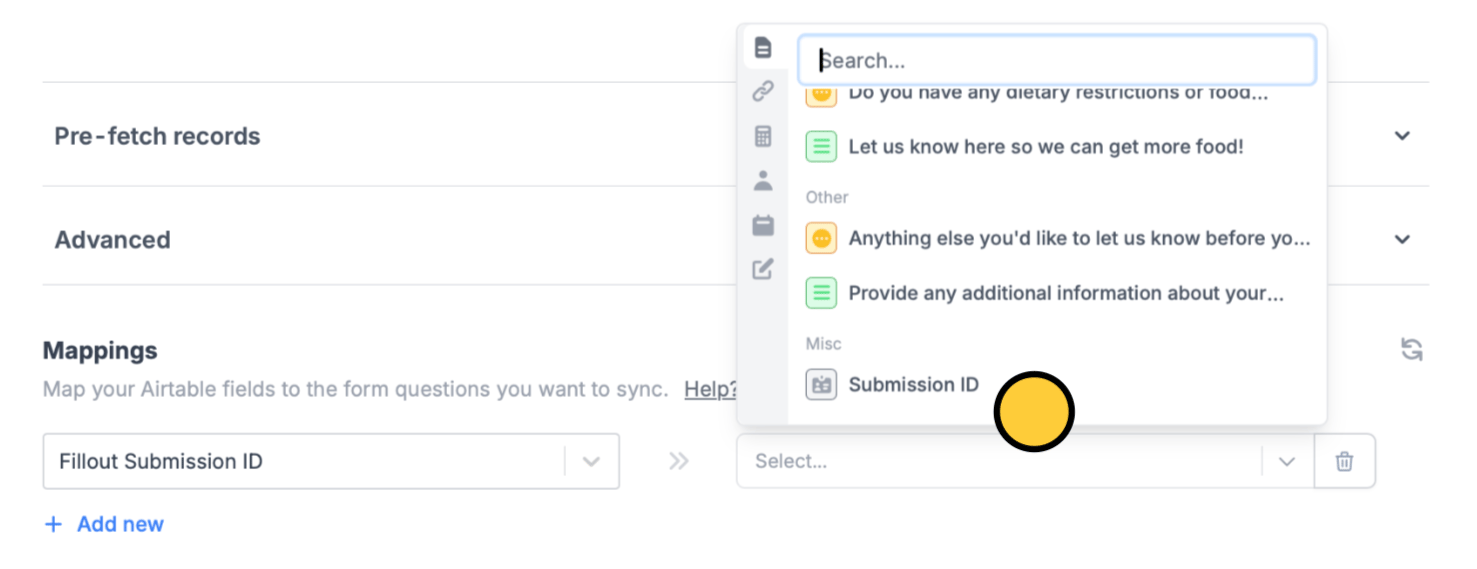 In this example, we'll save our form's Submission ID to a column in our Airtable base with the same name.
If you're using Zapier or Make, you'll also see the option to reference the Submission ID.
Click `Finish setup` in the upper right corner. That's it! The Submission ID will now be saved to your integration. Remember to `Publish` your form to reflect the changes.
## Search for a Submission ID in the results
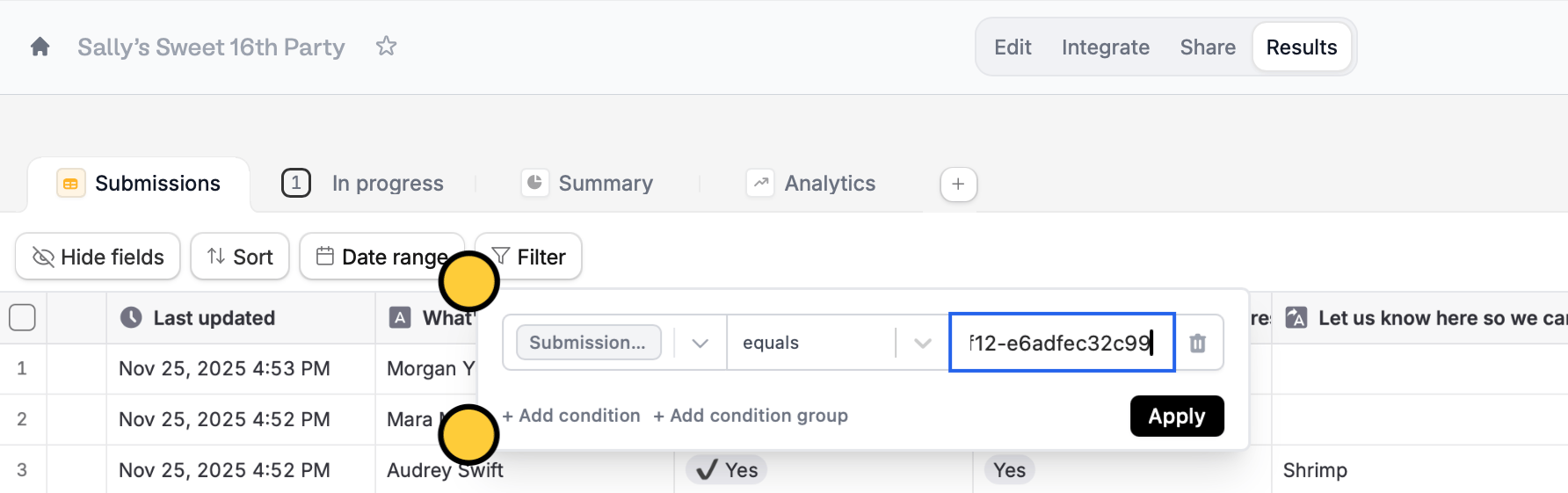
Go to `Results` from the top menu. Click `Filter` followed by `+ Add condition`. Then, choose`Submission ID` in the dropdown and enter the ID number.
In this example, we'll save our form's Submission ID to a column in our Airtable base with the same name.
If you're using Zapier or Make, you'll also see the option to reference the Submission ID.
Click `Finish setup` in the upper right corner. That's it! The Submission ID will now be saved to your integration. Remember to `Publish` your form to reflect the changes.
## Search for a Submission ID in the results
Go to `Results` from the top menu. Click `Filter` followed by `+ Add condition`. Then, choose`Submission ID` in the dropdown and enter the ID number.
 ## Find the Submission ID for a particular result
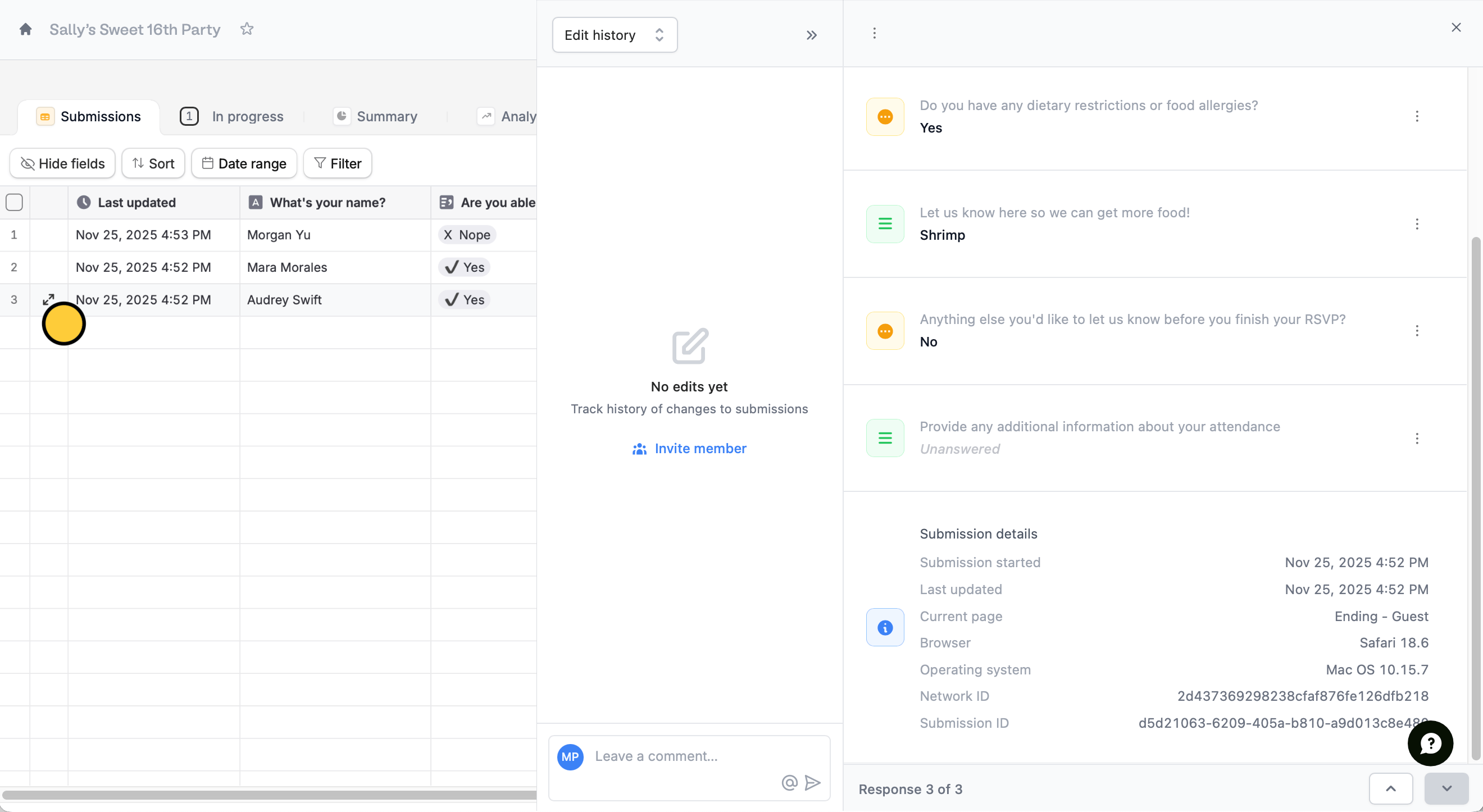
Hover and click on the result you are interested in. You'll see the **Submission ID** at the bottom of the window in the right side.
## Find the Submission ID for a particular result
Hover and click on the result you are interested in. You'll see the **Submission ID** at the bottom of the window in the right side.
 ## Related articles
Use a form to create or update Airtable bases.
Use a form to create or update Notion databases.
View all submissions to your form. Filter, sort, or export to CSV.
## Related articles
Use a form to create or update Airtable bases.
Use a form to create or update Notion databases.
View all submissions to your form. Filter, sort, or export to CSV.