> ## Documentation Index
> Fetch the complete documentation index at: https://fillout-005a867b-dependabot-npm-and-yarn-form-data-4-0-6.mintlify.site/llms.txt
> Use this file to discover all available pages before exploring further.
# Filter and Branch
> Set an action to occur only when it meets a specific condition. Add branches to trigger different actions based on specific responses in your workflow.
## How to filter an action
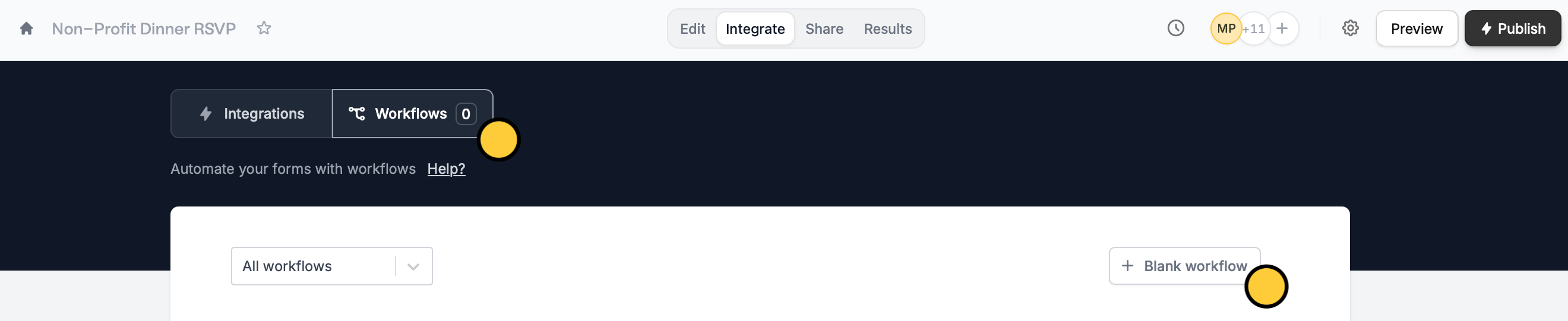
Click `Integrate` on the top menu of your form, followed by `Workflows`. Then, start with a `+ Blank workflow`.
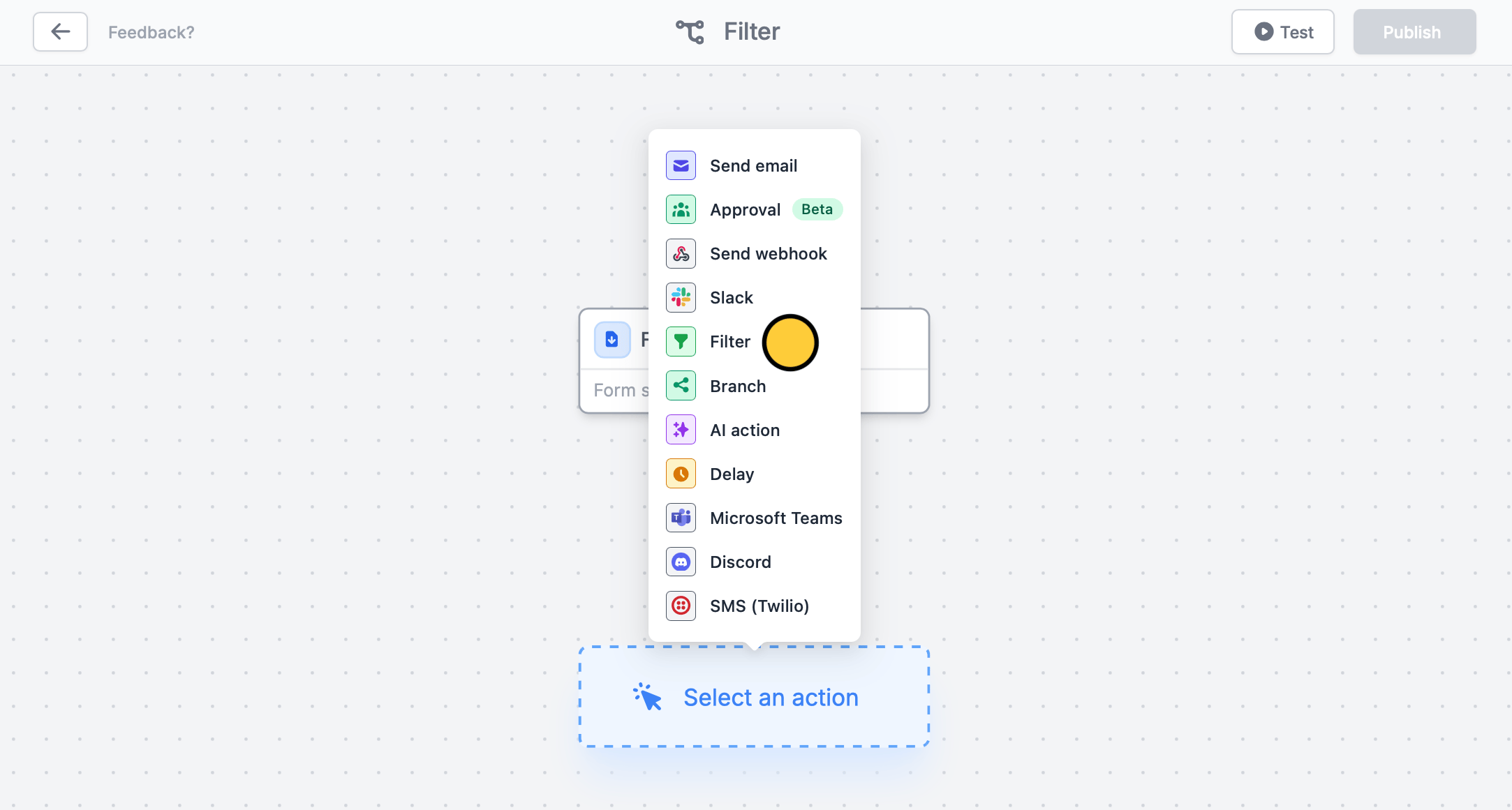
 First, choose a **trigger**. Then, select `Filter` as the first **action**.
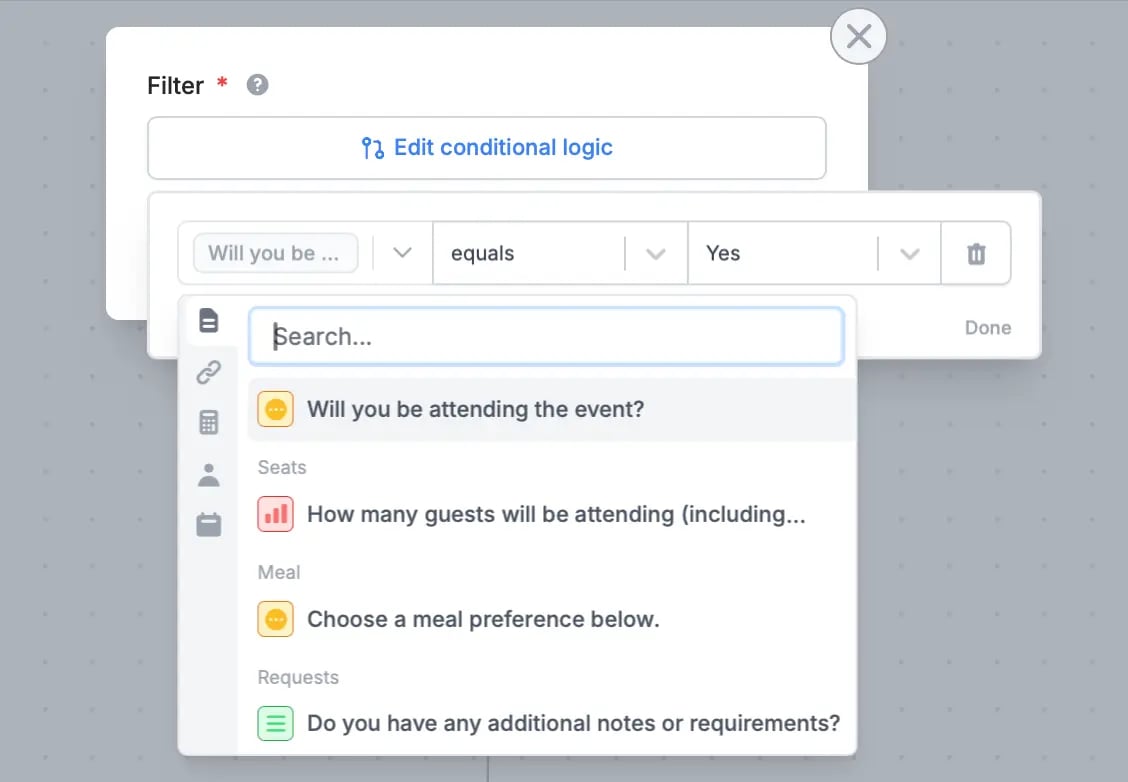
 `Set conditional logic` to`+ Add condition`. Choose a question or field from the left dropdown, an operator from the middle (e.g., equals), and an answer from the right dropdown to trigger the next action.
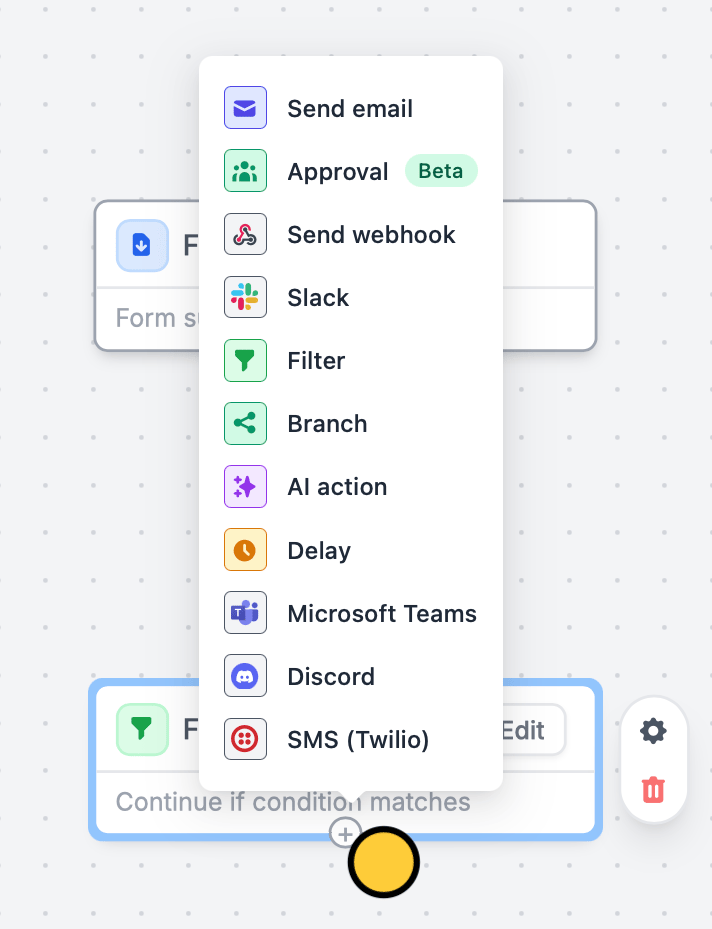
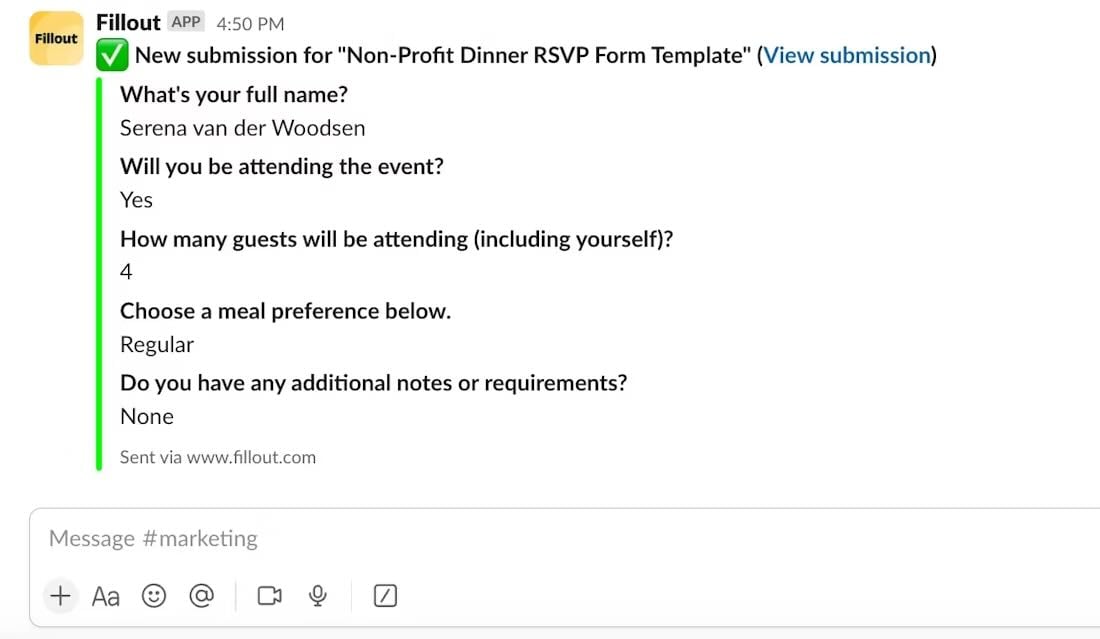
 Choose the next **action** by clicking under Filter. We'll send a message in `Slack` when a respondent RSVPs "Yes". Remember to `Test` your workflow first.
 That’s it! `Publish` and share your form. Now you’ll receive summaries of those who answered "Yes" to your form in your chosen Slack channel.
 ## Add a branch to your workflow
You can also create different branches based on specific conditions. By adding a branch, you can ensure that the right action happens for each situation.
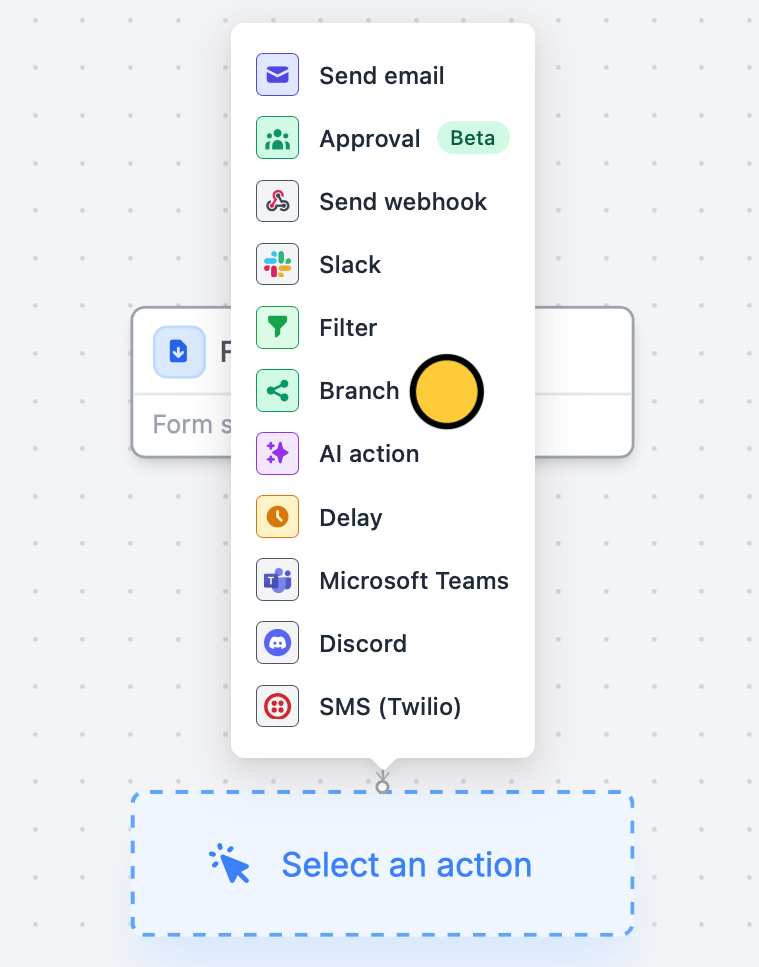
After selecting your form **trigger**, add a `Branch`.
## Add a branch to your workflow
You can also create different branches based on specific conditions. By adding a branch, you can ensure that the right action happens for each situation.
After selecting your form **trigger**, add a `Branch`.
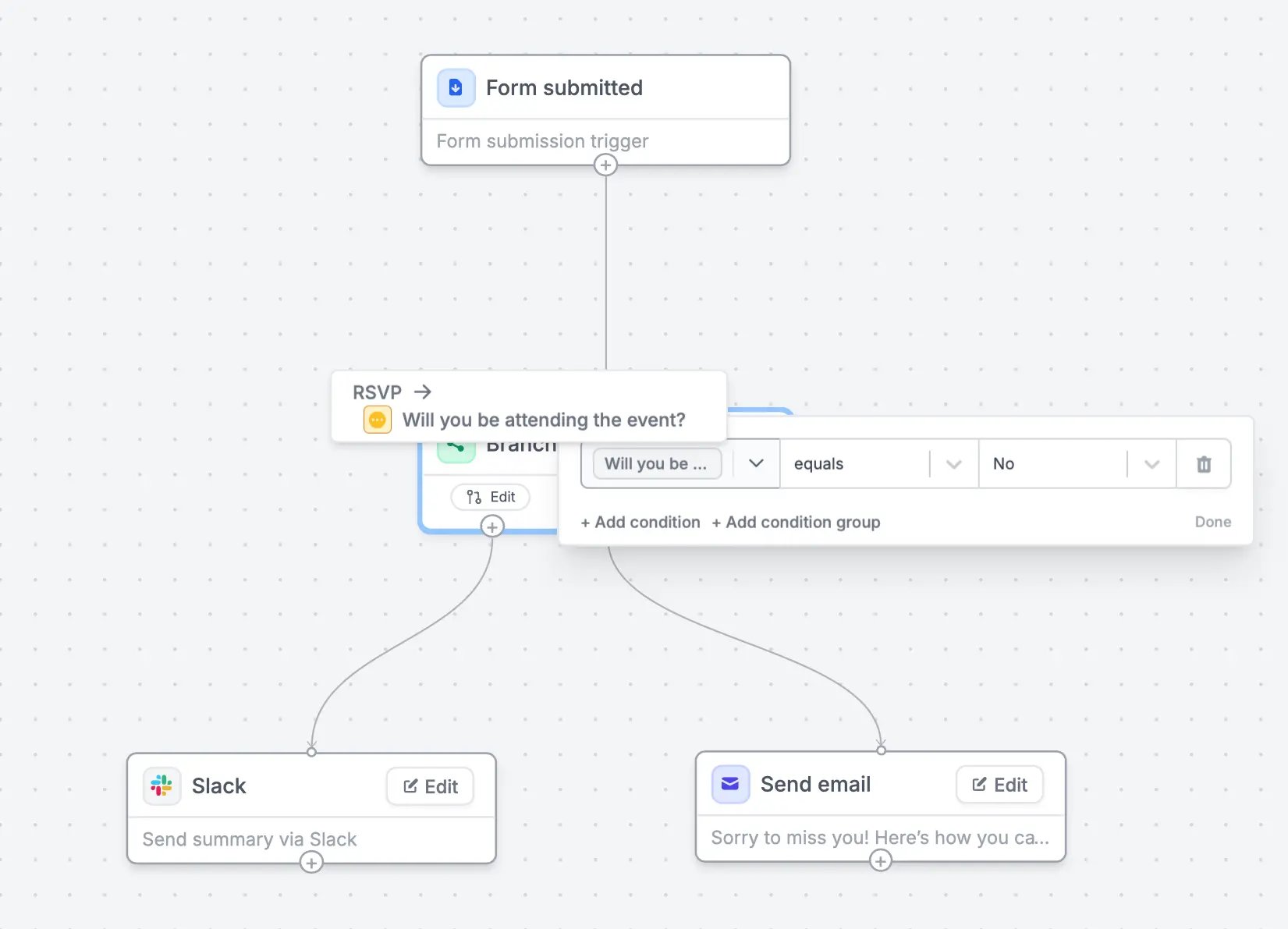
 Click `Edit` to set a condition, followed by to define what happens when the condition is met.
In our example, we’ll send a summary of the responses to Slack when a respondent RSVPs "Yes", whereas we’ll send them an email with a link to our fundraising page and newsletter when they respond "No".
Click `Edit` to set a condition, followed by to define what happens when the condition is met.
In our example, we’ll send a summary of the responses to Slack when a respondent RSVPs "Yes", whereas we’ll send them an email with a link to our fundraising page and newsletter when they respond "No".
 ## Related articles
Simplify task flows with native multi-step automations.
Perform an integration only when a certain condition is met.
## Related articles
Simplify task flows with native multi-step automations.
Perform an integration only when a certain condition is met.