> ## Documentation Index
> Fetch the complete documentation index at: https://fillout-005a867b-dependabot-npm-and-yarn-form-data-4-0-6.mintlify.site/llms.txt
> Use this file to discover all available pages before exploring further.
# Add custom emails to Fillout Scheduling
> Customize the message Fillout sends to attendees when they book a meeting.
## How it works
By default, Fillout emails the form creator when a meeting is booked, and Google or Outlook Calendar sends the respondent a meeting invite with details. If you’d like to also personally email your respondent, you can add a [custom followup email](/custom-emails).
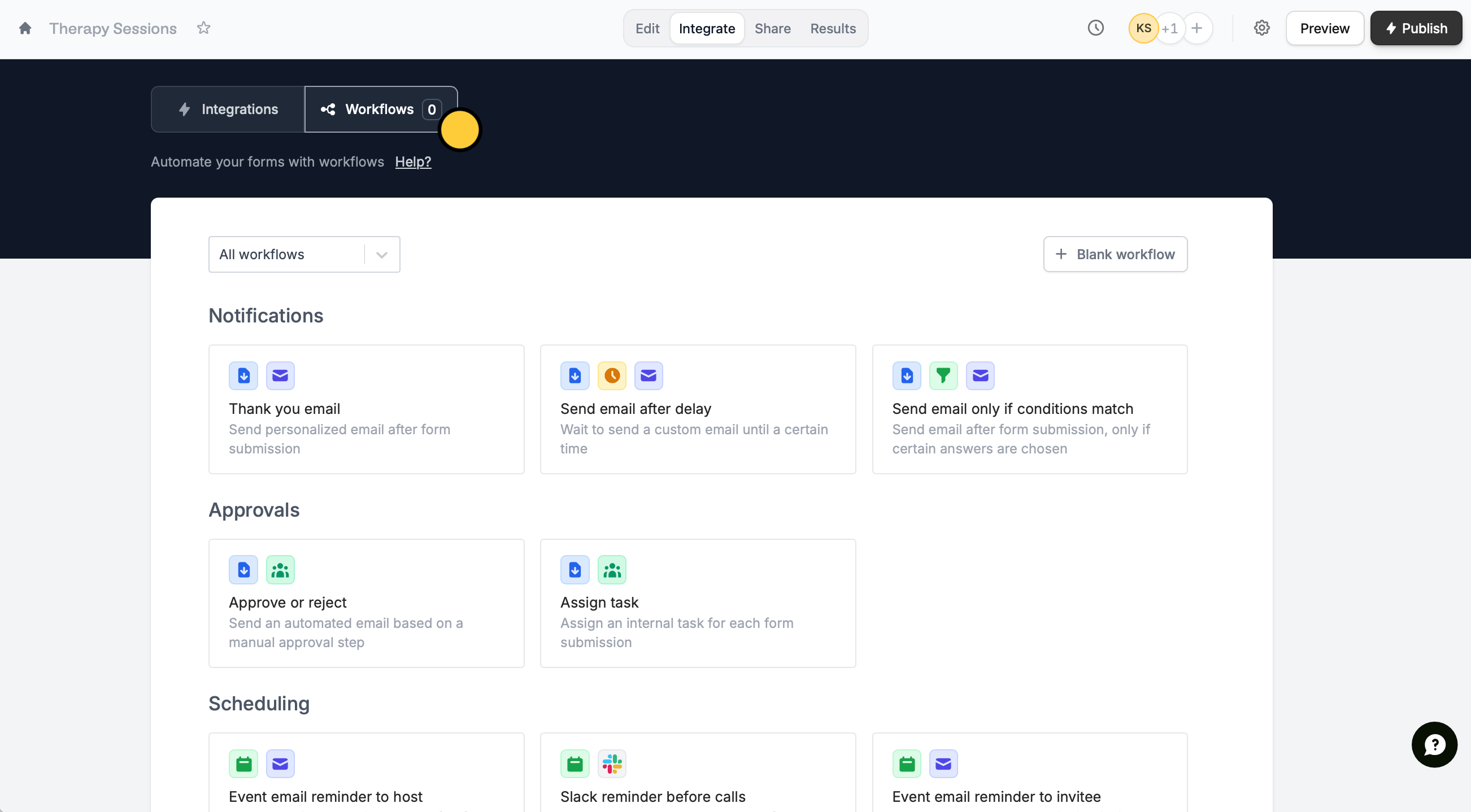
On the `Integrate` page of your form, navigate to `Workflows`. Choose your preferred template. In this example, we'll select **Thank you email**.
 \
Alternatively, you can click on the upper right corner.
`Edit` the contents of your email. More details [here](/custom-emails).
\
Alternatively, you can click on the upper right corner.
`Edit` the contents of your email. More details [here](/custom-emails).
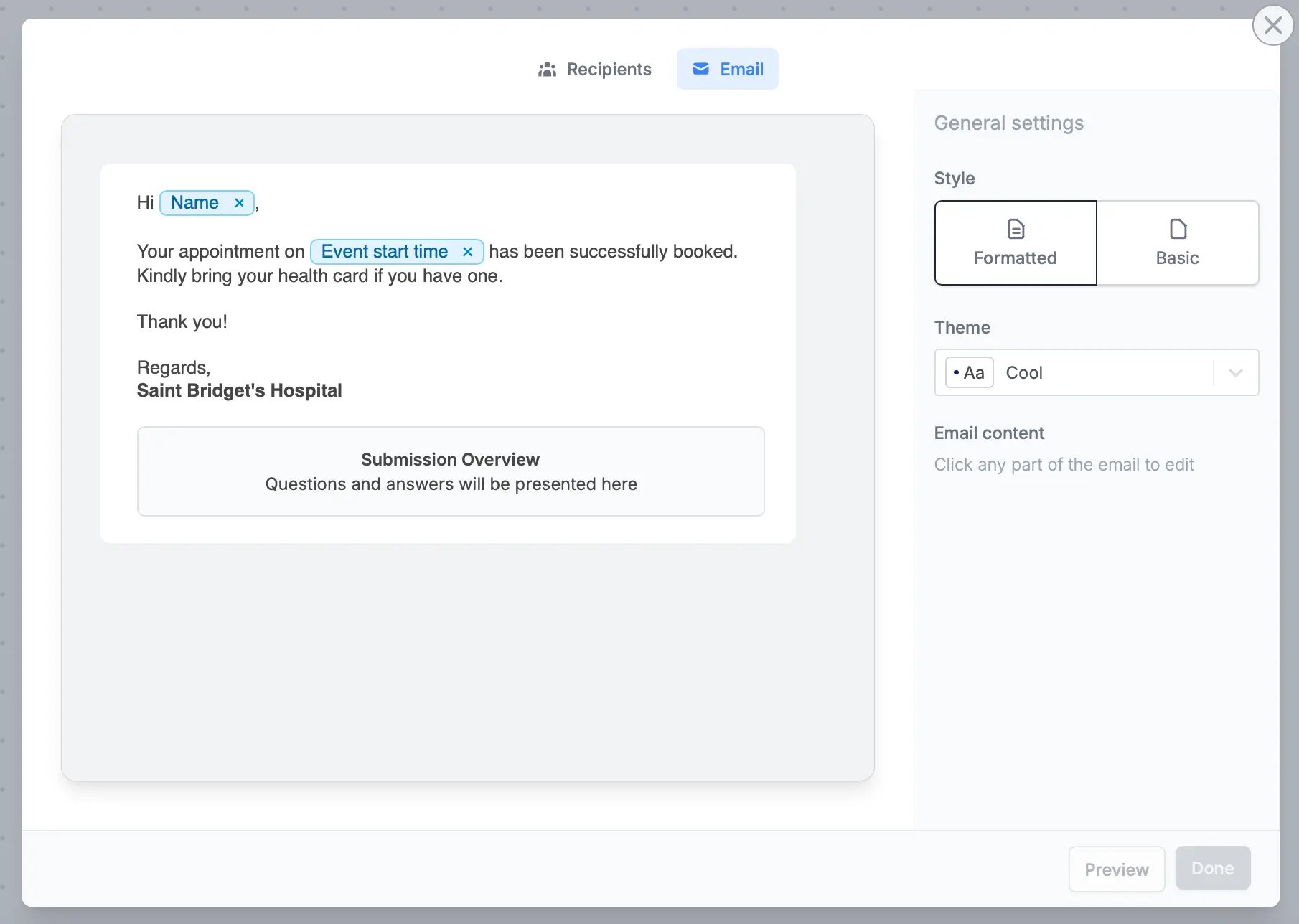 Click `Preview` to send a sample email to your inbox.
On your form editor, click `Publish` on the upper right corner to make the changes reflect.
## Related articles
Automate sending, pipe previous answers, and style your email.
Send reminders to yourself and other hosts.
Automate reminders to your meeting guests via email.
Click `Preview` to send a sample email to your inbox.
On your form editor, click `Publish` on the upper right corner to make the changes reflect.
## Related articles
Automate sending, pipe previous answers, and style your email.
Send reminders to yourself and other hosts.
Automate reminders to your meeting guests via email.