> ## Documentation Index
> Fetch the complete documentation index at: https://fillout-005a867b-dependabot-npm-and-yarn-form-data-4-0-6.mintlify.site/llms.txt
> Use this file to discover all available pages before exploring further.
# Monitor scheduling conflicts
> Choose which Google or Outlook Calendar Fillout watches for scheduling conflicts. Tweak its settings for scheduling events.
## Overview
When you [connect your Google or Outlook calendar to Fillout](/fillout-scheduling-intro), your default calendar will track conflicts and block existing events to prevent double-booking. New meetings will also be added to your default calendar automatically. You can have Fillout also watch your other Google Calendars for events to ensure your availability.
## How to set up
On your dashboard, open `Scheduling` settings from the left-hand panel.
Go to `Connected calendars` to enable any alternate calendars you want Fillout to watch for conflicting events.
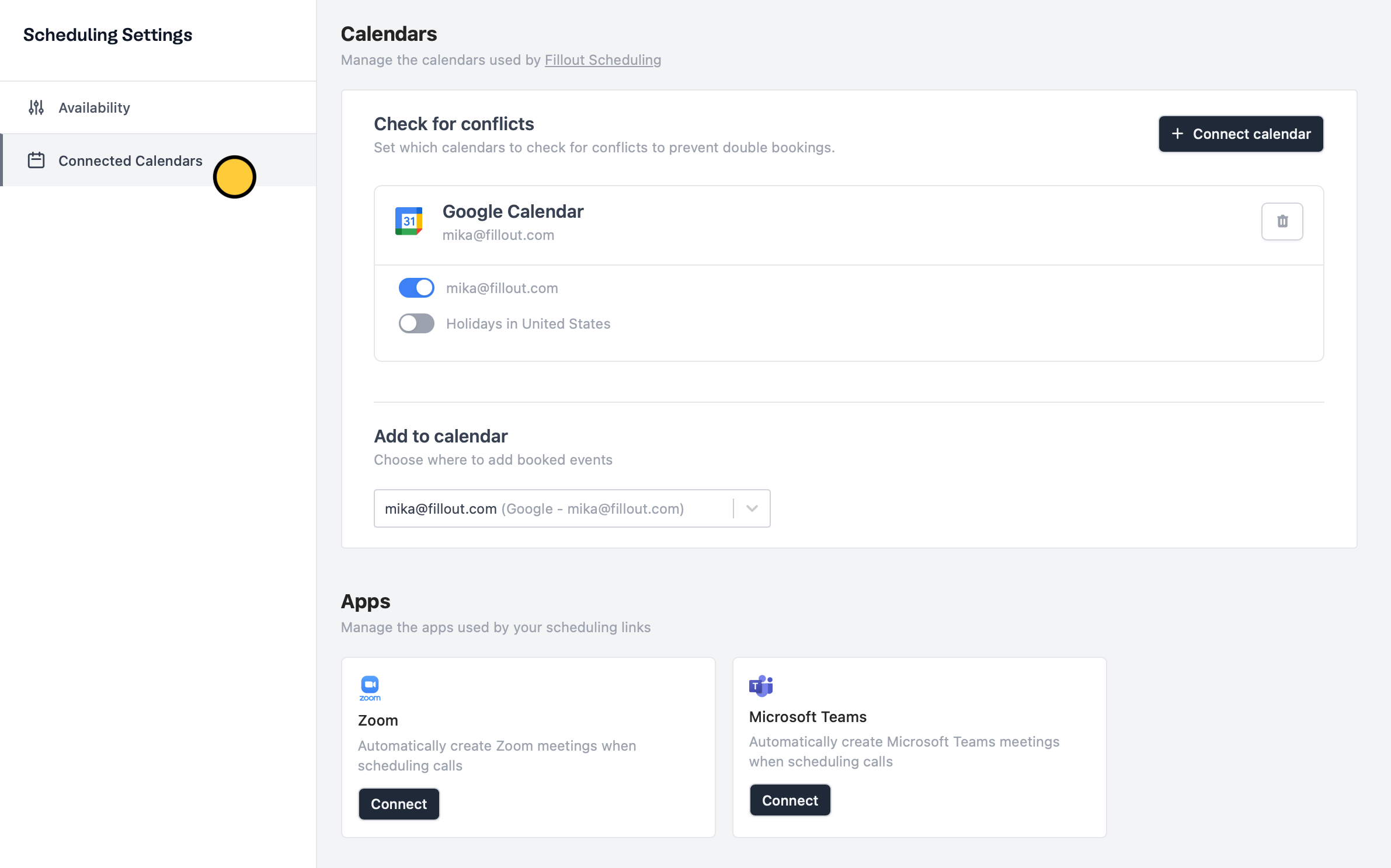 You can also change the default calendar where new events are added by clicking the **Add to calendar** dropdown.
Fillout Scheduling supports one Google and one Outlook calendar per account. Contact [support@fillout.com](mailto:support@fillout.com) to request access to multiple calendars.
You can also change the default calendar where new events are added by clicking the **Add to calendar** dropdown.
Fillout Scheduling supports one Google and one Outlook calendar per account. Contact [support@fillout.com](mailto:support@fillout.com) to request access to multiple calendars.