> ## Documentation Index
> Fetch the complete documentation index at: https://fillout-005a867b-dependabot-npm-and-yarn-form-data-4-0-6.mintlify.site/llms.txt
> Use this file to discover all available pages before exploring further.
# Custom form links and share preview
> Customize your form's subdomain and URL ending to match your organization's branding and generate a pretty URL. Edit the image thumbnail and text of your share preview for social media sites.
## Video tutorial
## How to add a custom subdomain
Even without a [custom domain](/custom-domains), you can customize your share link.
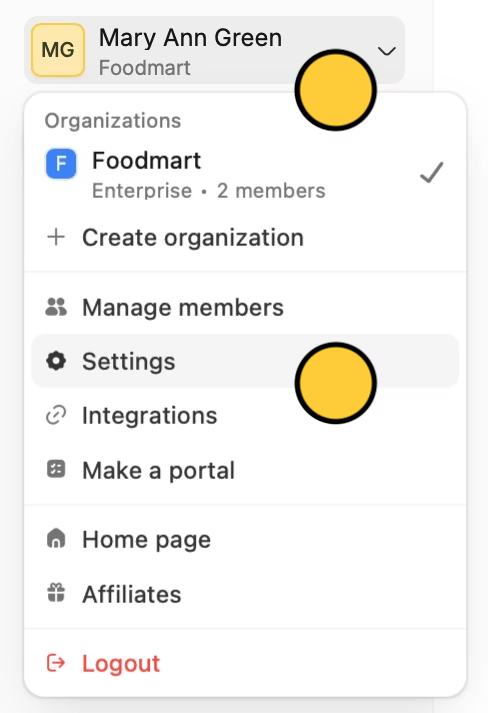
On the Fillout dashboard, click your `Account name` in the upper left corner followed by `Settings`.
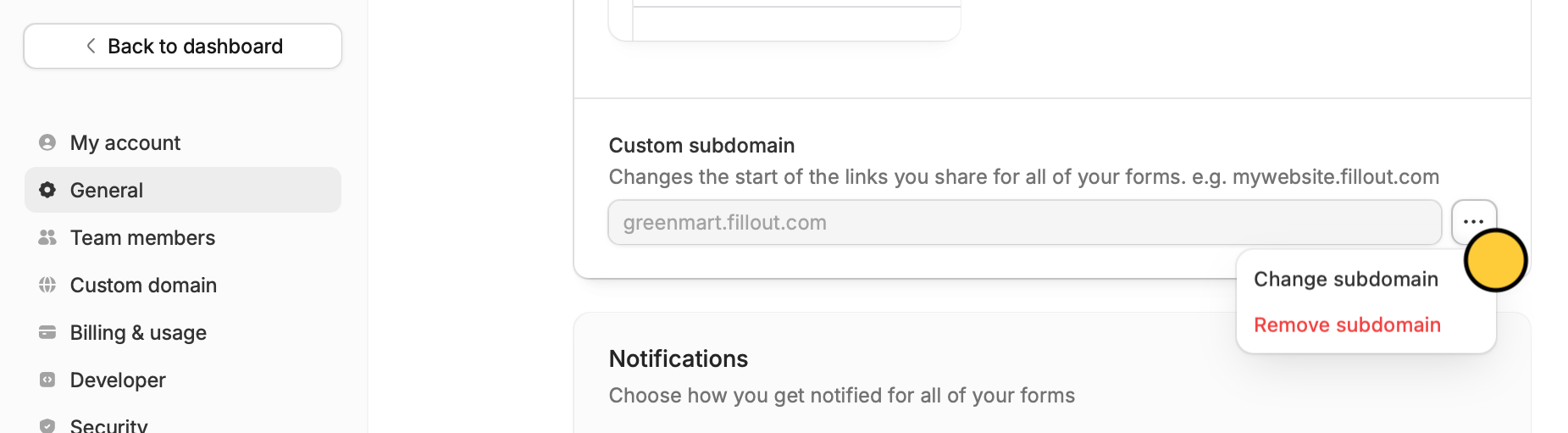
 Click followed by `Change subdomain` and enter one you intend to keep in the popup.
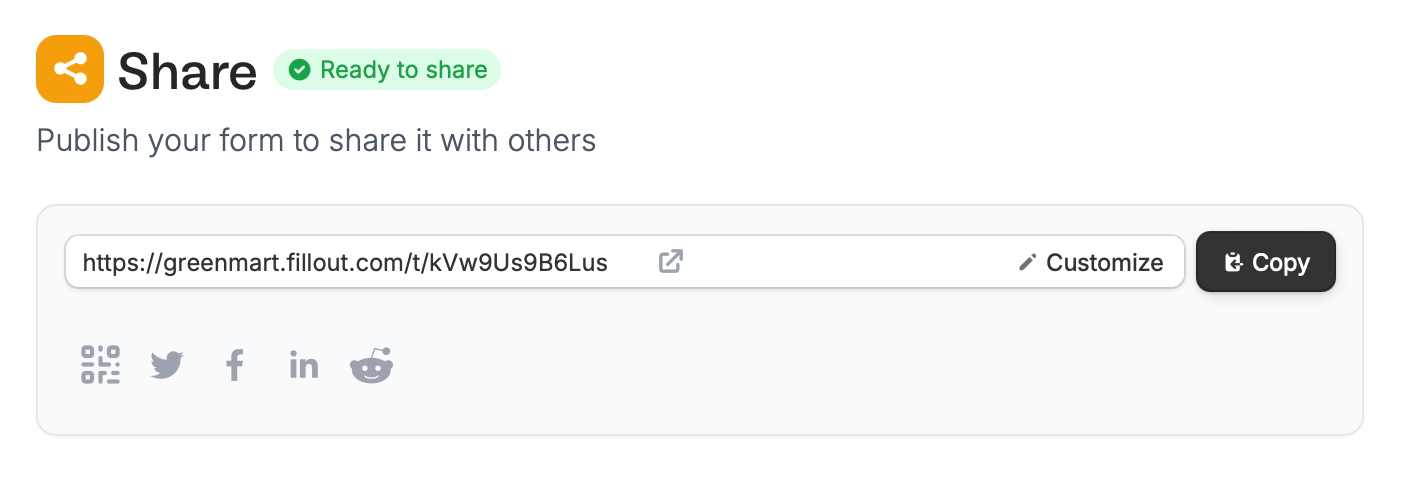
 That's it! Now all your forms will begin with yoursubdomain.fillout.com
 The original default form link will still redirect to the same form. There is no need to share the new customized link to those whom you have shared the original link with prior.
You can also remove your subdomain here.
## Edit the custom ending of your link
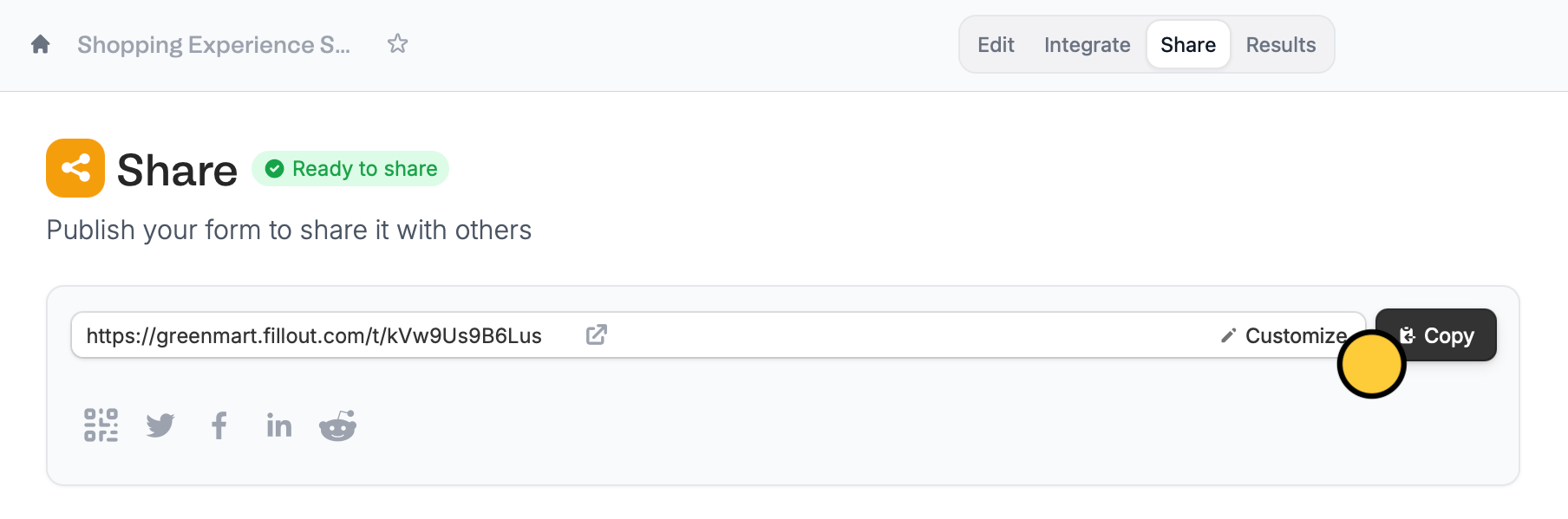
You can enter any text for your form link’s ending to personalize it. Click `Share` on top to `Customize` the slug.
The original default form link will still redirect to the same form. There is no need to share the new customized link to those whom you have shared the original link with prior.
You can also remove your subdomain here.
## Edit the custom ending of your link
You can enter any text for your form link’s ending to personalize it. Click `Share` on top to `Customize` the slug.
 ## Customize share preview
By default, your form's share preview shows the name of your form and a general description. To change it, check out this quick [guide](/customize-form-share-link).
## Related articles
Display your QR code online or offline on posters, and more.
Customize form URLs to enhance your branding.
Add a professional touch and create strong brand identity.
## Customize share preview
By default, your form's share preview shows the name of your form and a general description. To change it, check out this quick [guide](/customize-form-share-link).
## Related articles
Display your QR code online or offline on posters, and more.
Customize form URLs to enhance your branding.
Add a professional touch and create strong brand identity.