> ## Documentation Index
> Fetch the complete documentation index at: https://fillout-005a867b-dependabot-npm-and-yarn-form-data-4-0-6.mintlify.site/llms.txt
> Use this file to discover all available pages before exploring further.
# Fillout custom email notifications
> Automate email sending, pipe previous answers, and style your email. Opt to send emails after a certain time frame or only when certain answers are selected.
## How to send a custom email
Click `Integrate` on the top menu of your form, followed by `Workflows`. Then, choose a template under **Notifications**. Alternatively, you may open a form's **Settings** page followed by **Custom emails**.
Choose if you want to send one right away through a **Thank you email**, **Send email after delay**, or **Send email only if conditions match**.
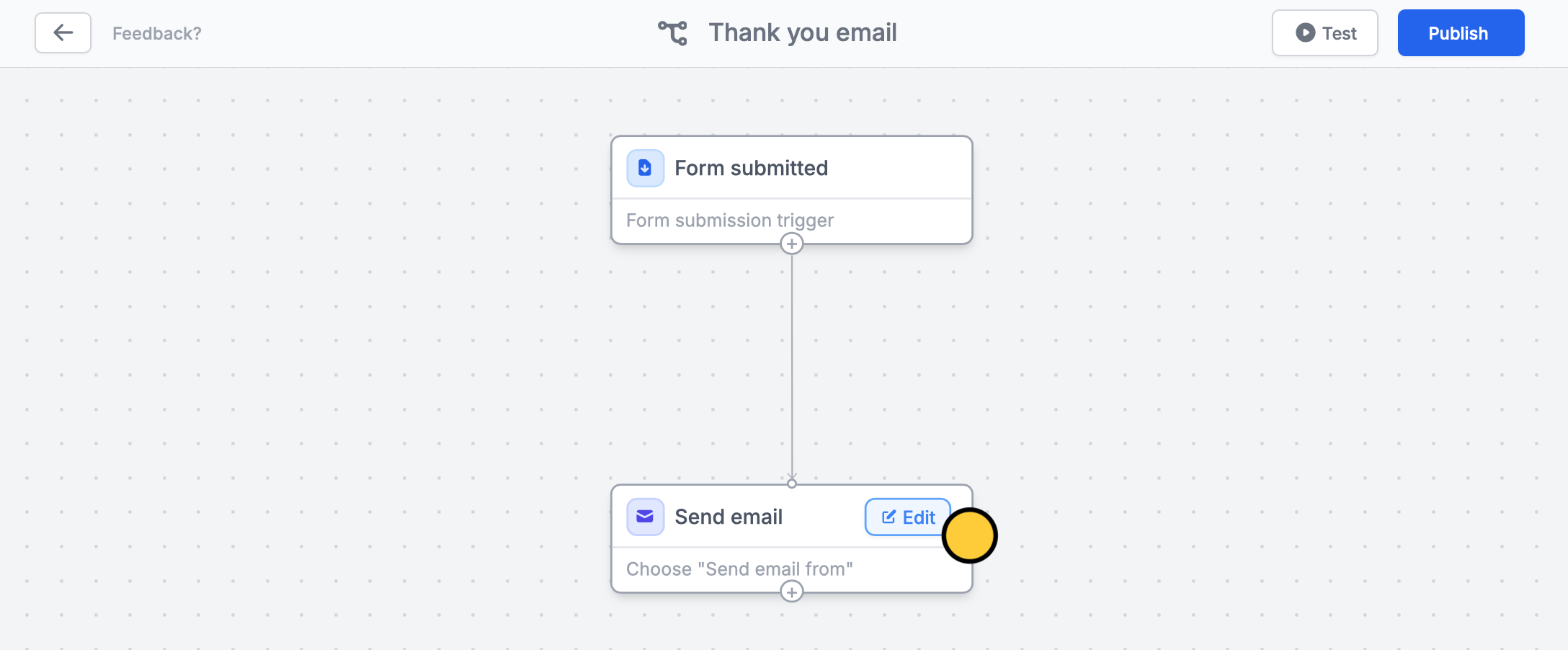
Then, `Edit` the contents of your email
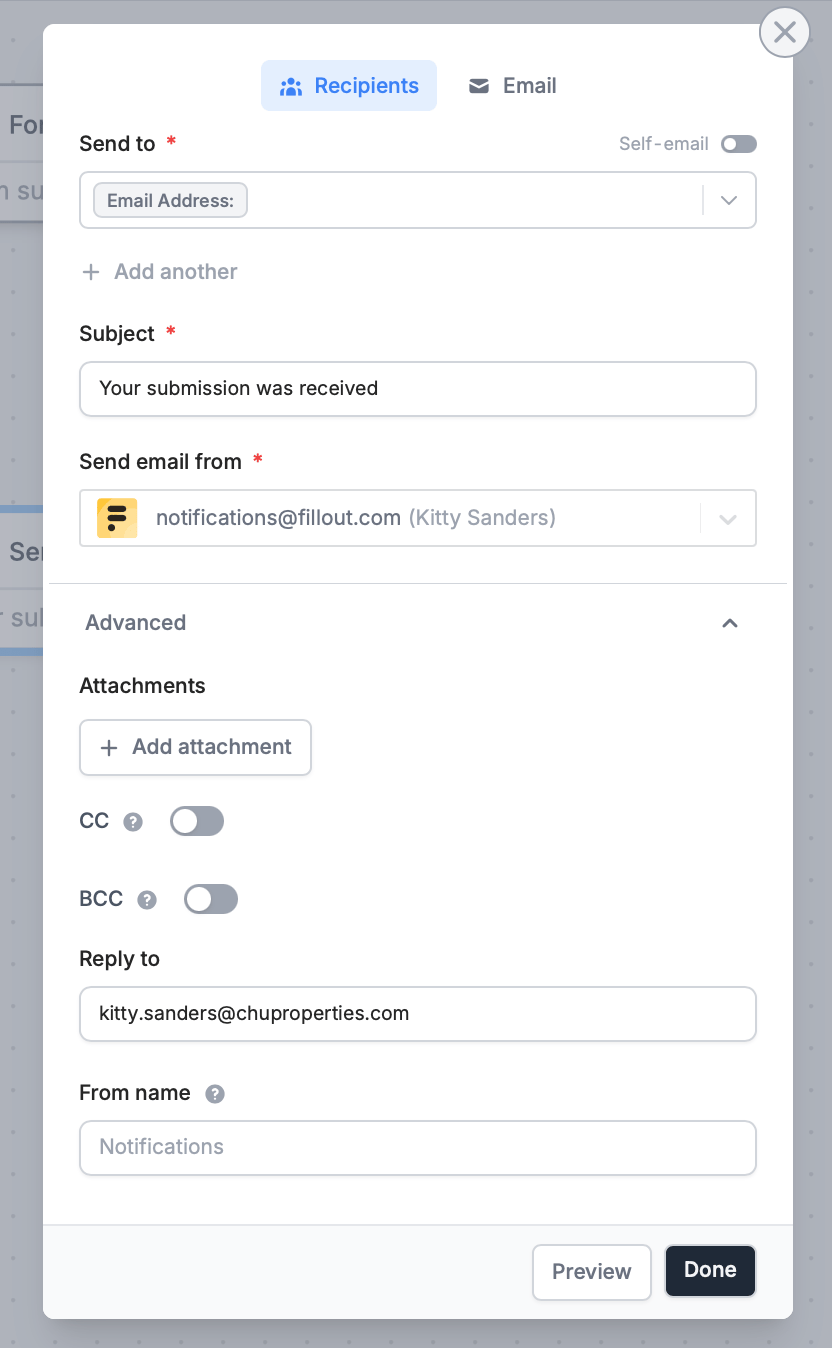
Change the default details if you prefer. You can also opt to **Send email from** your SMTP server or GMail or Outlook account.
You can also pipe answers, like First Name, by typing **@** or clicking and choosing the corresponding field or question.
[Calculations](/calculations) can also be used to insert dynamic text into your emails. Be sure to `Test` your email workflow before clicking `Publish` on the upper right corner.
### Send different messages based on responses
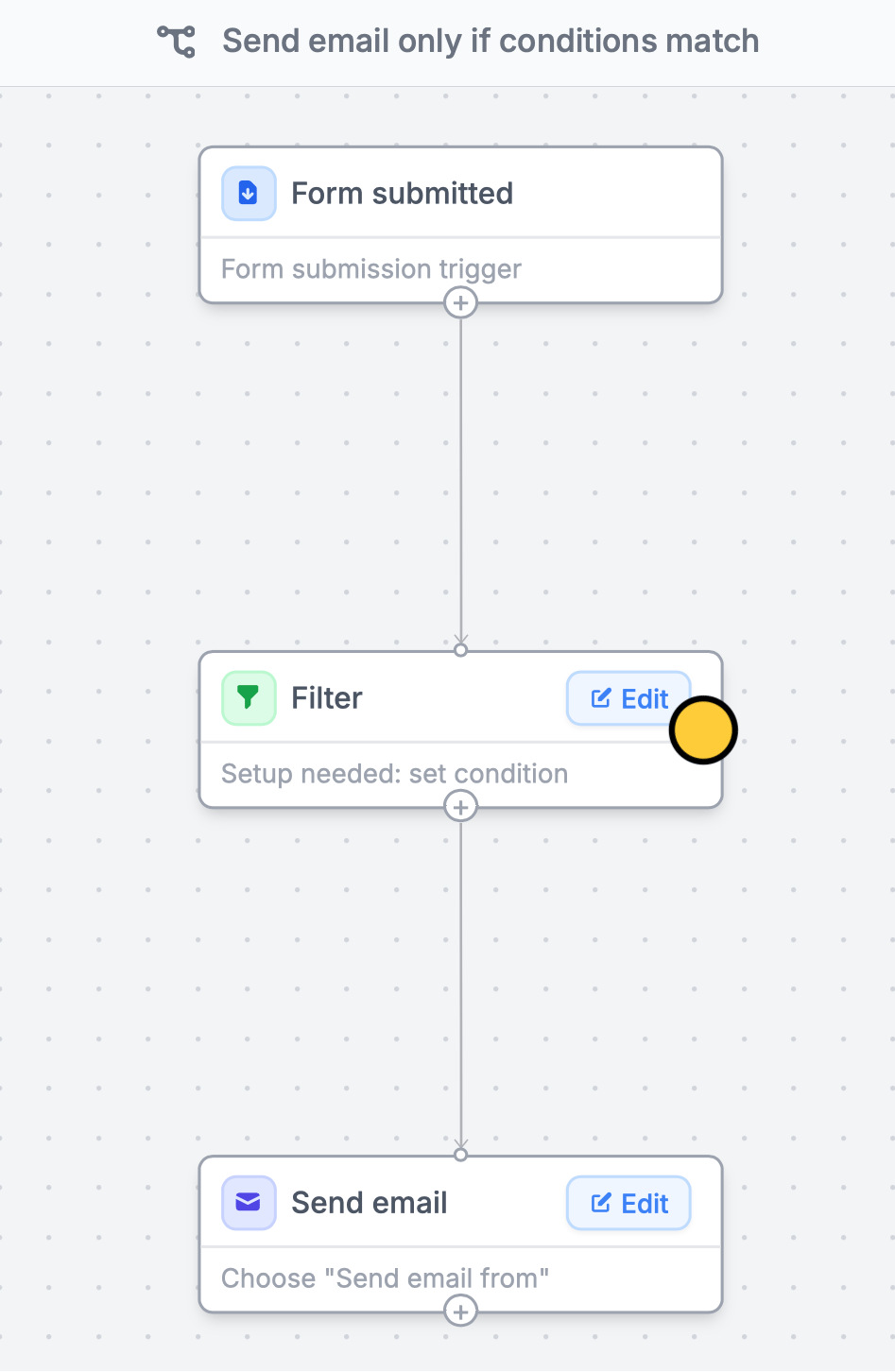
You can send a different message to a group of respondents depending on their answers. Choose **Send email only if conditions match**.
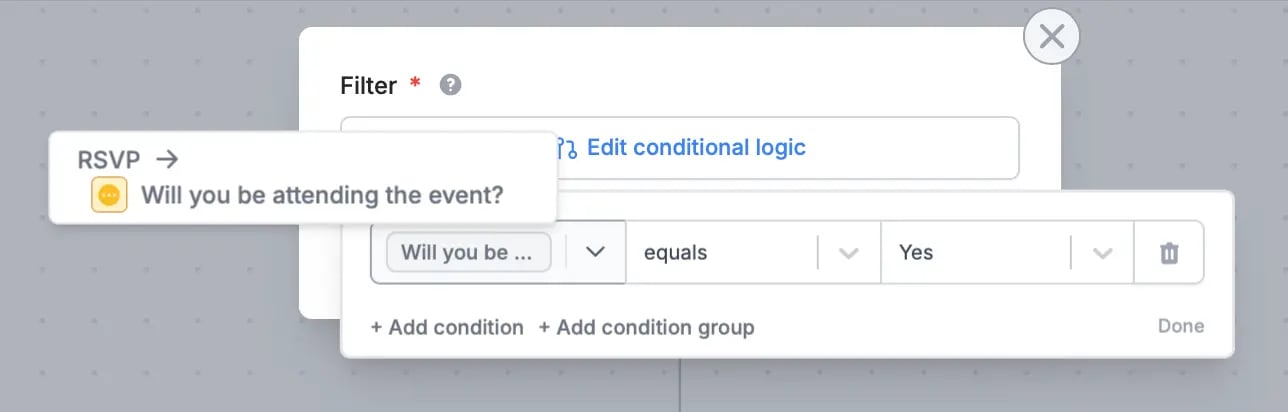
Then, set up conditional logic by choosing a question followed by a condition. For example, we'll send a custom email to those who responded Yes to Will you be attending the event?
That's it! Now, only respondents who will attend the event will be receiving an email.
### Send emails after a specified duration
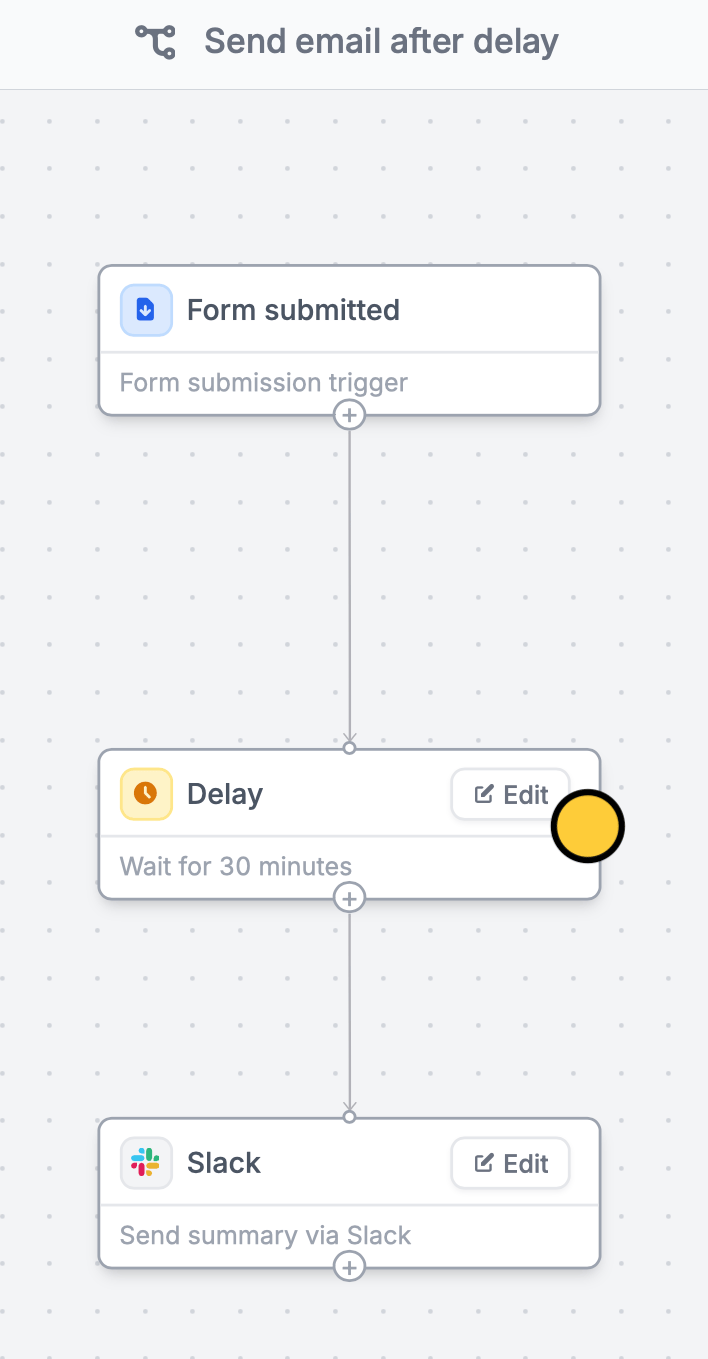
You can opt to **Send email after delay** and `Edit` how later you want to send it in minutes, hours, or days.
## Style your email
To customize the look of your message, go to `Email`. Select your preferred **Style** and **Theme**. Click to add more elements.
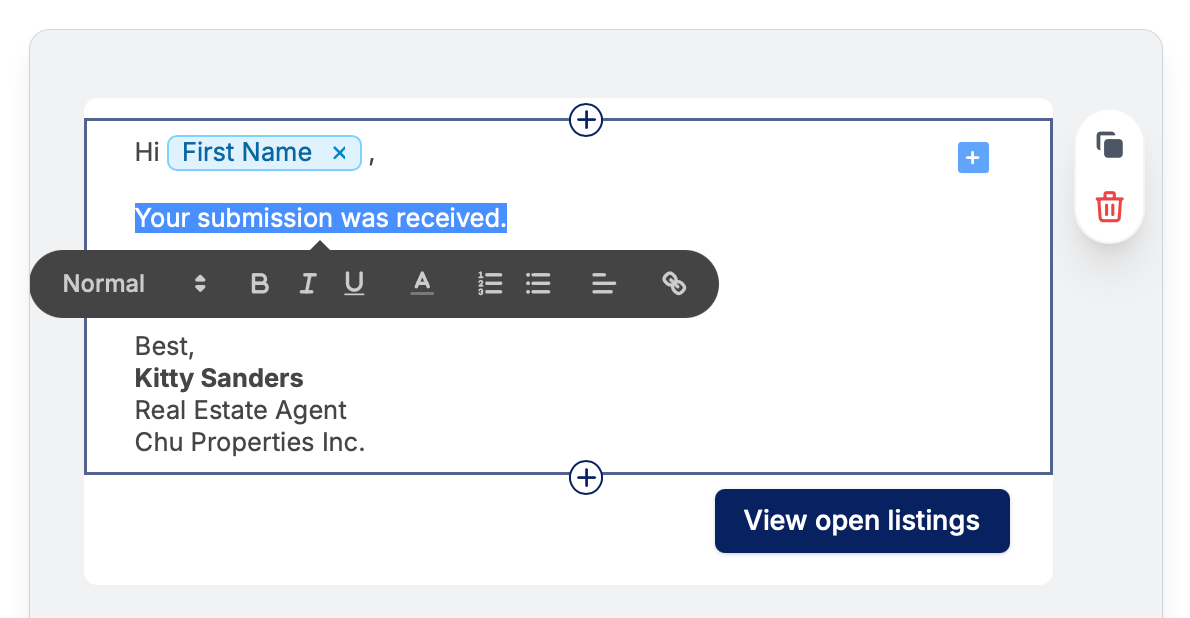
To change the text formatting and color, or add a hyperlink, simply highlight any text.
## Add a submission overview
Here's a quick way to show your respondents a summary of their form submission.
## Related articles
Insert previous answers into upcoming questions or fields.
Pause workflows for minutes, hours, or days.
Send emails using your SMTP server to ensure reliable delivery.
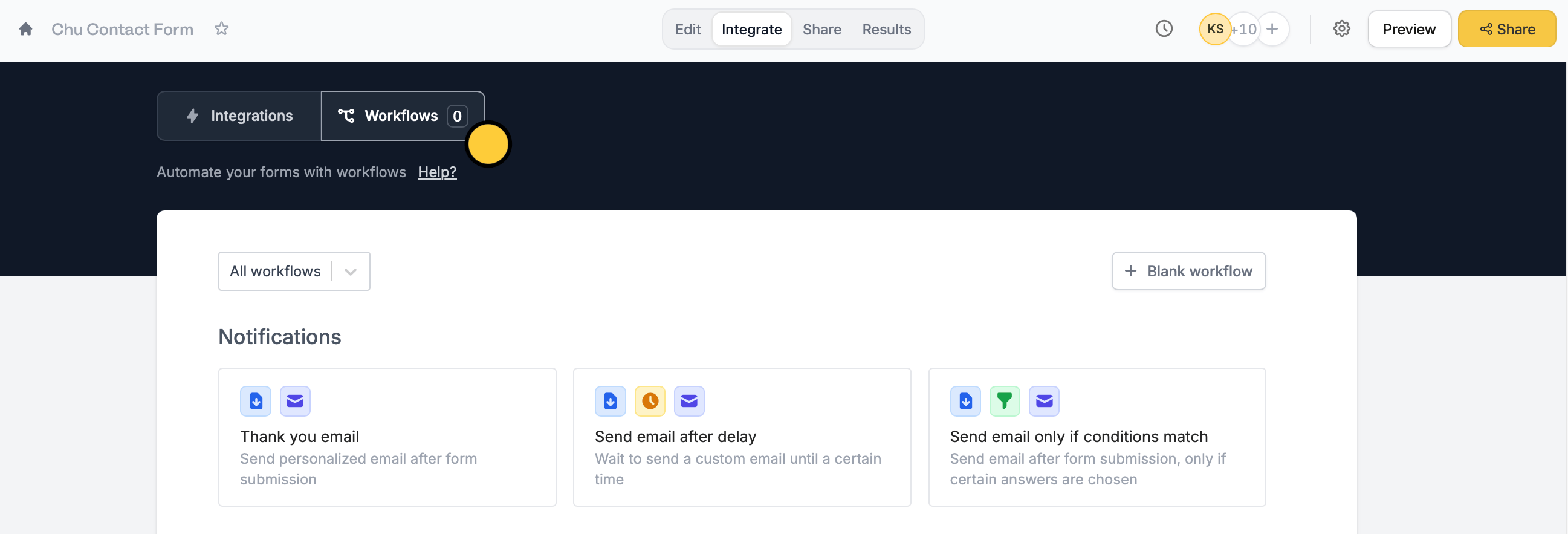 Choose if you want to send one right away through a **Thank you email**, **Send email after delay**, or **Send email only if conditions match**.
 Change the default details if you prefer. You can also opt to **Send email from** your SMTP server or GMail or Outlook account.
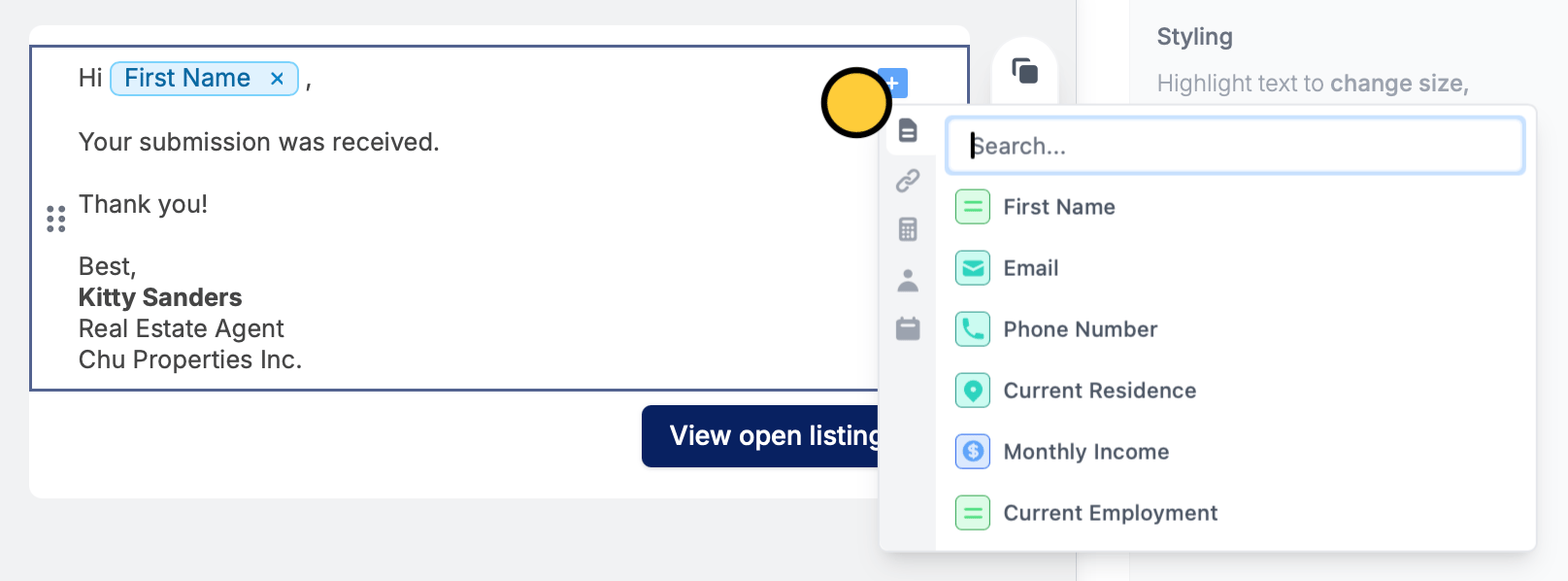 [Calculations](/calculations) can also be used to insert dynamic text into your emails. Be sure to `Test` your email workflow before clicking `Publish` on the upper right corner.
 Then, set up conditional logic by choosing a question followed by a condition. For example, we'll send a custom email to those who responded Yes to Will you be attending the event?
 That's it! Now, only respondents who will attend the event will be receiving an email.
### Send emails after a specified duration
You can opt to **Send email after delay** and `Edit` how later you want to send it in minutes, hours, or days.
That's it! Now, only respondents who will attend the event will be receiving an email.
### Send emails after a specified duration
You can opt to **Send email after delay** and `Edit` how later you want to send it in minutes, hours, or days.
 ## Style your email
To customize the look of your message, go to `Email`. Select your preferred **Style** and **Theme**. Click
## Style your email
To customize the look of your message, go to `Email`. Select your preferred **Style** and **Theme**. Click 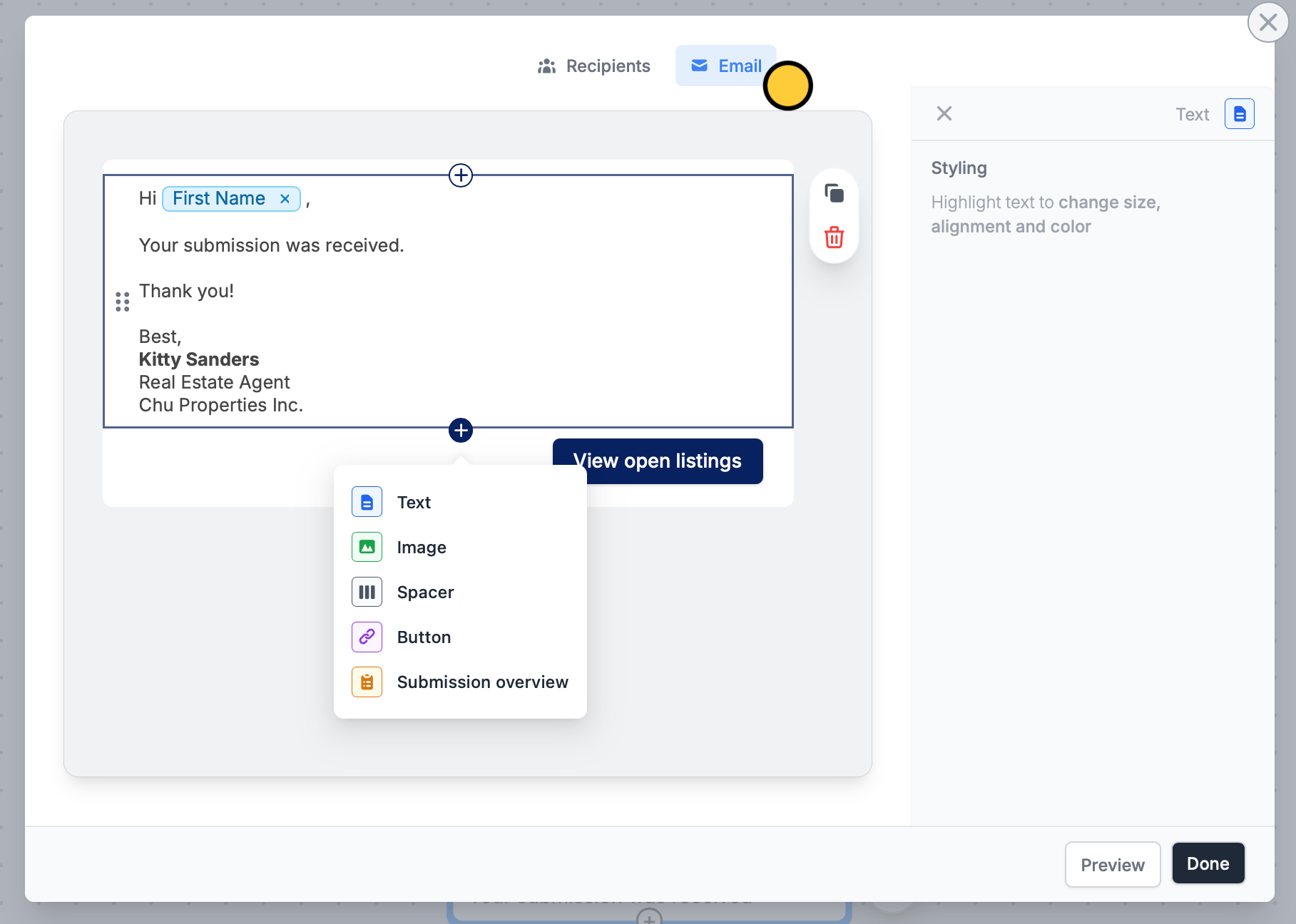 To change the text formatting and color, or add a hyperlink, simply highlight any text.
 ## Add a submission overview
Here's a quick way to show your respondents a summary of their form submission.
## Related articles
## Add a submission overview
Here's a quick way to show your respondents a summary of their form submission.
## Related articles