> ## Documentation Index
> Fetch the complete documentation index at: https://fillout-005a867b-dependabot-npm-and-yarn-form-data-4-0-6.mintlify.site/llms.txt
> Use this file to discover all available pages before exploring further.
# Add a banner within your form
> Highlight disclaimers, warnings, or key benefits. Give respondents a quick heads-up or flag invalid input.
## How to add a banner to your form
On the left-hand panel, select `Banner` or drag and drop the field anywhere on your form.
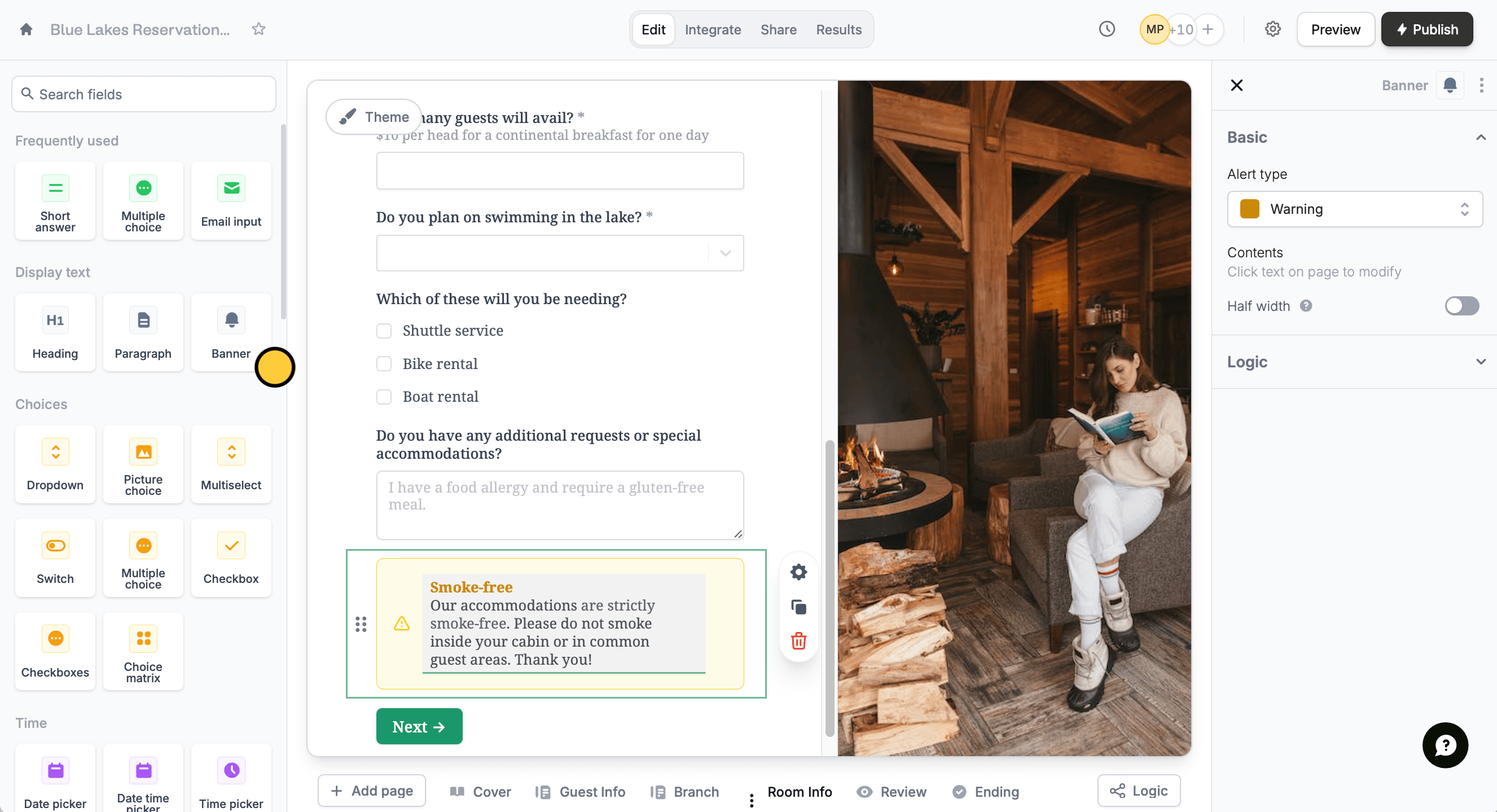 Click the banner's to change its color and icon. The right-hand panel will appear where you can select the appropriate **Alert type**.
This help article does **not** refer to header banners, but rather to banners you can add in your form's body. To add text banners, use the [heading field](https://www.fillout.com/help/heading). For image banners, use the [image field](https://www.fillout.com/help/image-gif).
## Show banners only when necessary
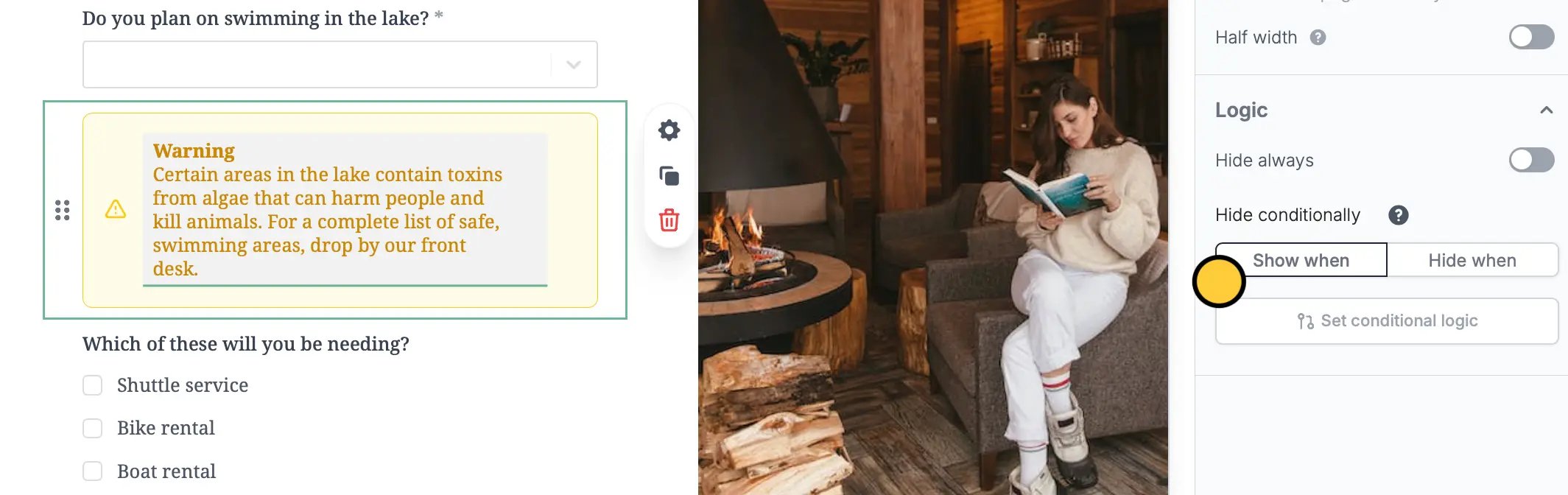
Click the banner's . Under **Logic**, `Set conditional logic`.
Click the banner's to change its color and icon. The right-hand panel will appear where you can select the appropriate **Alert type**.
This help article does **not** refer to header banners, but rather to banners you can add in your form's body. To add text banners, use the [heading field](https://www.fillout.com/help/heading). For image banners, use the [image field](https://www.fillout.com/help/image-gif).
## Show banners only when necessary
Click the banner's . Under **Logic**, `Set conditional logic`.
 `+ Add condition` to select the relevant question and answer. For this example, we will show the warning banner only when guests are interested in swimming.
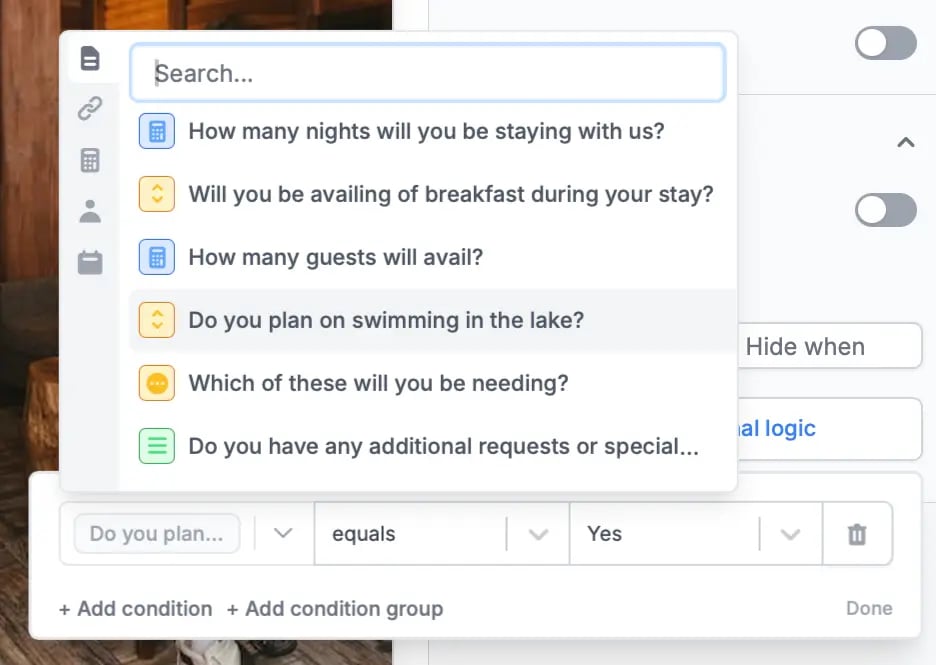 Take note that default is set to `Show when` and **equals**, which means a banner will appear when a certain option is selected. Alternatively, you can [**conditionally hide fields**](/conditional-hiding) and [**add condition groups**](/condition-logic-groups).
## Where you can use a form banner
**Inform respondents of policies, rules, and potential dangers**
Banners are a great way to call attention to crucial information and relevant to what a guest or participant will be doing. This gives respondents a better idea of what to expect out of their experience.
**Excite customers and clients with exclusive deals and new features**
You can use a banner to draw a respondent’s focus to a particular service or subscription.
## Related articles
Hide or show fields based on answers, URL parameters or data.
Show or hide fields based on multiple conditions at once.
Take note that default is set to `Show when` and **equals**, which means a banner will appear when a certain option is selected. Alternatively, you can [**conditionally hide fields**](/conditional-hiding) and [**add condition groups**](/condition-logic-groups).
## Where you can use a form banner
**Inform respondents of policies, rules, and potential dangers**
Banners are a great way to call attention to crucial information and relevant to what a guest or participant will be doing. This gives respondents a better idea of what to expect out of their experience.
**Excite customers and clients with exclusive deals and new features**
You can use a banner to draw a respondent’s focus to a particular service or subscription.
## Related articles
Hide or show fields based on answers, URL parameters or data.
Show or hide fields based on multiple conditions at once.