> ## Documentation Index
> Fetch the complete documentation index at: https://fillout-005a867b-dependabot-npm-and-yarn-form-data-4-0-6.mintlify.site/llms.txt
> Use this file to discover all available pages before exploring further.
# Sync file uploads to Amazon S3
> Upload file submissions automatically to an Amazon S3 bucket with your Fillout form. Optionally set a dynamic file path to categorize submissions into nested buckets.
## What is Amazon S3?
The Amazon S3 integration is available on the **Team** and **Enterprise** plans. Learn more about the [Team plan](/team-plan).
[Amazon S3](https://aws.amazon.com/s3/) (Simple Storage Service) is a scalable cloud storage solution provided by AWS, designed to store and retrieve any amount of data with high availability and security. Ideal for businesses and developers, S3 offers cost-effective, reliable data storage for applications, backups, and content distribution, making it a top choice for cloud storage needs.
## How it works
Click `Integrate` on top followed by `Amazon S3`. If you don’t already have an access key to AWS, you can create one under **Security Credentials**. More details [here](https://docs.aws.amazon.com/IAM/latest/UserGuide/id_credentials_access-keys.html#Using_CreateAccessKey).
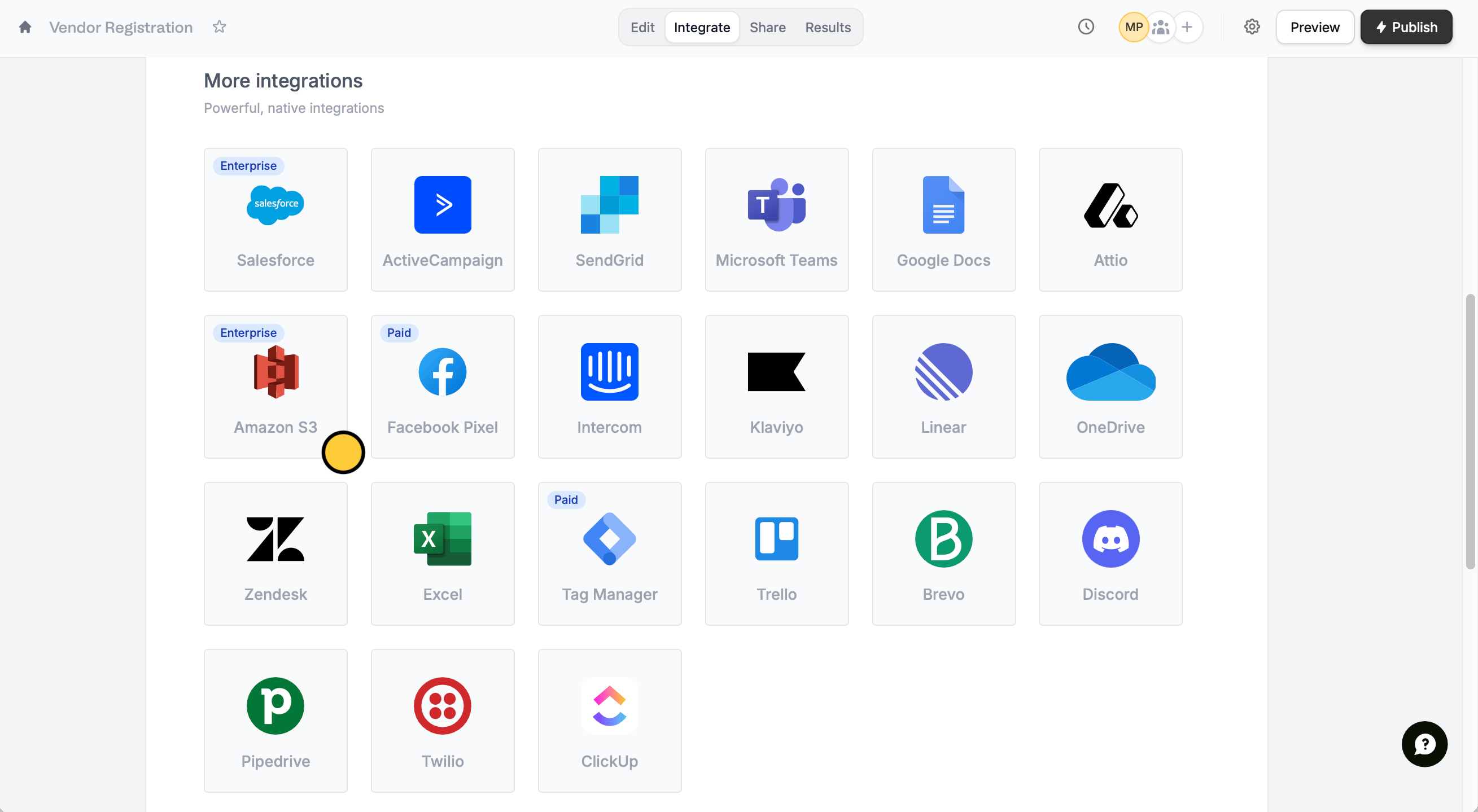 This integration is only applicable to **file uploads**. When creating your form, make sure you have at least one file upload field.
Choose which **Bucket** you would like to store the files in. Under **Upload fields**, click `+ Add new` to link a **file upload field**.
This integration is only applicable to **file uploads**. When creating your form, make sure you have at least one file upload field.
Choose which **Bucket** you would like to store the files in. Under **Upload fields**, click `+ Add new` to link a **file upload field**.
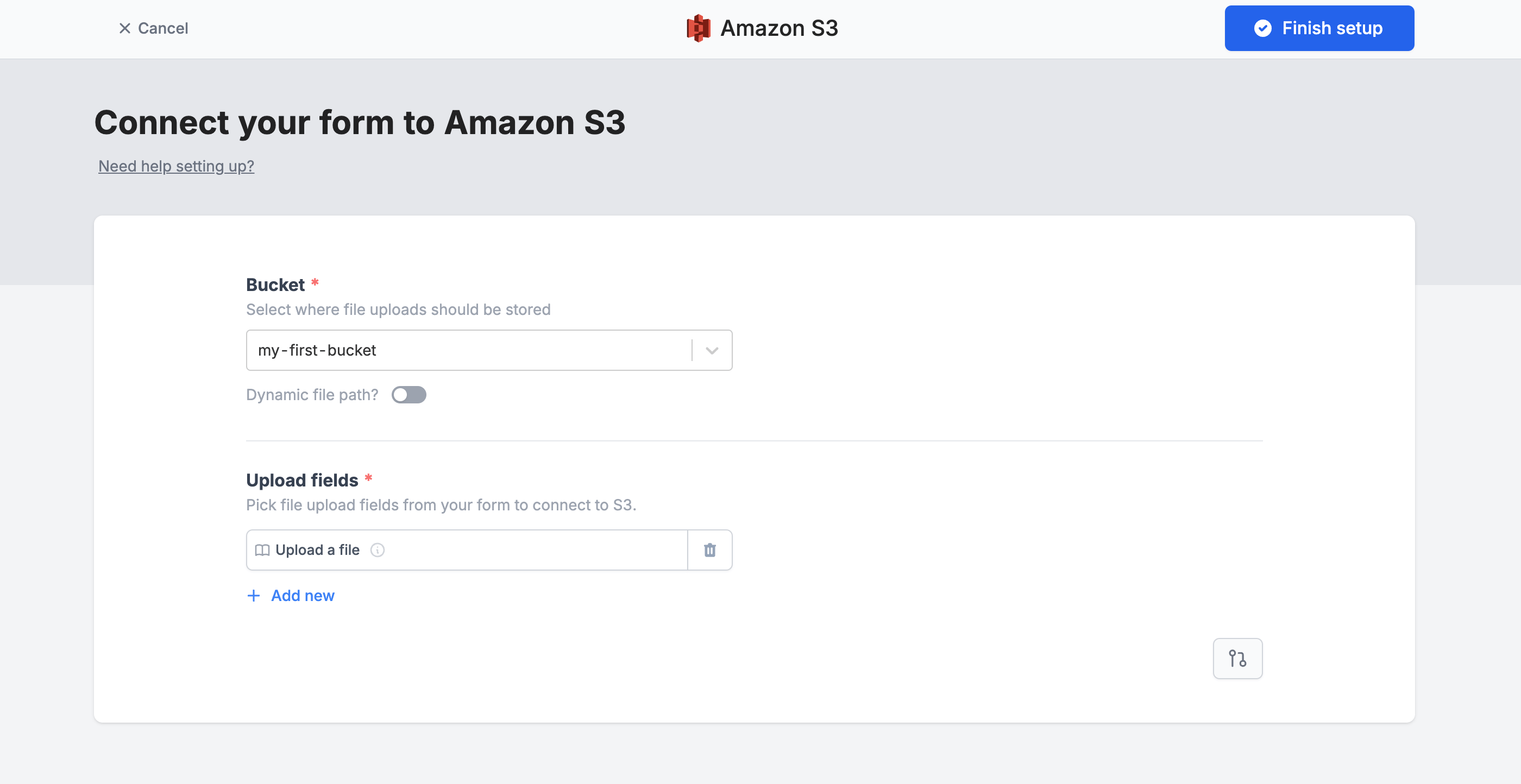 Once everything is set, click `Finish setup` on the upper right corner. That's it! Your form's good to go. Simply `Publish`and share the link.
## Add a dynamic folder path
You can set a dynamic file path to categorize file uploads into folders, based on respondent input. Toggle the `Custom subfolder and file name?` switch, then type a name for your **Folder path fragment** or type **@** to [reference a field](https://www.fillout.com/help/additional-integration-mappings#how-to-map-fields-manually) in your form.
Once everything is set, click `Finish setup` on the upper right corner. That's it! Your form's good to go. Simply `Publish`and share the link.
## Add a dynamic folder path
You can set a dynamic file path to categorize file uploads into folders, based on respondent input. Toggle the `Custom subfolder and file name?` switch, then type a name for your **Folder path fragment** or type **@** to [reference a field](https://www.fillout.com/help/additional-integration-mappings#how-to-map-fields-manually) in your form.
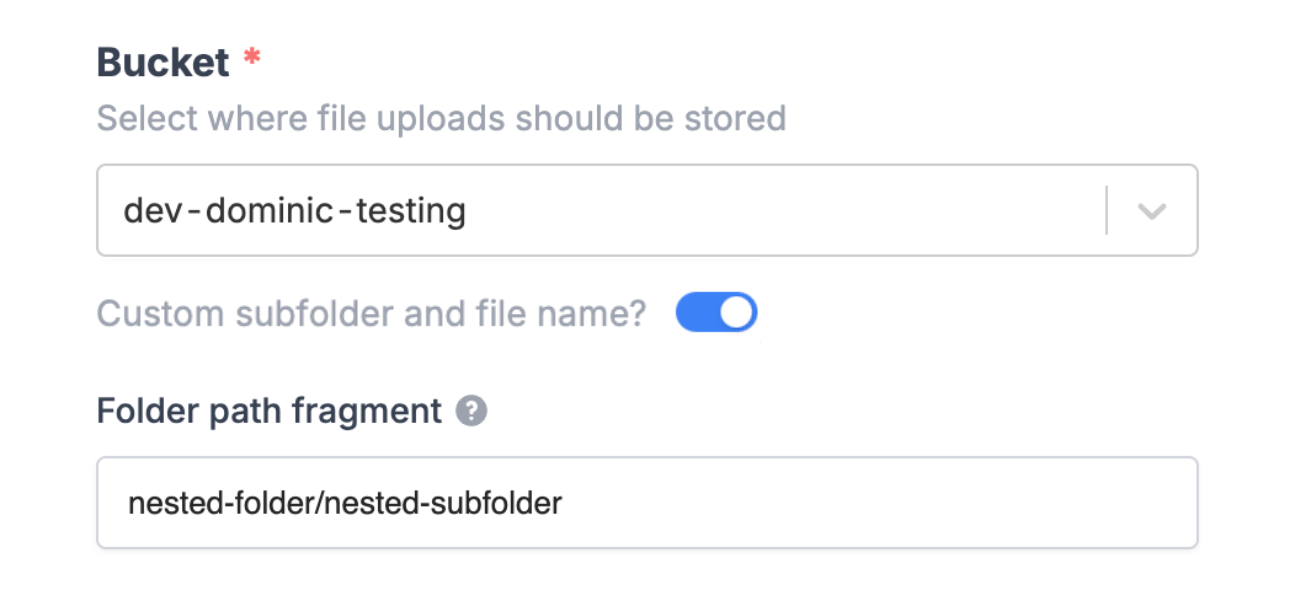 You can also add a subfolder by typing **/** followed by the subfolder name of your choice.
## Personalize filename prefix
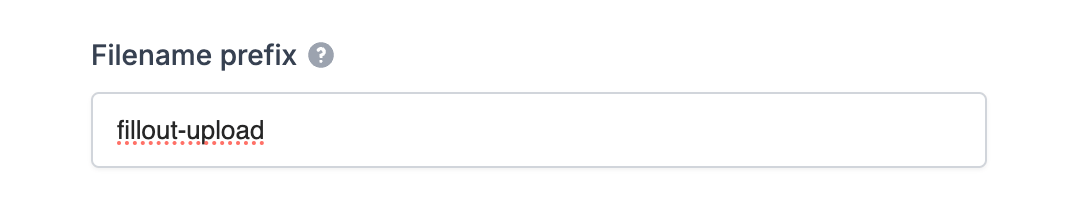
You can also add a **Filename prefix**. Enter text or type **@** to [reference a field](https://www.fillout.com/help/additional-integration-mappings#how-to-map-fields-manually) in your form.
You can also add a subfolder by typing **/** followed by the subfolder name of your choice.
## Personalize filename prefix
You can also add a **Filename prefix**. Enter text or type **@** to [reference a field](https://www.fillout.com/help/additional-integration-mappings#how-to-map-fields-manually) in your form.
 ## Other similar integrations
Automatically upload files with a form.
Automatically upload files with a form.
Automatically upload files with a form.
## Other similar integrations
Automatically upload files with a form.
Automatically upload files with a form.
Automatically upload files with a form.