> ## Documentation Index
> Fetch the complete documentation index at: https://fillout-005a867b-dependabot-npm-and-yarn-form-data-4-0-6.mintlify.site/llms.txt
> Use this file to discover all available pages before exploring further.
# Enable Two-Factor Authentication (2FA)
> Add an extra layer of security to your account. Optionally, require all org members to turn on 2FA.
## Set up 2FA
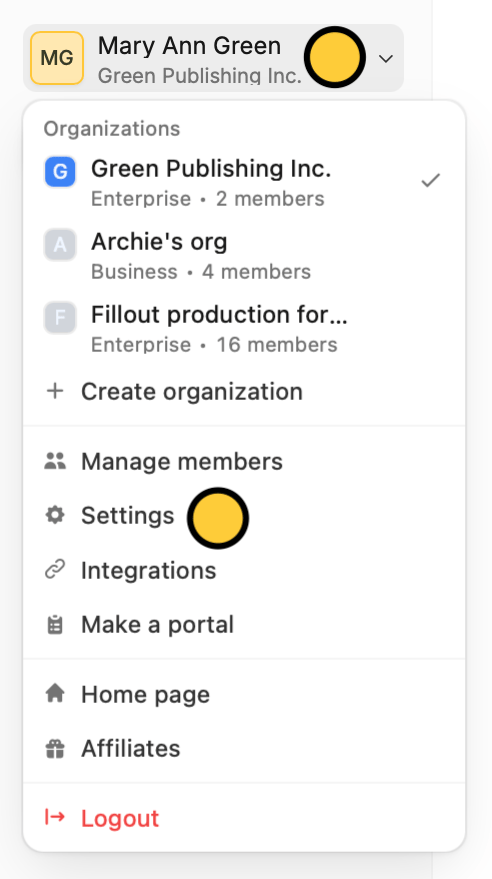
On the upper left corner of your Fillout dashboard, click your `Account name` followed by `Settings`.
 This feature is available on all plans including the Free tier.
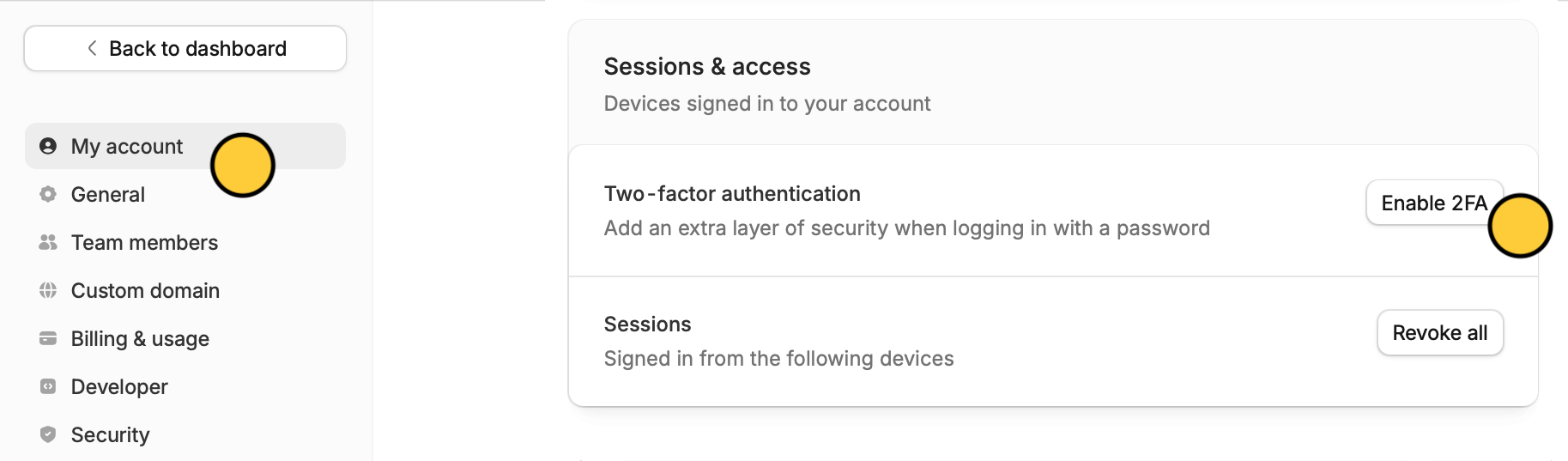
In the **My account** page, `Enable 2FA`.
This feature is available on all plans including the Free tier.
In the **My account** page, `Enable 2FA`.
 Scan the QR code in the popup, and input the **6-digit code** generated by your authentication app or password manager. Then, click `Enable`.
 That's it! 2FA is now enabled. You'll be asked for a 6-digit code from your authentication app or password manager when logging in on a new device or browser.
## Require 2FA for all org members
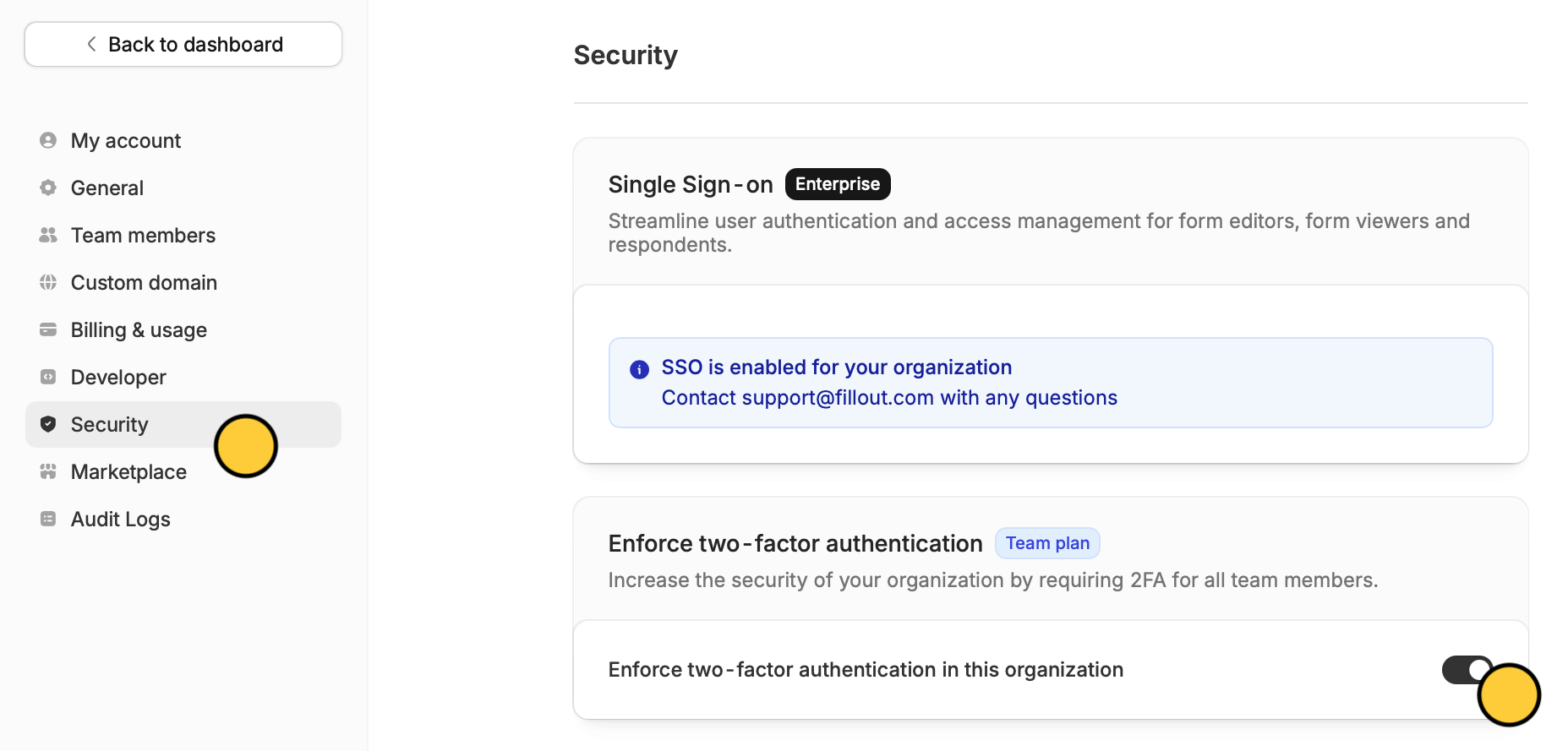
In **Security** settings, toggle the `Enforce two-factor authentication in this organization` switch.
That's it! 2FA is now enabled. You'll be asked for a 6-digit code from your authentication app or password manager when logging in on a new device or browser.
## Require 2FA for all org members
In **Security** settings, toggle the `Enforce two-factor authentication in this organization` switch.
 This feature is available on the **Team** plan. Learn more [**here**](https://www.fillout.com/enterprise).
## Related article
Enable SSO through Okta, Azure AD, and more.
This feature is available on the **Team** plan. Learn more [**here**](https://www.fillout.com/enterprise).
## Related article
Enable SSO through Okta, Azure AD, and more.